pylon Event Logger#
To install the pylon Event Logger, select it during installation in the Select Components dialog of the Framebrabber SDK installer:
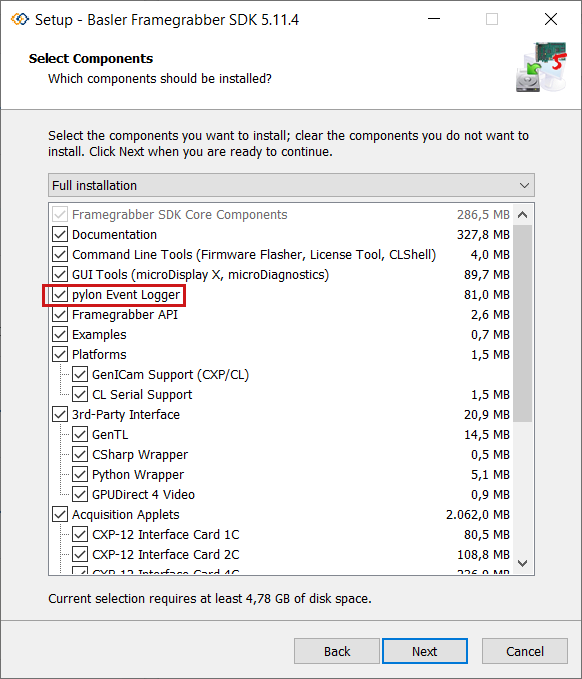
To start the pylon Event Logger:
- Framegrabber SDK: Start the pyloneventlogger.exe from the <Framegrabber SDK installation directory>\Applications\bin.
- GenTL/CXP: Start the pylon Event Logger with the start script bin\pyloneventlogger.
Connecting a Framegrabber SDK Application#
If you start your application from the pylon Event Logger, a configuration file is generated automatically and log messages are forwarded to the pylon Event Logger.
If you start your application in a different way, adapt the settings in the bin/BaslerFgSdkLogging.properties file in the Framegrabber SDK installation directory. Uncomment the following lines and add pylonEventLogger to the list of appenders for log4j.rootCategory:
log4j.rootCategory=NOTICE, pylonEventLogger, stdout

log4j.appender.pylonEventLogger=org.apache.log4j.EltAppender
log4j.appender.pylonEventLogger.layout=org.apache.log4j.PatternLayout
log4j.appender.pylonEventLogger.layout.ConversionPattern=[%d:%t:%c] %p: %m%n
log4j.appender.pylonEventLogger.portNumber=12320
When enabled, the EltAppender opens a network port, to which the PEL GUI can connect. The portNumber must match the port configured in the pylon Event Logger application. The default port is 12320.
For more information about the logging system, see Log Message System.
You find the documentation of the pylon Event Logger in the pylon documentation.