Use Case 1 - Line Status Detection#
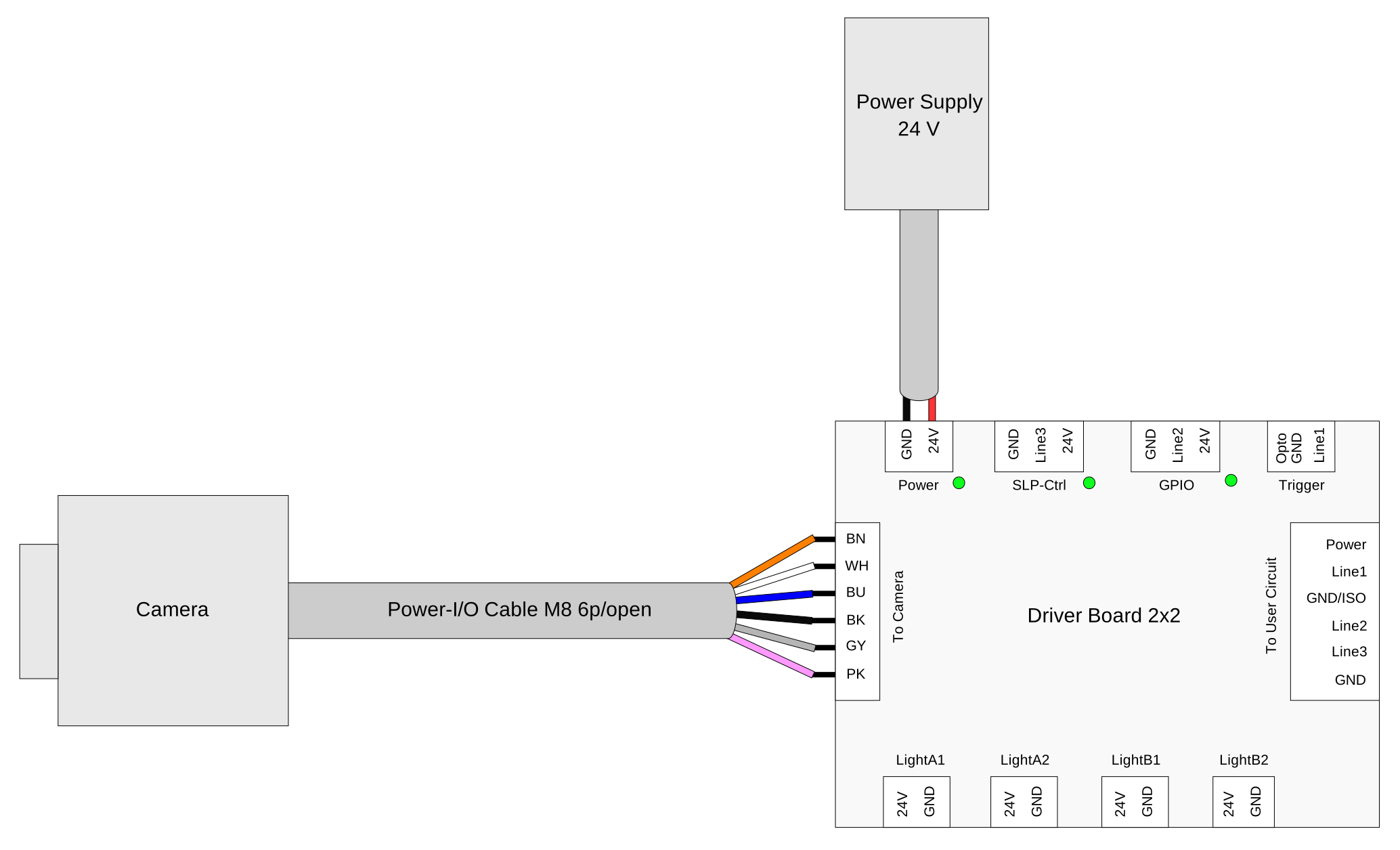
Involved Components#
| Component | Type | Order Number | Description |
|---|---|---|---|
| Camera | Hardware | Depends on camera model, see https://www.baslerweb.com/en/products/ | ace 2, boost R, or racer 2 S camera |
| Power-I/O Cable M8 6p/open | Hardware | 2200000315, 2200000296 | M8 6p/open cable of 5 or 10 m length |
| Power Supply 24 V | Hardware | 2200000958 | Power supply for board and camera |
| Driver Board 2x2 | Hardware | 2200002796 | Breakout and light driver board for Basler components |
| pylon Software Suite | Software | - | Software for configuring the camera |
Connection Overview#
Application#
Purpose#
The purpose of this use case is to visualize the GPIO status for analyzing the timing behavior and verifying the correct IO functionality.
This use case demonstrates the basic functionality of the Driver Board's GPIO lines and is ideal for initial setup verification.
Prerequisites#
- Driver Board 2x2 and fully connected setup (see connection overview)
- pylon Software Suite installed and camera visible in the pylon Viewer
Required Steps#
-
Verify the default status:
- Check whether the onboard power LED is on.
- Check whether the onboard SLP (Line 3) LED is on.
- Check whether the onboard GPIO (Line 2) LED is on.
-
Configure the software:
- Start the pylon Software Suite.
- Click the camera's name in the device tree of the pylon Viewer to select the camera.
- In the Features pane, click Digital I/O Control.
- Set the Line Selector to Line 2.
- Set the Line Mode to Output.
- Set the Line Source to User Output 1.
- Set the User Output Selector to User Output 1.
- Activate Polling.
-
Toggle the User Output Value to verify proper operation.
- Expect the onboard GPIO (Line 2) to have the same status as the user output value.
- Expect the camera's line status to have the same status as the user output value.
Expected Results#
The LED status should follow the user settings and the line status should change accordingly.
Troubleshooting#
Common Issues#
| Symptom | Possible Cause | Measures |
|---|---|---|
| Power LED remains off after connecting power supply. | - No or insufficient power supply - Destroyed fuse | - Check the 24 V power cable connections. - Check the polarity of the supply voltage. - Check the fuse resistance. |
| Line 2 and/or Line 3 LED indicators remain off when they should be on. | - Incorrect wiring - Camera presets not in factory default status | - Verify all wiring connections according to the connection diagram. - Load the factory sets into the camera using the pylon Viewer. - Restart the configuration beginning with step 2 (see the Required Steps section). |
| Line status value in pylon Viewer doesn't reflect the actual line status. | - Polling not activated - Incorrect configuration - Faulty wiring | - In the Digital I/O Control category of the pylon Viewer, check whether Polling is activated. - Check all wiring connections. - Load the factory sets into the camera and restart the configuration beginning with step 2 (see the Required Steps section). |