Use Case 2 - Trigger System#
Involved Components#
| Component | Type | Order Number | Description |
|---|---|---|---|
| Camera | Hardware | Depends on camera model, see https://www.baslerweb.com/en/products/ | ace 2, boost R, or racer 2 S camera |
| Power-I/O Cable M8 6p/open | Hardware | 2200000315, 2200000296 | M8 6p/open cable of 5 or 10 m length |
| Power Supply 24 V | Hardware | 2200000958 | Power supply for board and camera |
| Driver Board 2x2 | Hardware | 2200002796 | Breakout and light driver board for Basler components |
| Trigger Source | Hardware | - | NPN or PNP output (e.g., light barrier, push button, PLC) |
| pylon Software Suite | Software | - | Software for configuring the camera and trigger |
Info
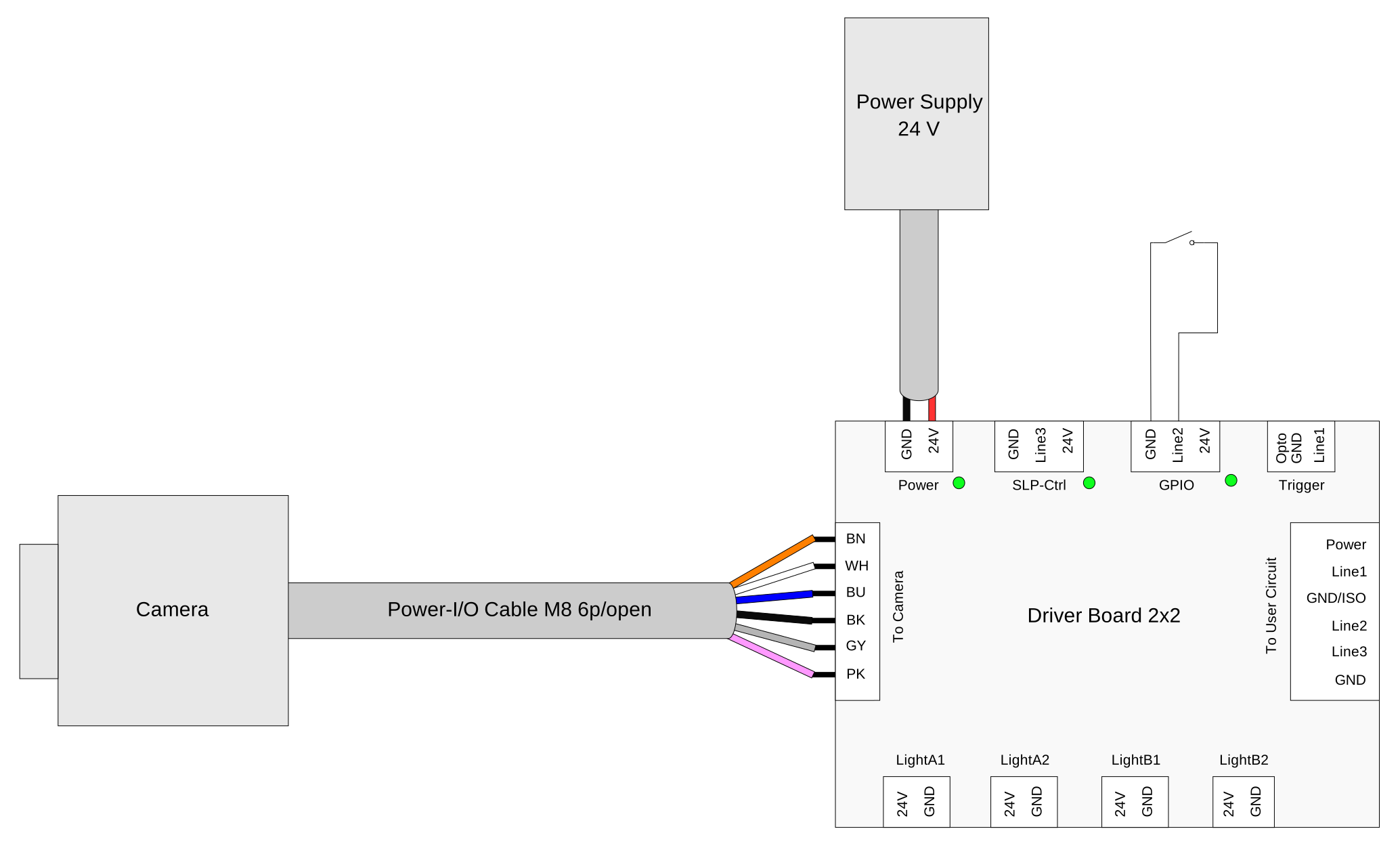
Connection Overview#
The following drawing shows the trigger system architecture and signal flow.
Application#
Purpose#
To start image acquisition, use an external trigger source (e.g., light barrier, push button, or PLC) on Line 2. The Driver Board 2x2 provides the GPIO breakout. The onboard Line 2 LED indicates the current line status and helps you choose the correct trigger activation in the camera.
Prerequisites#
- Driver Board 2x2 and fully connected camera (see connection overview)
- pylon Software Suite installed and camera visible in the pylon Viewer
Wiring Line 2: NPN (Sinking) and PNP (Sourcing)#
Connect your trigger source to Line 2 using one of the following schemes:
NPN (sinking) without pull-up#
- The sensor/switch switches Line 2 to GND when active (e.g., light barrier interrupted, button pressed).
- The camera has an internal pull-up resistor to 3.3 V from Line 2, so that Line 2 is high when the NPN output is off and low when the NPN conducts.
- When the trigger event occurs, the line goes from high to low. Configure the camera for
FallingEdgetrigger activation. - A button between Line 2 and GND is sufficient to test this use case.
NPN (sinking) with pull-up to 24 V#
- The sensor/switch switches Line 2 to GND when active (e.g., light barrier interrupted, button pressed).
- Use a pull-up resistor from Line 2 to 24 V so that Line 2 is high when the NPN output is off and low when the NPN conducts.
- When the trigger event occurs, the line goes from high to low. Configure the camera for
FallingEdgetrigger activation.
PNP (sourcing) with pull-down to GND#
- The sensor/switch switches Line 2 to 24 V when active (e.g., light barrier interrupted, button pressed).
- Use a pull-down resistor from Line 2 to GND so that Line 2 is low when the PNP output is off and high when the PNP conducts.
- When the trigger event occurs, the line goes from low to high. Configure the camera for
RisingEdgetrigger activation.
Using the Line 2 LED to Set Trigger Activation#
The onboard Line 2 (GPIO) LED shows the current electrical status of Line 2. Use the status to decide how the camera should trigger:
- LED on when trigger event is present (e.g., light barrier interrupted, button pressed):
The line is high in the active status. The camera should trigger on the rising edge when the trigger becomes active. Set the TriggerActivation to RisingEdge.
- LED off when trigger event is present (e.g., light barrier interrupted, button pressed):
The line is low in the active status. The camera should trigger on the falling edge when the trigger becomes active. Set the TriggerActivation to FallingEdge.
Observe the LED during the trigger condition. If the LED is on in that moment, set the TriggerActivation to RisingEdge. If the LED is off, set the TriggerActivation to FallingEdge.
Required Steps#
-
Wire the trigger source to Line 2:
- For NPN: Pull-up to 24 V; trigger pulls Line 2 to GND when active.
- For PNP: Pull-down to GND; trigger drives Line 2 to 24 V when active.
-
Check the Line 2 LED:
- Cause the trigger condition (e.g., interrupt light barrier, press button).
- Check whether the Line 2 LED is on or off in that status. If the LED is on, set the
TriggerActivationtoRisingEdge. If the LED is off, set theTriggerActivationtoFallingEdge. (See also step 3.)
-
Configure the camera in the pylon Viewer:
- In the Features pane, click the Acquisition Control category.
- Set the Trigger Selector to Frame Start (or the desired trigger type).
- Set the Trigger Mode to On.
- Set the Trigger Source to Line 2.
- Set the Trigger Activation to Rising Edge or Falling Edge according to the LED (see Using the Line 2 LED to Set Trigger Activation).
-
Start image capturing and verify by triggering the source and check that images are acquired at the expected edge.
Expected Results#
The camera acquires one image per trigger event on Line 2. The Line 2 LED matches the line level. The chosen Trigger Activation (Rising Edge or Falling Edge) matches the wiring and trigger source so that acquisition occurs when the trigger condition is present.
Troubleshooting#
Common Issues#
| Symptom | Possible Cause | Measures |
|---|---|---|
| Line 2 LED stays off or on and doesn't reflect the trigger state | - Incorrect wiring (Line 2 not connected or wrong terminals) - Wrong polarity - Pull-up/pull-down missing or wrong value | - Verify that the trigger output is connected to the Line 2 terminals on the Driver Board and that the cable is connected to the camera via the board. - For NPN: Ensure a pull-up resistor from Line 2 to 24 V. When the sensor activates, Line 2 should go low (LED off). - For PNP: Ensure a pull-down resistor from Line 2 to GND. When the sensor activates, Line 2 should go high (LED on). - Check that Driver Board and camera are powered and that the factory defaults are loaded if the line is configured as output (see Use Case 1 - Line Status Detection). |
| Images are acquired when the trigger is released instead of when it is activated, or no images are acquired on trigger. | Trigger activation doesn't match the wiring and LED state, e.g., Rising Edge is set but the line goes low on trigger (NPN without inversion) or vice versa. | - Observe the Line 2 LED during the trigger condition (e.g., light barrier interrupted, button pressed). If the LED is on in that state, set Trigger Activation to Rising Edge. If the LED is off, set Trigger Activation to Falling Edge. - Ensure that the Trigger Source is set to Line 2 and the Trigger Mode is set to On. - Re-check NPN versus PNP wiring and pull-up/pull-down so that the line level matches the intended trigger condition. |
| Camera triggers without trigger event or doesn't trigger on events | - Noisy signal - Bouncing (e.g., push button) - Trigger rate exceeds camera frame rate | - Add debouncing or filtering (hardware or camera line debouncer, if available) for mechanical contacts. - Verify pull-up/pull-down resistor values for a stable level when the switch or sensor is idle. - Ensure that the trigger rate doesn't exceed the camera's maximum frame rate and that the camera is ready to accept the next trigger (see Acquisition Timing Information). |
Debug Tips#
- Use the Line 2 LED to confirm the electrical state of Line 2 before configuring the camera.
- In the pylon Viewer, use Digital I/O Control and Polling to read the Line 2 status while operating the trigger source.
- If available, use an oscilloscope or multimeter on the Line 2 terminals to verify voltage levels (Low < 0.8 V, High ≥ 2 V for GPIO).
Further Steps#
Use Case 2 and Use Case 3 - Simple Light can be combined to get both triggered image acquisition and synchronized flash lighting.