Handling and Cleaning (Basler Module QSFP28 100G SR4 MPO 100m)#
These instructions apply to every device that uses the QSFP28 module and an MPO cable. The host is the camera, the frame grabber, or the interface card.
Clean the optical interfaces before every connection when you can separate the fiber optic cable from the QSFP28 modules. Leave a cable that is permanently attached to the modules connected at that junction.
Info
These instructions apply to the following products:
- racer 2 XL cameras
- imaFlex 2 Dual 100 frame grabbers (connectors C0 and C1)
- Basler 100GigE Interface Card, 2-CH, QSFP28
- Basler Module QSFP28 100G SR4 MPO 100m
- Basler Cable Optical, MPO, 8x PC/F
Info
Contamination on a fiber end face can damage the connector and can reduce signal quality and lifetime. Even microscopic contamination can degrade the signal.
The cable and the QSFP28 module have a limited number of plugging cycles. For the cable limit, see Safety and Handling. For the module limit, see Safety and Handling.
Handling#
Observe the following:
- Remove a dust cap only when you are ready to clean or to connect.
- Hold a QSFP28 module by the housing.
Cleaning#
NOTICE – Unsuitable cleaning may damage the optical surfaces.
Dirty or damaged optical surfaces can cause signal loss or a complete link failure.
- Use only an MPO cleaning tool approved for MPO-12 interfaces (push-on / one-click).
- Do not use liquids or wipes on the MPO connector or on the QSFP28 optical port.
- Do not insert any object other than the approved cleaning tool into an optical port.
- Do not use excessive force.
- If heavy contamination is still visible after cleaning, repeat the cleaning.
The following image shows an MPO cleaning tool (push-on / one-click) for MPO-12 interfaces:
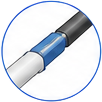
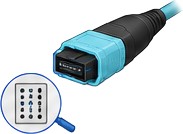
The procedure is the same for a key-up connector and a key-down connector. The following image shows the end face of the MPO connector and the fiber positions:
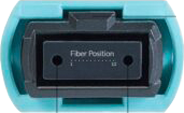
Cleaning the MPO Cable#
Clean both ends of the cable.
To clean an MPO cable connector:
- Disconnect the fiber connection, or shut the optical link down safely.
-
Remove the dust cap. Place the connector on a clean, dust-free surface.
Do not touch the end face with your fingers or with any object.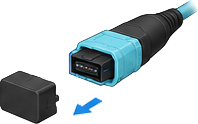
-
Blow loose particles off the connector with filtered, oil-free compressed air that is approved for optics.
Do not aim the air stream directly at the optical end face.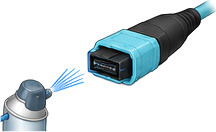
-
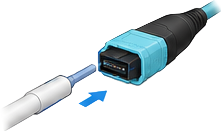
Place the MPO cleaning tool straight on the end face. Push gently until you feel a click.
-
Inspect the end face. If you have a fiber inspection microscope, use it. The end face must be clean and free of scratches, pits, and contamination.
-
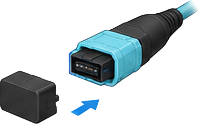
If you are not connecting the cable immediately, fit the dust cap.
Cleaning the QSFP28 Module#
Use the following steps for a module that is removed from a racer 2 XL camera, from connector C0 or C1 of an imaFlex 2 Dual 100 frame grabber, or from a Basler 100GigE Interface Card, 2-CH, QSFP28.
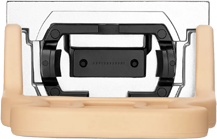
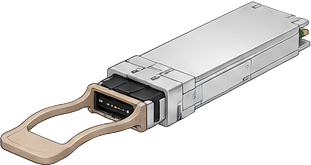
The following image shows the optical port of the QSFP28 module:
To clean the optical port of a QSFP28 module:
- Disconnect the fiber connection, or shut the optical link down safely.
- Disconnect the MPO cable from the module.
-
Remove the module from the host port. Place the module on a clean, dust-free surface. Hold the module by the housing.
-
Blow loose particles off the module with filtered, oil-free compressed air that is approved for optics.
Do not aim the air stream directly into the optical openings.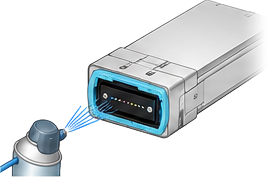
-
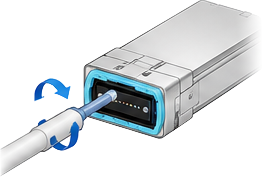
Insert the MPO cleaning tool straight into the MPO-12 port. Push gently until you feel a click. One or two clicks are sufficient.
-
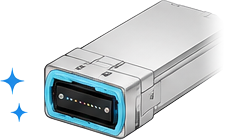
Inspect the optical surfaces. The surfaces must be free of contamination.
-
Insert the module into the host port until the locking mechanism engages.
- If you are not connecting the module immediately, fit the dust cap.
- Repeat these steps for every QSFP28 module that you connect.
If the Optical Link Is Unstable#
If the link is unstable, if packets are lost, or if the connection fails, inspect and clean all optical interfaces again.
For cable polarity, the link budget, cooling, and diagnostic monitoring, see Troubleshooting.