Basler Vision Connector#
Info
You can configure different Basler camera models (GigE, USB) with the Basler Vision Connector app. However, the Basler Vision Connector app only supports GigE cameras as the Siemens Industrial Edge devices can currently only deal with GigE cameras, e.g., Basler ace 2.
From the Marketplace to the First Image#
To acquire a first image, the following steps are necessary:
- Get access to the Siemens Industrial Edge Marketplace and obtain the Basler Vision Connector. The app is free of charge. You need an add-on license only for a Multi-Camera Connection or for vTools that require a license. See the Industrial Edge Marketplace documentation and Basler Vision Connector Licensing.
- Install and configure the Industrial Edge Management instance and the Industrial Edge Devices for your use case. See the Siemens Industrial Edge documentation.
- Install the Basler Vision Connector app on your Industrial Edge Device using the Industrial Edge Management and enable the layer 2 network on the Industrial Edge Device. See Installing the Basler Vision Connector.
- Set the camera's IP address so that it is in the layer 2 network range. See Configuring the Camera's IP Address.
- Open the Web UI and acquire the first image.
Messaging and vTools are the next step, after this image is visible. See Roles and Access for a short reading path per role.
Recommended Starting Point#
For a first setup, Basler recommends:
- One GigE camera on a BX-39A or BX-59A Industrial Edge device
- The Web UI for the first image
- The MQTT root topic
BaslerVisionConnector, unless you enter another root topic during installation - pylon version 26.10 or lower when you create or edit vTool recipes. A pylon version higher than 26.10 isn't supported.
Use messaging when your application must control the camera or receive recipe results.
Required Knowledge#
The Basler Vision Connector and Basler digital cameras for machine vision are designed for use by professionals only, concerned with the following tasks:
- Camera integration and setup
- Everyday camera use
For installing and configuring your Industrial Edge devices and the Basler Vision Connector app, you require the following knowledge:
- Knowledge about MQTT / ZeroMQ protocol communication
- Knowledge working with Docker and Docker container is helpful.
The Basler Vision Connector documentation assumes the skills of electrical engineers, systems engineers, mechatronics engineers, technicians, and information technology engineers. Basler Vision Connector and camera use isn't allowed for persons with insufficient skills or with impairments that prevent them from doing the following tasks:
- Using cameras correctly
- Adhering to the safety instructions
- Fully understanding all relevant camera documentation and other linked documentation
Prerequisites#
To install and use the Basler Vision Connector, you need the following tools and hardware:
- A working Internet connection.
- Access to the Siemens Industrial Edge Hub (provided by Siemens).
Contact Siemens to get your personal access to the hub. - Installed and configured Siemens IEM Instances and all IE devices you require for your use case. For information about installing the IEM instances and IE devices, see the Siemens documentation. Requirements for the IE devices, see in section Prerequisites of the IE Device.
- Installed Basler GigE camera. The Basler Vision Connector only supports Basler GigE cameras, but it doesn't support GigE Vision 3.0 with Remote Direct Memory Access (RDMA). Cameras that use GigE Vision 3.0 with RDMA fall back to the GigE Vision 2.0 protocol. This may reduce performance.
For further information about Basler camera installation and configuration:- Go to the Camera Documentation, select the camera model you installed in your factory or search for your camera model via the camera filter (located to the left of the Search field of this documentation).
- When the camera model is selected, the camera and its feature documentation are displayed. Read the safety instructions of your camera model.
- To connect more than one camera, or to use vTools that require a license, you need the corresponding add-on license and you assign it to your Industrial Edge Device. See Basler Vision Connector Licensing for more details.
- To create or edit vTool recipes, use pylon version 26.10 or lower. The Basler Vision Connector doesn't support vTool recipes that you create or edit in a pylon version higher than 26.10.
Prerequisites of the IE Device#
To connect your GigE camera, Basler recommends using the BX-59A, or BX-39A Industrial Edge device. See Connecting Cameras. Basler recommends the following prerequisites for these IE devices:
-
Memory limit: 5,5 GB of free memory space on your Edge Device.
The memory limit reserves the maximum memory space needed by the Basler Vision Connector. The actual used memory depends on the number of cameras used, the image sizes and amount of frame buffers used (default is 10 frame buffers per camera) and vTools used. If you have a scenario in your project that requires less memory, e.g., if you have only one camera with a small image size and a small number of frame buffers, you can disable the memory limit check as described in the Siemens Industrial Edge Device documentation.
If your use case requires more than 5,5 GB memory, contact the Basler Support.
-
Minimum version number of the Industrial Edge OS (running on the IEDs):
- For hardware IEDs (such as BX39 and BX59): simatic-ipc-ied-os-3.0.0-51-x86-64
- For virtual IEDs (IEVD): ievd-1.22.3-1-a
- For IE own devices (IEOD): ieod-1.22.3-1-a
-
If you want to connect more than one camera to your IE device:
- You need a Multi-Camera Connection license. See Basler Vision Connector Licensing for details on the BVC licensing concept.
- Basler recommends to use one of the following network switches to connect several cameras with your IE device:
- Netgear GS110TP, or
- Netgear MS510TXPP for a broader bandwidth.
- For 10GigE cameras, Basler recommends using the BX-59A device with a network interface card (such as the Broadcom NetXtreme 2x 10GbE, LAN-Adapter).
Planning Memory and Throughput#
The image width and height, the frame rate, the number of cameras, the number of frame buffers per camera, and the vTools in a recipe determine the memory and the throughput. The default is 10 frame buffers per camera. The memory limit above reserves 5,5 GB for the Basler Vision Connector.
To check a configuration for your use case:
- Start with one camera and a small image size.
- Increase the frame rate and the image size only while the image display area shows a stable image and the Message Log reports no errors.
- When you add a camera or a vTool, repeat this check.
You can disable the memory limit check when your scenario needs less than 5,5 GB, as described above. When your use case needs more than 5,5 GB, contact the Basler Support.
Programming and Test Tools#
- To set up MQTT and ZeroMQ messaging, you can use the Siemens Industrial Edge Flow Creator application (IE Flow Creator).
- The IE Flow Creator uses the flow-based Node-RED development tool.
- Siemens Databus application for testing.
- Siemens Data Flow Monitoring application.
System Architecture#
The following diagram shows the Basler Vision Connector in a Siemens Industrial Edge system.
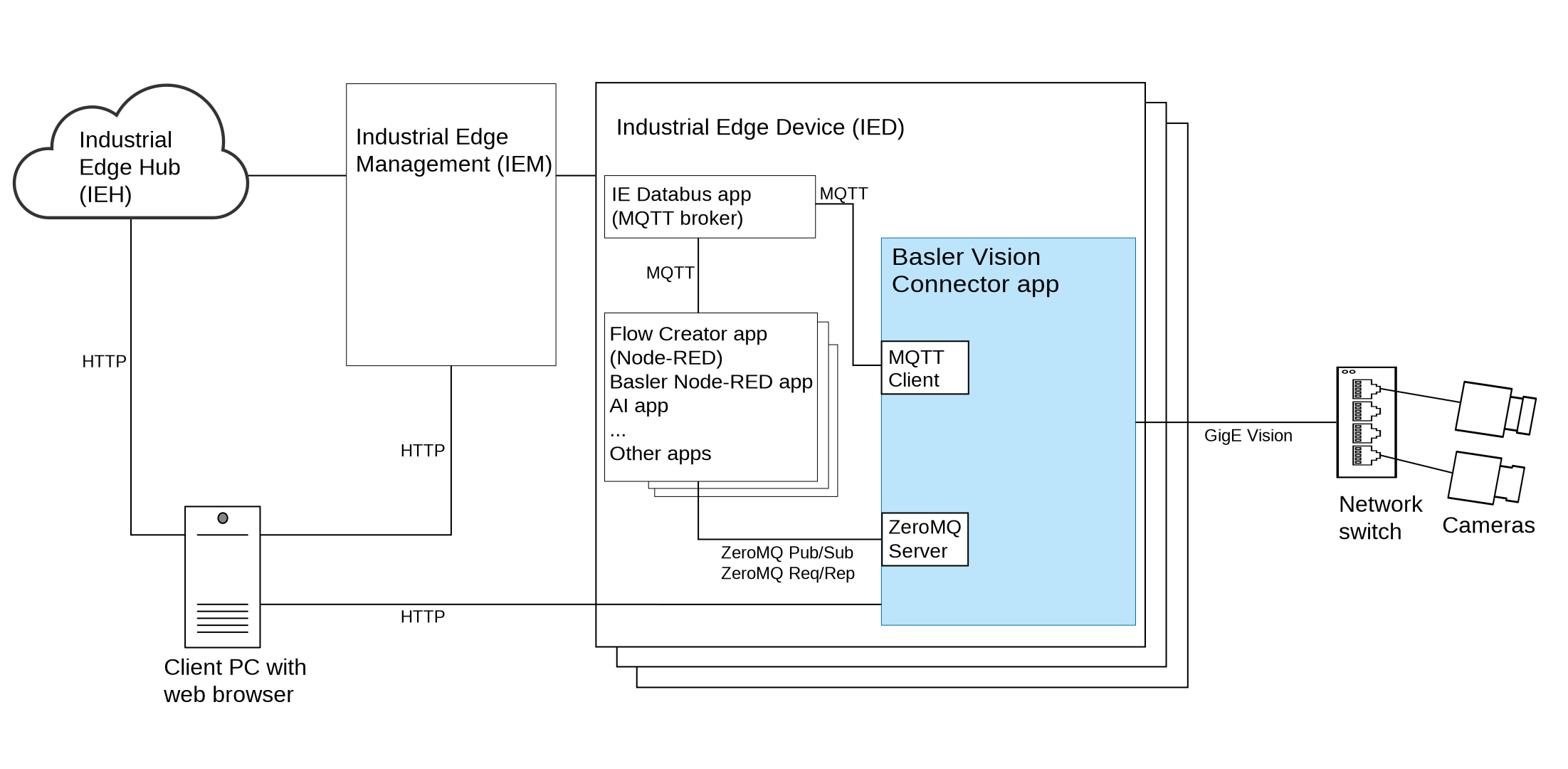
- Industrial Edge Hub (IEH): You obtain the Basler Vision Connector app here and copy it to your Industrial Edge Management instance. The app is free of charge. When your use case needs a Multi-Camera Connection or vTools that require a license, you purchase the corresponding add-on license here. See Installation Steps in the Industrial Edge Hub and Basler Vision Connector Licensing.
- Industrial Edge Management (IEM): With the Industrial Edge Management, you deploy the Basler Vision Connector app and other apps to the Industrial Edge Device and set the protocol defaults, including the MQTT root topic. See Installation Steps in the Industrial Edge Management Platform.
- Client PC with a web browser: The client PC connects via HTTP to the Industrial Edge Hub, to Industrial Edge Management, and to the Industrial Edge Device with the Basler Vision Connector app.
- Industrial Edge Device (IED): The Industrial Edge Device runs the IE Databus app, the Basler Vision Connector app, the Flow Creator app, the Basler Node-RED app, the AI app, and other apps.
- IE Databus app (MQTT broker): The IE Databus app is the MQTT broker on the Industrial Edge Device.
- Flow Creator app (Node-RED), Basler Node-RED app, AI app, and other apps: These apps run on the Industrial Edge Device. They connect to the IE Databus app via MQTT and to the ZeroMQ server via ZeroMQ Pub/Sub and via ZeroMQ Req/Rep. From the Flow Creator app, you can send the JSON test files to the Basler Vision Connector app. See Using the JSON Test Files with Industrial Edge Flow Creator.
- Basler Vision Connector app: The Basler Vision Connector app runs on the Industrial Edge Device. It contains the MQTT client and the ZeroMQ server, the Basler Vision Connector WebUI and it connects to the network switch over GigE.
- MQTT client: The MQTT client is part of the Basler Vision Connector app. It connects to the IE Databus app via MQTT.
- ZeroMQ server: The ZeroMQ server is part of the Basler Vision Connector app. It provides ZeroMQ Pub/Sub and ZeroMQ Req/Rep. See the Messaging Concept and Connecting Your App to the Basler Vision Connector.
- Network switch: The network switch connects the cameras to the Basler Vision Connector app.
- Cameras: The cameras connect to the network switch. See Connecting Cameras.
Additional Information#
- For camera and accessory information, see the Camera Documentation or the Accessories Documentation.
- For detailed information about Siemens IE devices and management, see the Siemens Industrial Edge Documentation