Installing a Camera Enablement Package (GMSL Cameras)#
Camera Enablement Packages provide out-of-the-box configuration for supported host systems that have been tested to work well with Basler ace 2 GMSL cameras. See here to download the Camera Enablement Package for your host system.
Before you start#
Make sure that the following requirements are fulfilled before you start installing the Camera Enablement Package:
- Internet connection with access to the Ubuntu APT mirrors must be available:
Depending on the configuration and software installed on your host system, during software installation, it may be necessary to install additional, distribution-specific packages. These packages are automatically installed from the Internet during the installation of the Camera Enablement Package. - The pylon Software Suite for Linux must be installed on your host system.
Installing the Camera Enablement Package#
To install the Camera Enablement Package for GMSL Cameras:
- Select the supported host system in the "All Camera Enablement Packages at a glance" section on the GMSL Vision System page of the Basler website.
-
Click the link in the Camera Enablement Package column for the selected host system.
The Download Software window is opened offering links to two download options:
You can download a selfsh file or a tar.gz file.
In addition, you have access to the ReadMe file and the release notes.
The following steps show the selfsh option: -
Click the selfsh file link.
The selfsh file is saved in the Downloads folder on your computer. -
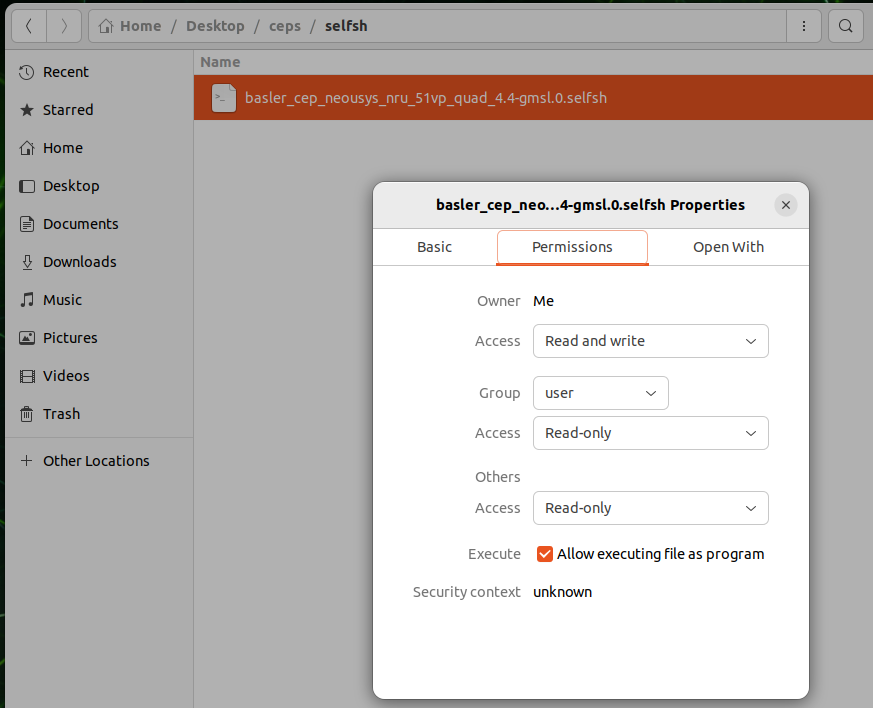
Make sure that the selfsh file is an executable:
- Right-click on the selfsh file.
- Go to Properties > Permissions tab > and enable the Allow executing file as program check box.
-
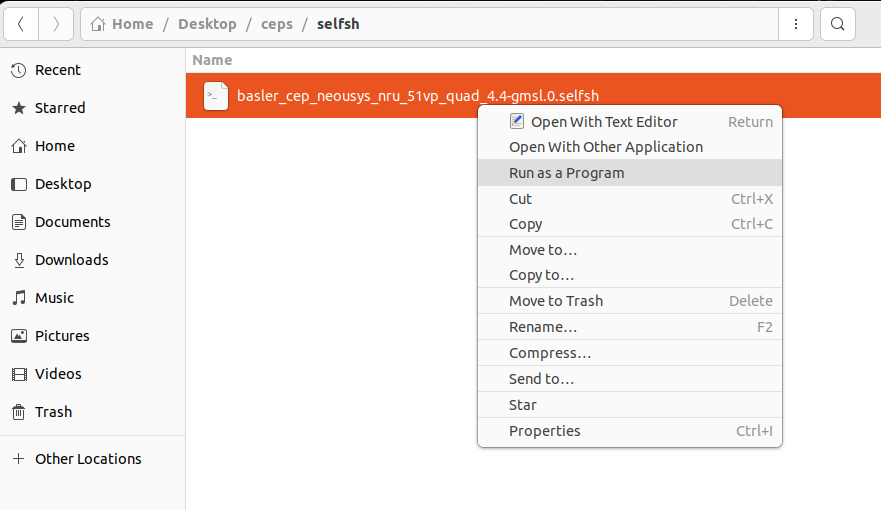
Right-click on the downloaded Camera Enablement Package .selfsh file and select Run as Program.
-
In the Terminal window:
Enter your Linux user password (script requires extended access rights) and press the Enter key.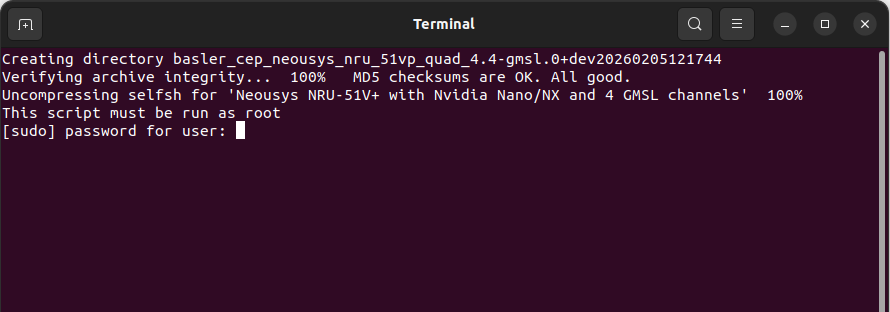
-
The selfsh file is automatically unpacked and additional, distribution-specific packages are automatically installed in the corresponding folders on your host system.
-
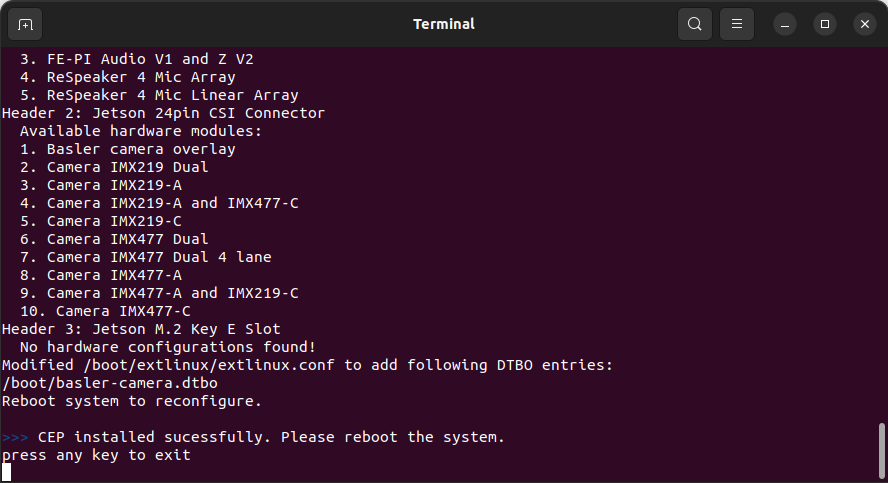
When the package has been successfully installed:
Press any key to exit the Terminal window. - After installation of the Software Enablement Package:
Shutdown your system to execute the next installation steps (hardware installation).
Next Steps#
See the Hardware Installation (GMSL Cameras) topic for information about the next steps.