Peripheral Devices Control#
The features included in Peripheral Devices Control are based on the SLP protocol that enables cameras and light or optical devices to communicate directly with each other.
The Peripheral Devices Control section includes the following camera features and their parameters:
- Peripheral Devices Control topic:
Some parameters are shared across different types of peripheral devices and are therefore described in the present topic, including configuration steps. - Light Control topic:
Parameters used exclusively for light devices operated with Basler ace 2, boost R, and dart M cameras.
For information about the Light Control feature for Basler ace U and ace L cameras, as well as ace 2, boost R, and dart M cameras without the Peripheral Devices Control feature, see the Light Control (ace U/L) topic. - Optic Control: Parameters used exclusively for optical devices such as lenses.
The following information is available for all peripheral devices:
- Device Type: Type of the selected peripheral device.
- Model Name: Product name and model designation of the device.
- Firmware Version: Firmware version currently installed on the device.
- Error Status: Current error state of the peripheral device, including any active fault conditions.
The values displayed in these fields depend on the currently selected peripheral device. When you select a different peripheral device, the displayed information is updated accordingly to show the device-specific values.
For information about the remaining parameters, refer to Using the Peripheral Devices Control Parameters.
Parameters that are specific to a particular device type are available and described in the corresponding feature topic (Light Control or Optic Control).
Info
For information about parameter name changes and migration from earlier firmware versions, see the table in the Compatibility and Parameter Mapping topic. The topic provides an overview of legacy-to-new parameter mappings.
The following sections describe the functionality that applies to both light devices and optic devices.
Using the Feature#
Preparing Peripheral Devices#
To prepare your peripheral devices:
- If you haven't done so yet, connect the peripheral devices (e.g., lights, lenses) and controllers, if required.
- Turn on power.
-
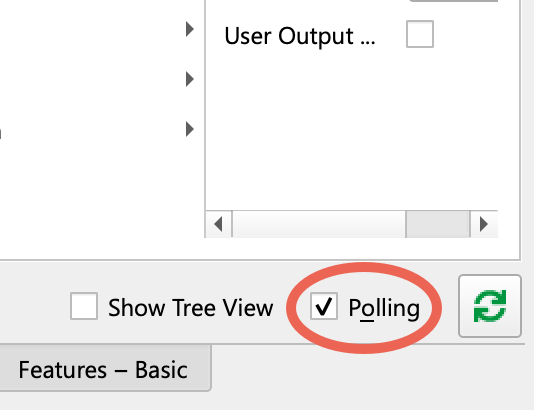
When using the pylon Viewer, make sure the Polling option in the Features pane is selected:
-
Make sure the camera is idle, i.e., not capturing images.
- Set the
BslPeripheralControlModeparameter toOn.
This enables light device communication via GPIO line and sets Line 3 toPeripheralControl. - Execute the
BslLightControlEnumerateDevicescommand.
This assigns a light device ID to new devices and enable access to the light devices connected. - If
BslPeripheralErrorSummaryshows errors, check all connected devices (lights and lens) by setting theBslPeripheralDeviceSelector, and to the peripheral device you want to check.
TheBslPeripheralDeviceErrorStatusparameter shows you the status of the selected device. - You only need to configure
BslPeripheralDeviceTriggerSourceandBslPeripheralDeviceTriggerActivationif you want to use a connected light for strobing.
For most applications, the default valueFlashWindowsforBslPeripheralDeviceTriggerSourceis a good choice.
For information, see the Configuring Trigger Signals and Strobe Duration section in the Light Control topic. If you use continuous light, you don't need to configure either parameter.
Configuring Trigger Signals and Strobe Duration#
Peripheral devices are triggered via signal configured in BslPeripheralDeviceTriggerSource. The effect of a trigger depends on the type of peripheral device connected. There is only one trigger signal transmitted to all peripheral devices.
The following example shows how a light in strobe mode state changes in response to a trigger signal:
- Initially, the light is off.
- The light is turned on by a trigger signal.
- The light stays on for a certain amount of time, which is the strobe duration
- After the strobe duration has expired, the light is turned off again.
To configure the trigger signals and strobe duration on cameras with the Peripheral Devices Control function:
- Set the
BslPeripheralTriggerSourceparameter to the source that you want to use to turn on the connected lights, e.g.,FlashWindow. - If applicable, set the
BslPeripheralTriggerActivationparameter to one of the following values:RisingEdge(default):
All connected lights are turned on when the signal rises, i.e., when the signal status changes from low to high.FallingEdge:
All connected lights are turned on when the signal falls, i.e., when the signal status changes from high to low.AnyEdge: All connected lights are turned on when the signal falls or rises.
Checking and Clearing Errors#
Basler ace 2, boost R, and dart M cameras can read the following error data from connected peripheral devices:
The error status can help to correct errors yourself.
To check and clear errors:
- If you have several devices connected:
- Check the
BslPeripheralErrorSummaryparameter to find out which device is experiencing problems, e.g.,Device2. If more than one device is experiencing problems, the value will beMultipleDevices. - Set the
BslPeripheralDeviceSelectorparameter to the device that is experiencing problems.
- Check the
- Get the value of the
BslPeripheralDeviceErrorStatusparameter and look up its meaning in the Error Statuses table below.
Info
You can use the BslPeripheralOvertriggerCount parameter to determine how many trigger signals were received while one or more connected peripheral devices were not ready to process them.
Error Statuses#
The BslPeripheralDeviceErrorStatus parameter can take the following values:
| Value | Meaning |
|---|---|
| No Error | No error was detected. |
| Not Connected | The peripheral device is not connected to the camera or has not been enumerated yet. Execute the BslPeripheralEnumerateDevices command to enumerate the device. |
| Communication Error | A communication error occurs if the data transmission between the peripheral device and the camera is faulty. This can be caused by using cables that are too long or by too much noise on the line. |
| Connection Lost | The connection to a previously connected light device has been lost. This can happen, for example, if a cable has become loose. |
| Hardware Error | The light device is experiencing a technical fault. For more information about the kind of hardware error, execute the BslLightDeviceErrorStatusReadAndClear command to retrieve an error code.[^a] |
| Peripheral Device Error | The peripheral device is experiencing an internal error.[^a] |
| Unsupported Device Version | The peripheral device is not compatible with the current camera. Contact support to find out whether firmware updates are available. |
Checking Device Information#
You can read details about the attached devices from the camera:
- Select the device to use using
BslPeripheralDeviceSelectore.g.Device2. - Check the type of device using
BslPeripheralDeviceType. The value will be eitherLightControlorOpticControl. - Get the model name and firmware version of the attached device using
BslPeripheralDeviceModelNameandBslPeripheralDeviceFirmwareVersion.
Sample Code#
Info
The code samples apply only to cameras that include the Peripheral Devices Control feature in their firmware.
ace 2, boost R, dart M Cameras#
// Enable the peripheral devices control mode
camera.BslPeripheralControlMode.SetValue(BslPeripheralControlMode_On);
// Enumerate the peripheral devices
camera.BslPeripheralEnumerateDevices.Execute();
// Check the error summary for any errors that might have occurred
auto summary = camera.BslPeripheralErrorSummary.GetValue();
// Configure the trigger source for all devices.
camera.BslPeripheralTriggerSource.SetValue(BslPeripheralTriggerSource_FlashWindow);
// Trigger on the rising edge of the selected signal.
camera.BslPeripheralTriggerActivation.SetValue(BslPeripheralTriggerActivation_RisingEdge);
// Check for overtrigger from the selected trigger source and reset it
auto count = camera.BslPeripheralOvertriggerCount.GetValue();
camera.BslPeripheralOvertriggerCountReset.Execute();
// Select the peripheral device to configure.
camera.BslPeripheralDeviceSelector.SetValue(BslPeripheralDeviceSelector_Device1);
// Check device type and model name and firmware version
auto deviceType = camera.BslPeripheralDeviceType.GetValue();
auto modelName = camera.BslPeripheralDeviceModelName.GetValue();
auto firmwareVersion = camera.BslPeripheralDeviceFirmwareVersion.GetValue();
// Read error status of the device
auto status = camera.BslPeripheralDeviceErrorStatus.GetValue();
INodeMap& nodemap = camera.GetNodeMap();
// Enable the peripheral devices control mode
CEnumParameter(nodemap, "BslPeripheralControlMode").SetValue("On");
// Enumerate the peripheral devices
CCommandParameter(nodemap, "BslPeripheralEnumerateDevices").Execute();
// Check the error summary for any errors that might have occurred
String_t summary = CEnumParameter(nodemap, "BslPeripheralErrorSummary").GetValue();
// Configure the trigger source for all devices.
CEnumParameter(nodemap, "BslPeripheralTriggerSource").SetValue("FlashWindow");
// Trigger on the rising edge of the selected signal.
CEnumParameter(nodemap, "BslPeripheralTriggerActivation").SetValue("RisingEdge");
// Check for overtrigger from the selected trigger source and reset it
String_t count = CEnumParameter(nodemap, "BslPeripheralOvertriggerCount").GetValue();
CCommandParameter(nodemap, "BslPeripheralOvertriggerCountReset").Execute();
// Select the peripheral device to configure.
CEnumParameter(nodemap, "BslPeripheralDeviceSelector").SetValue("Device1");
// Check device type and model name and firmware version
String_t deviceType = CEnumParameter(nodemap, "BslPeripheralDeviceType").GetValue();
String_t modelName = CEnumParameter(nodemap, "BslPeripheralDeviceModelName").GetValue();
String_t firmwareVersion = CEnumParameter(nodemap, "BslPeripheralDeviceFirmwareVersion").GetValue();
// Read error status of the device
String_t status = CEnumParameter(nodemap, "BslPeripheralDeviceErrorStatus").GetValue();
// Enable the peripheral devices control mode
camera.Parameters[PLCamera.BslPeripheralControlMode].SetValue(PLCamera.BslPeripheralControlMode.On);
// Enumerate the peripheral devices
camera.Parameters[PLCamera.BslPeripheralEnumerateDevices].Execute();
// Check the error summary for any errors that might have occurred
string summary = camera.Parameters[PLCamera.BslPeripheralErrorSummary].GetValue();
// Configure the trigger source for all devices.
camera.Parameters[PLCamera.BslPeripheralTriggerSource].SetValue(PLCamera.BslPeripheralTriggerSource.FlashWindow);
// Trigger on the rising edge of the selected signal.
camera.Parameters[PLCamera.BslPeripheralTriggerActivation].SetValue(PLCamera.BslPeripheralTriggerActivation.RisingEdge);
// Check for overtrigger from the selected trigger source and reset it
string count = camera.Parameters[PLCamera.BslPeripheralOvertriggerCount].GetValue();
camera.Parameters[PLCamera.BslPeripheralOvertriggerCountReset].Execute();
// Select the peripheral device to configure.
camera.Parameters[PLCamera.BslPeripheralDeviceSelector].SetValue(PLCamera.BslPeripheralDeviceSelector.Device1);
// Check device type and model name and firmware version
string deviceType = camera.Parameters[PLCamera.BslPeripheralDeviceType].GetValue();
string modelName = camera.Parameters[PLCamera.BslPeripheralDeviceModelName].GetValue();
string firmwareVersion = camera.Parameters[PLCamera.BslPeripheralDeviceFirmwareVersion].GetValue();
// Read error status of the device
string status = camera.Parameters[PLCamera.BslPeripheralDeviceErrorStatus].GetValue();
/* Macro to check for errors */
#define CHECK(errc) if (GENAPI_E_OK != errc) printErrorAndExit(errc)
GENAPIC_RESULT errRes = GENAPI_E_OK;  /* Return value of pylon methods */
size_t len = 0;
char summary_str[64] = {0};
char count_str[64] = {0};
char deviceType_str[64] = {0};
char modelName_str[64] = {0};
char firmwareVersion_str[64] = {0};
char status_str[64] = {0};
/* Enable the peripheral devices control mode */
errRes = PylonDeviceFeatureFromString(hdev, "BslPeripheralControlMode", "On");
CHECK(errRes);
/* Enumerate the peripheral devices */
errRes = PylonDeviceExecuteCommandFeature(hdev, "BslPeripheralEnumerateDevices");
CHECK(errRes);
/* Check the error summary for any errors that might have occurred */
len = sizeof(summary_str);
errRes = PylonDeviceFeatureToString(hdev, "BslPeripheralErrorSummary", summary_str, &len);
CHECK(errRes);
/* Configure the trigger source for all devices. */
errRes = PylonDeviceFeatureFromString(hdev, "BslPeripheralTriggerSource", "FlashWindow");
CHECK(errRes);
/* Trigger on the rising edge of the selected signal. */
errRes = PylonDeviceFeatureFromString(hdev, "BslPeripheralTriggerActivation", "RisingEdge");
CHECK(errRes);
/* Check for overtrigger from the selected trigger source and reset it */
len = sizeof(count_str);
errRes = PylonDeviceFeatureToString(hdev, "BslPeripheralOvertriggerCount", count_str, &len);
CHECK(errRes);
errRes = PylonDeviceExecuteCommandFeature(hdev, "BslPeripheralOvertriggerCountReset");
CHECK(errRes);
/* Select the peripheral device to configure. */
errRes = PylonDeviceFeatureFromString(hdev, "BslPeripheralDeviceSelector", "Device1");
CHECK(errRes);
/* Check device type and model name and firmware version */
len = sizeof(deviceType_str);
errRes = PylonDeviceFeatureToString(hdev, "BslPeripheralDeviceType", deviceType_str, &len);
CHECK(errRes);
len = sizeof(modelName_str);
errRes = PylonDeviceFeatureToString(hdev, "BslPeripheralDeviceModelName", modelName_str, &len);
CHECK(errRes);
len = sizeof(firmwareVersion_str);
errRes = PylonDeviceFeatureToString(hdev, "BslPeripheralDeviceFirmwareVersion", firmwareVersion_str, &len);
CHECK(errRes);
/* Read error status of the device */
len = sizeof(status_str);
errRes = PylonDeviceFeatureToString(hdev, "BslPeripheralDeviceErrorStatus", status_str, &len);
CHECK(errRes);
# Enable the peripheral devices control mode
camera.BslPeripheralControlMode.Value = "On"
# Enumerate the peripheral devices
camera.BslPeripheralEnumerateDevices.Execute()
# Check the error summary for any errors that might have occurred
summary = camera.BslPeripheralErrorSummary.Value
# Configure the trigger source for all devices.
camera.BslPeripheralTriggerSource.Value = "FlashWindow"
# Trigger on the rising edge of the selected signal.
camera.BslPeripheralTriggerActivation.Value = "RisingEdge"
# Check for overtrigger from the selected trigger source and reset it
count = camera.BslPeripheralOvertriggerCount.Value
camera.BslPeripheralOvertriggerCountReset.Execute()
# Select the peripheral device to configure.
camera.BslPeripheralDeviceSelector.Value = "Device1"
# Check device type and model name and firmware version
deviceType = camera.BslPeripheralDeviceType.Value
modelName = camera.BslPeripheralDeviceModelName.Value
firmwareVersion = camera.BslPeripheralDeviceFirmwareVersion.Value
# Read error status of the device
status = camera.BslPeripheralDeviceErrorStatus.Value
You can also use the pylon Viewer to easily set the parameters.