Installing the Basler Vision Connector#
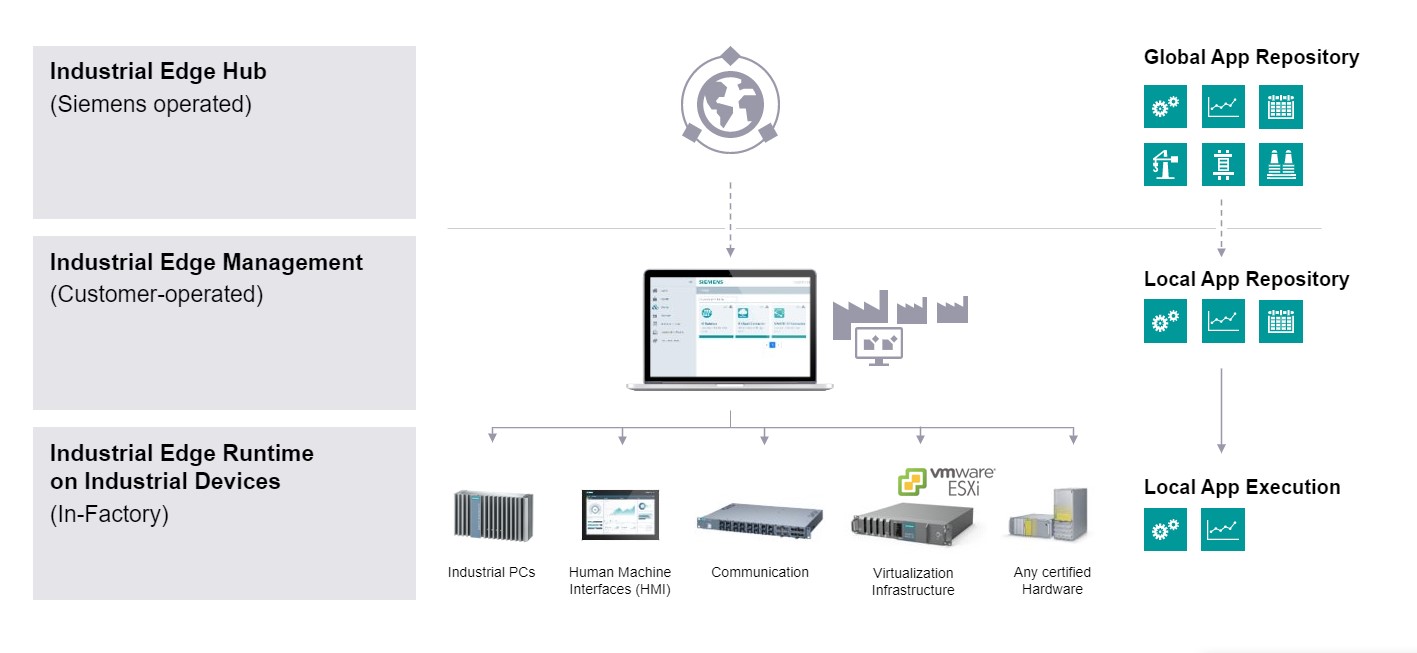
To install the Basler Vision Connector on the local IE Management system, you must perform steps in all three components as described in this topic.
Installation Steps in the Industrial Edge Hub#
On the Industrial Edge Hub, you purchase apps:
- Open the Industrial Edge Hub Page and the Siemens Marketplace website.
-
Purchase the Basler Vision Connector app.
-
You get the access code for the purchased Basler Vision Connector app from your Siemens contact person.
-
Log into the Siemens Industrial Management Hub with your access data provided by Siemens.
-
In the Industrial Edge Management Hub: In the Library menu, click the Basler Vision Connector application version you want to install. A window with all available/purchased apps appears.
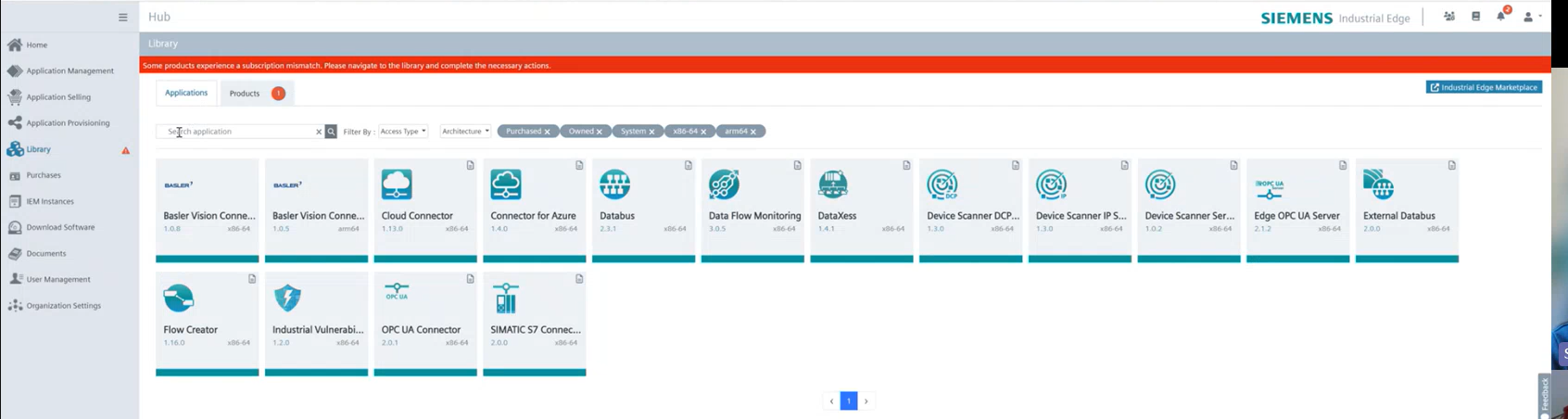
Select the Basler Vision Connector app.
-
Select the Basler Vision Connector app version you want to install by clicking the app name. The Installation and subscription overview list appears.
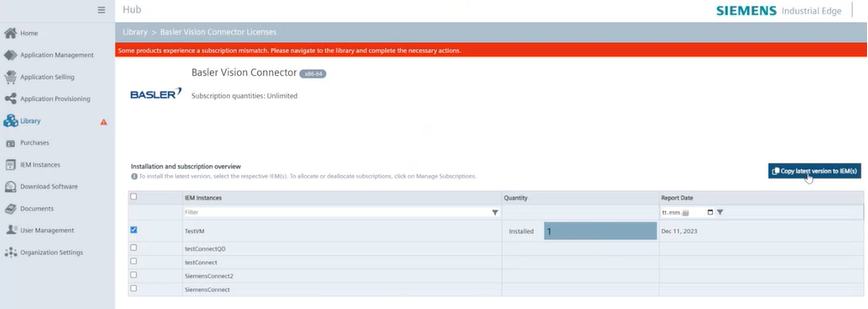
The Installation and subscription overview list displays the installed IE Management instances.
-
Select the local repository or repositories (IEM) where you want to deploy the Basler Vision Connector app to: Activate the corresponding check box or check boxes.
-
Click Copy latest version to IEM(s).
The Basler Vision Connector app is now copied to your local Industrial Edge Device management system.
Enabling the Layer 2 Network on Your Edge Device#
Before you install the Basler Vision Connector on your Edge Device, you must enable the layer 2 network on your Edge Device. Otherwise an error occurs during the installation of the Basler Vision Connector app on your local Edge Device.
To enable the layer 2 network on your Edge Device:
-
On your Edge Device: Go to the Settings menu item and select Connectivity tab > LAN Network.
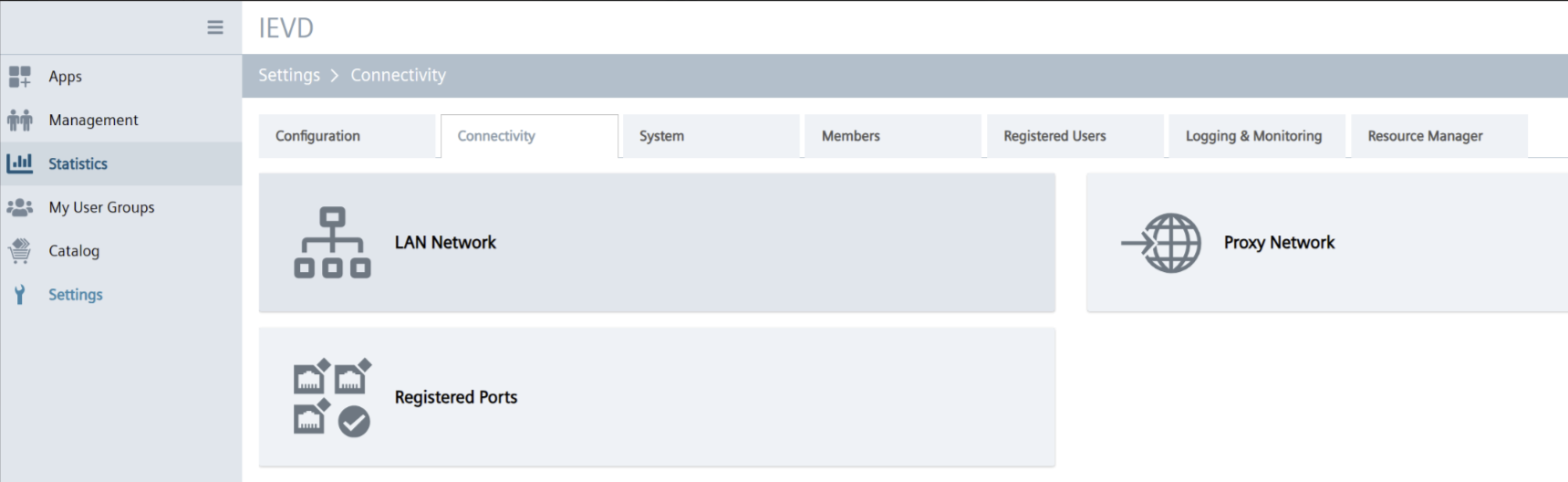
-
Click the pencil symbol to edit the network settings.
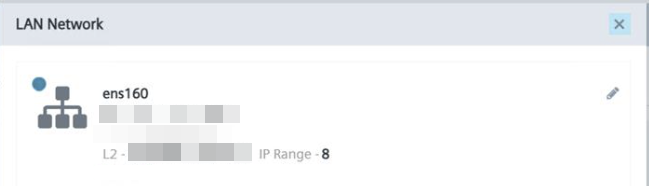
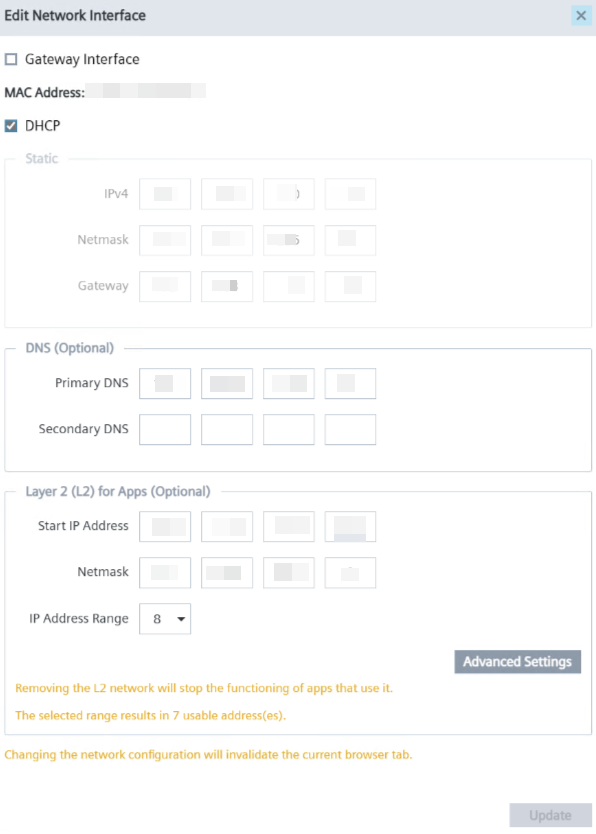
The Edit Network Interface dialog appears:
-
In the Layer 2 (L2) for Apps (Optional) group: Enter the number for the start address in the Start IP Address field. Ensure that the last octet (the final part of the IP address) is a multiple of the IP address range you intend to use. The available IP address ranges are always powers of 2 – for example: 2, 4, 8, 16, etc.
- Click Update. The Layer 2 network is now enabled.
-
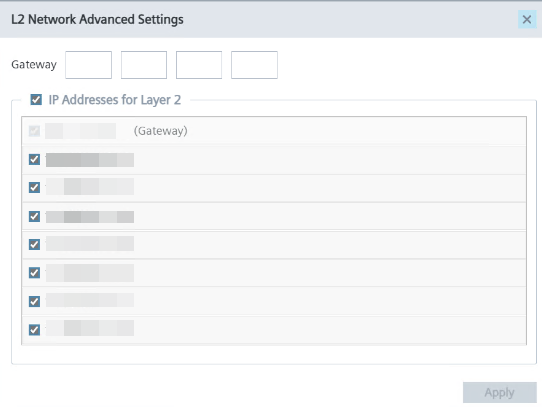
For a later step, check the available IP addresses: Click Advanced Settings to see the available IP addresses.
These numbers are important when configuring the IP address of the camera.
IP address numbers with activated check boxes are available:
Installation Steps in the Industrial Edge Management Platform#
Info
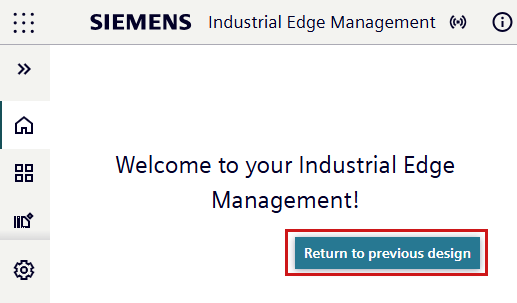
The following installation instructions describe the installation process in the old design. You can switch to the old design via the button Return to previous design:
To install the Basler Vision Connector app to a local IE device in your factory:
-
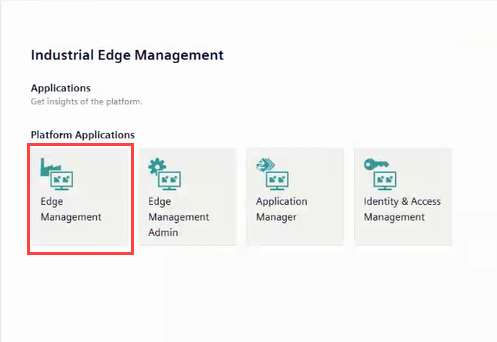
Open the start page of your Industrial Edge Management platform and select Edge Manager.
-
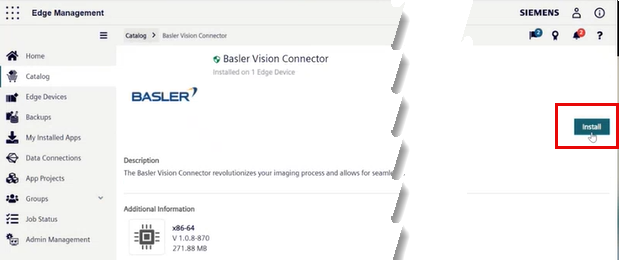
Select the Catalog menu, and select the Basler Vision Connector app you want to install. The Catalog window displays the deployed Basler Vision Connector app.
-
Click Install.
The Install App wizard appears. -
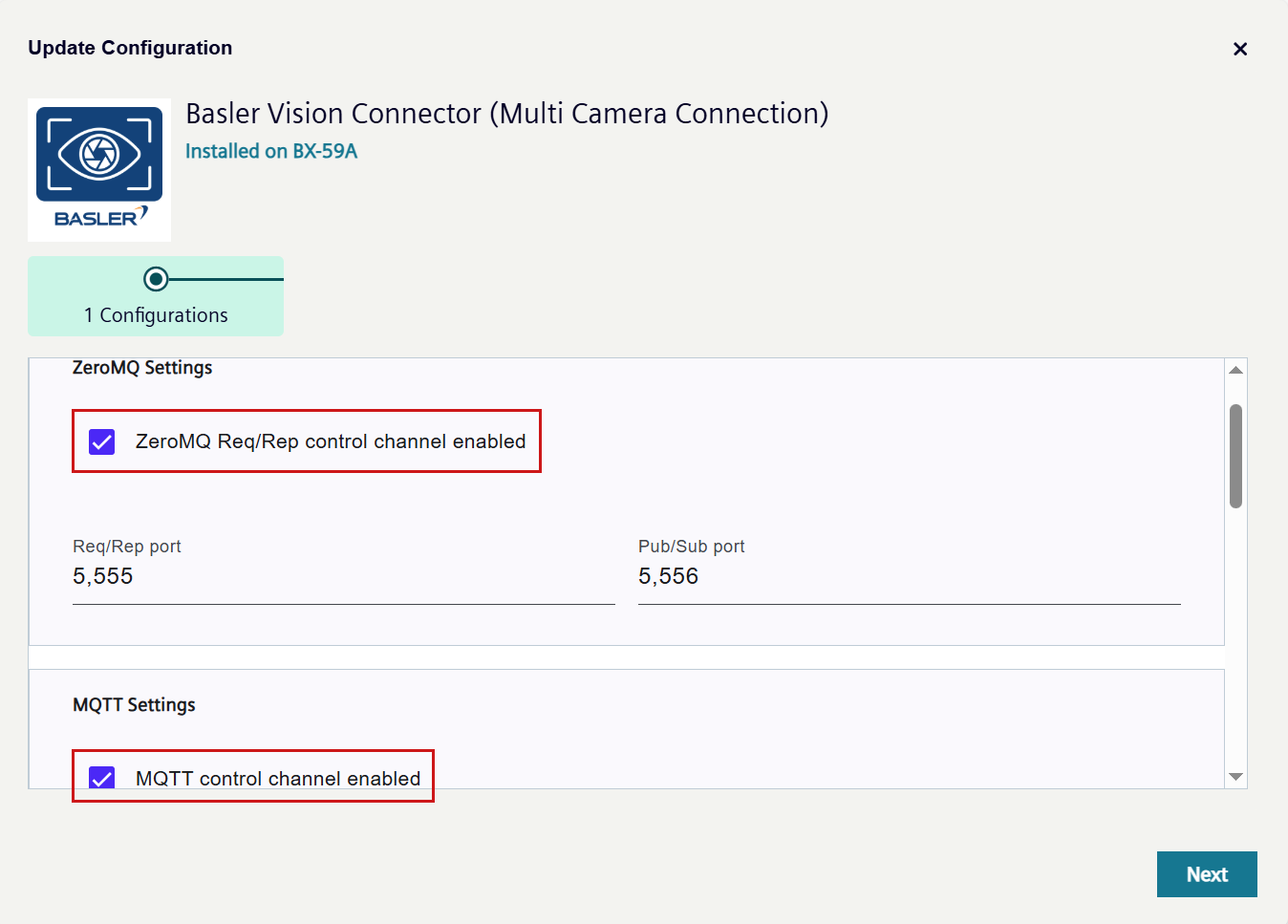
On the Install App > Configurations wizard page, configure the values required for your Basler Vision Connector.
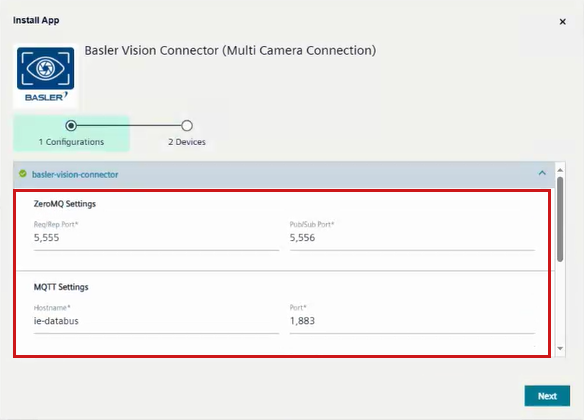
This table shows the default values:
Default Values ZeroMQ Settings ZeroMQ Req/Rep control channel enabled: true Req/Rep port: 5555 Pub/Sub port: 5556 MQTT Settings MQTT control channel enabled: true Host name: ie-databus Port: 1883 User name: <your_username> Password: <your_password> Root topic: Enter a unique ID. If you don't fill out this field, the string BaslerVisionConnectoris used.Logging Level: Info Available values: Info / Warning / Error / Debug MTU MTU optimization Auto MTU size <Deactivated for MTU optimization = Auto> -
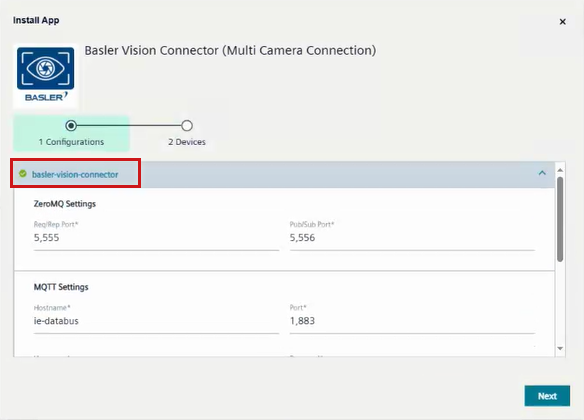
Select the basler-vision-connector check box. If the basler-vision-connector check box isn't selected, your configured settings aren't saved to the installation of the Basler Vision Connector.
-
Select at least one of the check boxes ZeroMQ Req/Rep control channel enabled / MQTT control channel enabled. If you select MQTT control channel enabled, you must enter a user name and a password for your MQTT broker.
-
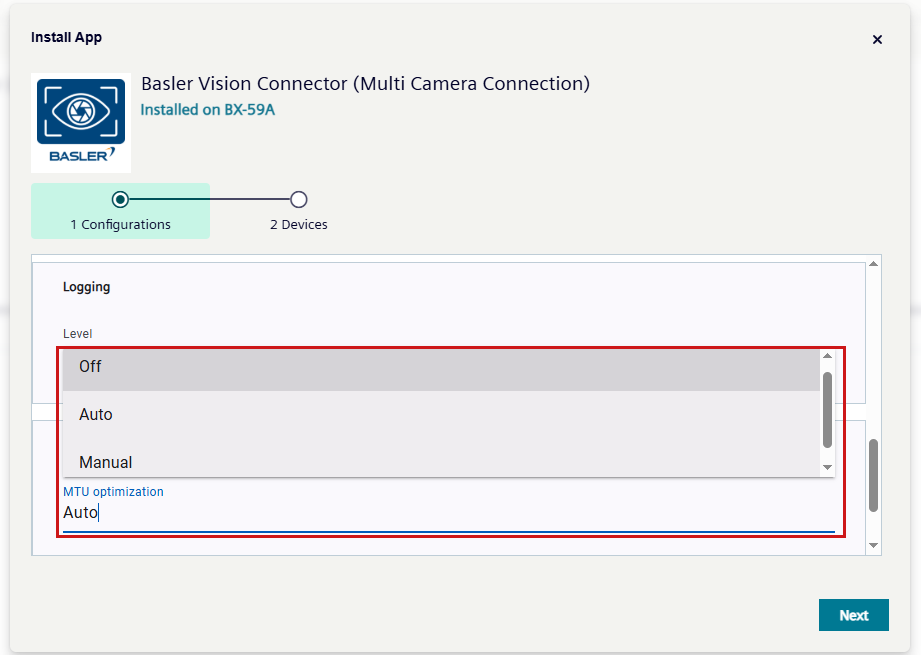
In the field Logging you can define the hazard level that shall be displayed in the Log Message.
-
In the field MTU optimization, select one of the three options:
- AUTO: Is selected by default. Calculates the maximum packet size your network card and camera can send/receive and sets this maximum value.
- Off: No value is set for maximum transfer units (MTU), i.e. the default value of 1,500 bytes is used.
- Manual: You can manually enter the desired value for maximum transfer units (MTU).
Note
Before changing MTU values, manually close the camera connection. Otherwise you might have data loss, because the camera connection is closed automatically when changing MTU values.
-
Click Next.
-
If the layer 2 network hasn't been configured before (see Enabling the Layer 2 Network), an error message is displayed:
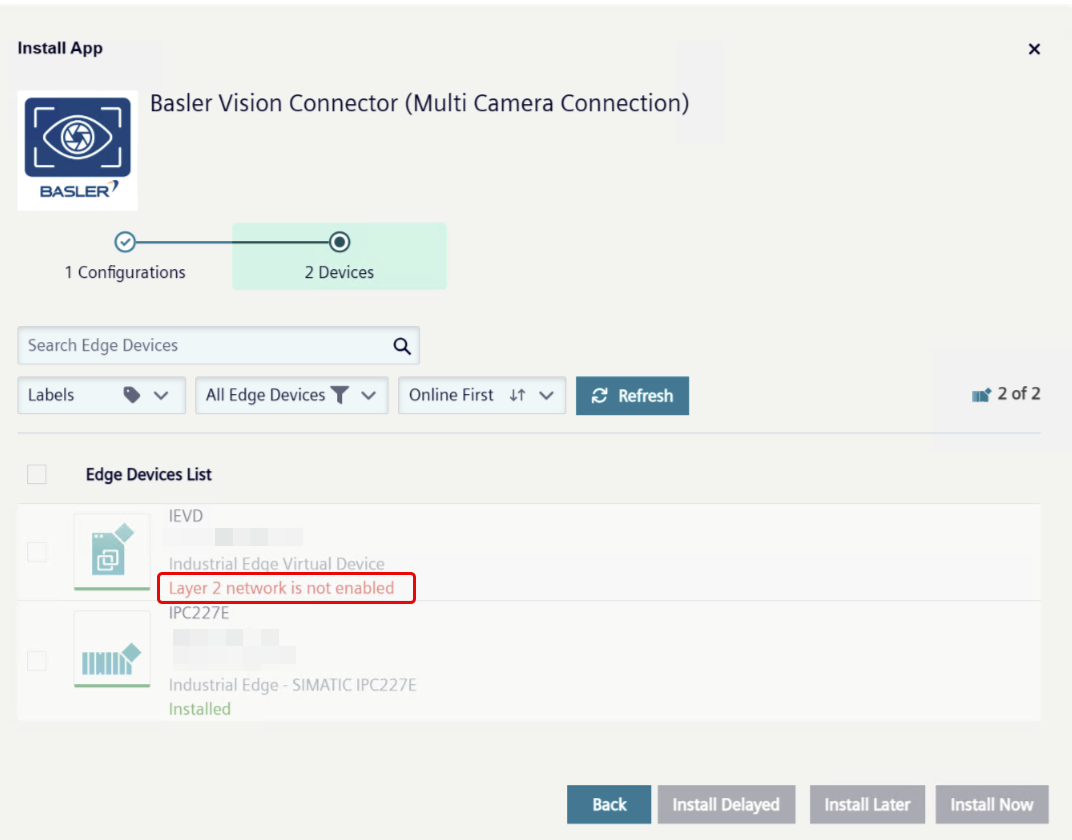
If this message appears, enable the layer 2 network as described in Enabling the Layer 2 Network.
-
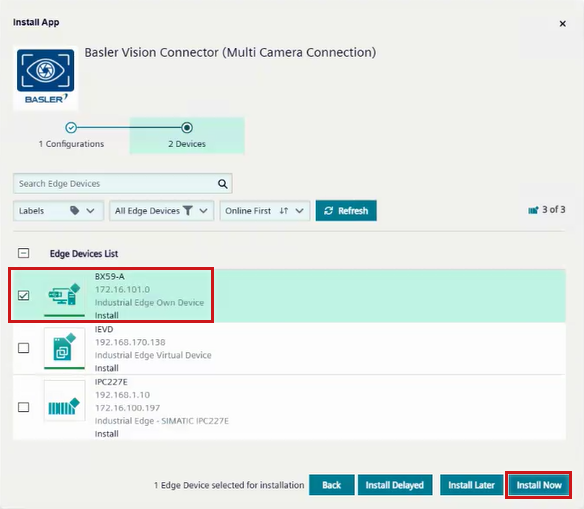
In the Edge Devices List section, activate the check box of the local IE device or devices on which you want to install the Basler Vision Connector app and click Install Now.
-
You can see the progress of your installation in the Edge Management platform under Job Status:
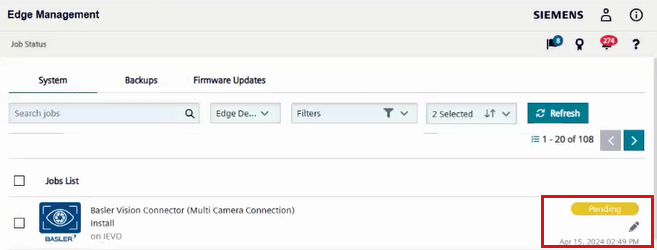
-
Once the Basler Vision Connector app has been installed, you can download a log file that documents the application status in the Apps menu of your Industrial Edge device:
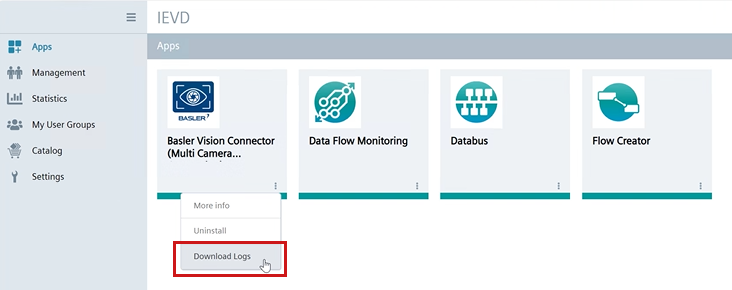
Use this log file later on when a problem occurs in the Basler Vision Connector. If problems occur, set the log level to Debug in the configuration of the Basler Vision Connector.
Changing the Configuration of the Basler Vision Connector (Edge Management Platform)#
You can change the settings you have configured during installation of the Basler Vision Connector. To change these settings:
-
Go to your Edge Management platform, click the three dots of the Basler Vision Connector in My Installed Apps and select Update Configuration from the drop-down menu.
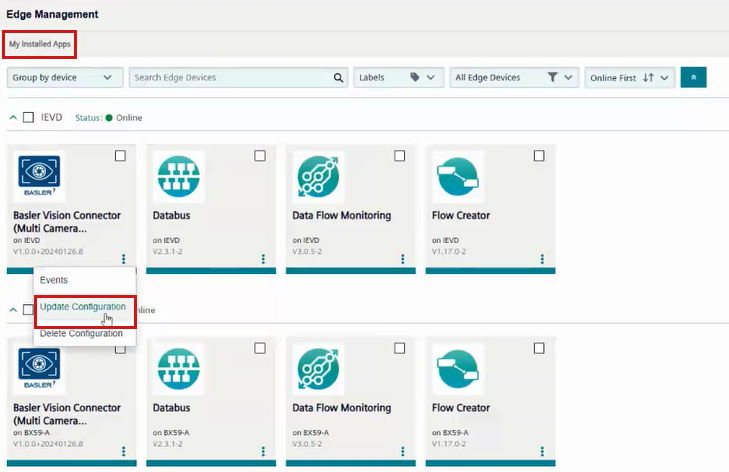
The Update Configuration wizard opens up.
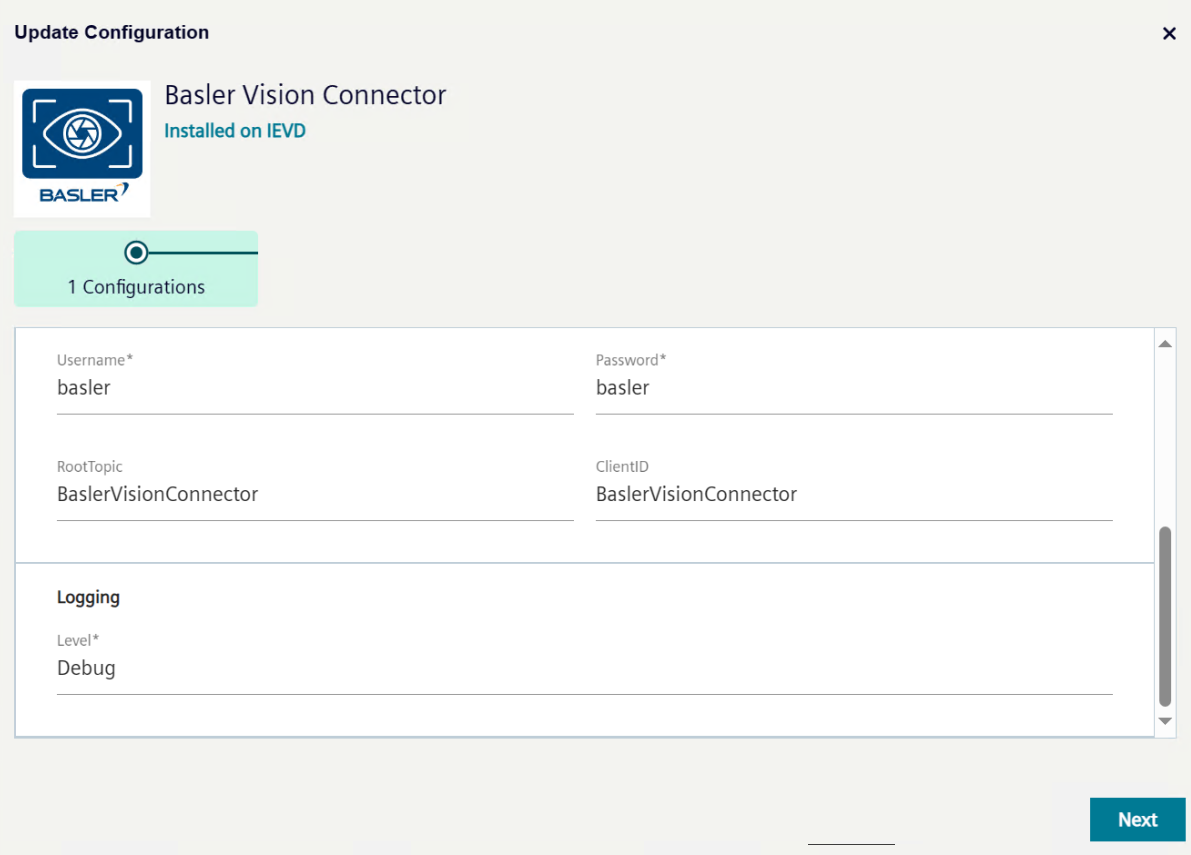
-
Configure the settings as required, go through the Update Configuration wizard and click Next and Update Now.
-
If your settings are valid, they are implemented immediately, a restart of the system isn't necessary. If the settings aren't valid, the old settings are restored. You can check in the log file whether your new settings have been stored or not.
Connecting Cameras#
To connect your GigE camera, Basler recommends using the device BX-59A, or BX-39A. However, the following restrictions apply when using these devices:
- BX-59A and BX-39A both have four GigE ports to connect a camera to. However, only the left two ports X1 P1 ("eno1" in the IED software) and X2 P1 ("eno2" in the IED software) work properly with Basler GigE cameras. Therefore, Basler recommends using only the left two ports of these Industrial Edge Devices.
- If you experience problems regarding a stable connection or transfer rate with a Basler camera, update the firmware of your camera. To receive an update of the camera firmware, contact the Basler Support Team.
Connecting Several Cameras Simultaneously to an Industrial Edge Device#
If you want to connect more than one camera with the BX-59A or BX-39A IED, connect the cameras with a network switch that is connected to one of the two left ports X1 P1 ("eno1" in the IED software) and X2 P1 ("eno2" in the IED software).
The following switches are recommended:
- Netgear GS110TP, or
- Netgear MS510TXPP for a broader bandwidth.
If you want to connect more than one camera to your IE device, you need a Basler Vision Connector Multi-Camera Connection license. See Basler Vision Connector Licensing for details on the BVC licensing concept.
Connecting 10GigE Cameras#
To connect one or more 10GigE Cameras:
- Plug the interface card into the BX-59A device.
- Connect the switch to the Broadcom NetXtreme 2x 10GbE, LAN-Adapter interface card.
- Connect the cameras to the Netgear MS510TXPP switch.
Configuring the Camera's IP Address#
To configure the IP address of your camera:
- Make sure the camera you want to configure is powered and online.
-
On a computer that isn't the Edge Device (Windows or Linux), configure the camera's IP address so that it is in the range defined in the layer 2 network.
Only then the camera is visible to the Edge Device and hence to the Basler Vision Connector app.
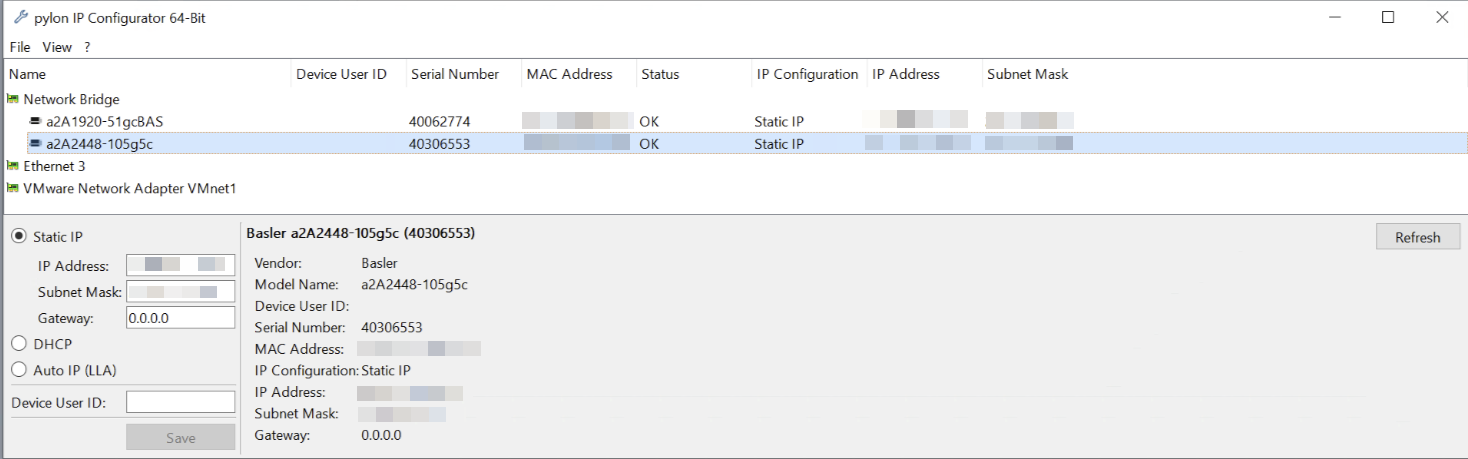
You can use the pylon IP Configurator to check and if necessary to adapt the camera's IP address (see screenshot below). For information, see Assigning an IP Address to a Camera.Info
The pylon IP Configurator isn't included in the delivery of the Basler Vision Connector, but is part of the Basler pylon Software Suite.
Info
The following camera parameter names are always taken directly from the camera firmware:
SetParametersGetParameters
The
SetQuickParameterschanges all gain parameter names from the camera firmware toGain.
Connecting Your App to the Basler Vision Connector#
You can connect any of your Siemens Industrial Edge app with the Basler Vision Connector. To connect your app to the Basler Vision Connector via ZeroMQ, use the following host name: baslervisionconnector-x86-64
Alternatively, you can connect your app via the IP address of the Basler Vision Connector. To find out the IP address of the Basler Vision Connector, you can use the Data Flow Monitoring app.
To connect your app via MQTT, use the IP address or the host name of the Databus app.
Setting up Your Industrial Edge Virtual Device (IEVD) for Optimal Performance with the BVC#
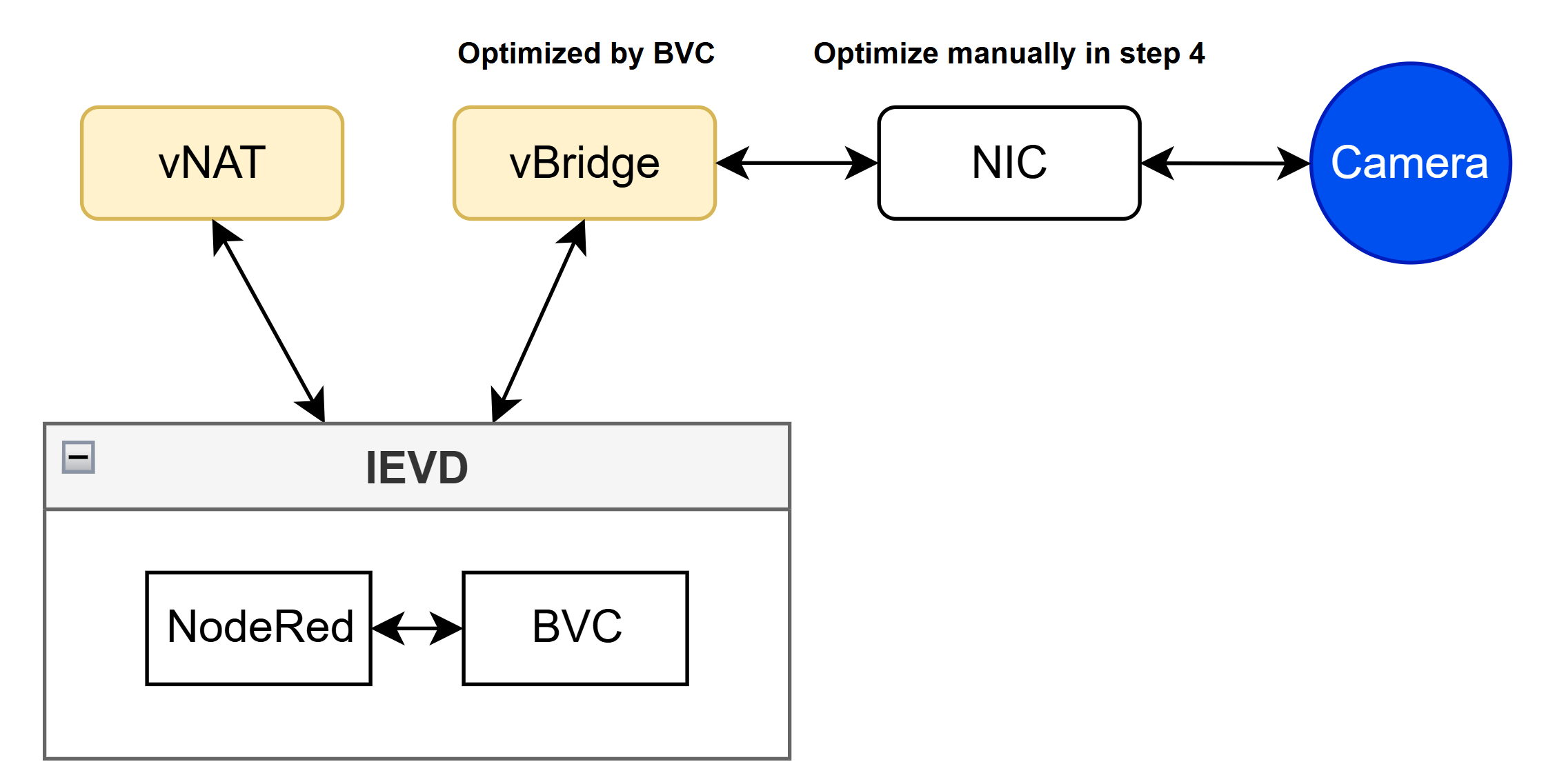
If you set up an Industrial Edge Virtual Device, Basler recommends to optimize the physical network connection to your camera manually. Otherwise the performance of your camera might be insufficient.
The Basler Vision Connector can automatically optimize the bridged network during installation. However, the physical network connection to your camera is not optimized by the BVC and must be done manually. The following graphic illustrates the optimization steps:
The following instructions describe how to set up your Industrial Edge Virtual Device (IEVD) and optimize it for best performance when using the Basler Vision Connector (BVC).
Note
These instructions apply to VMware Workstation Pro 16 or higher and BVC Version 1.1.
Info
To change network settings, you need to have administrator rights for the computer that hosts your virtual machine.
Step 1: Getting the IEVD Running#
-
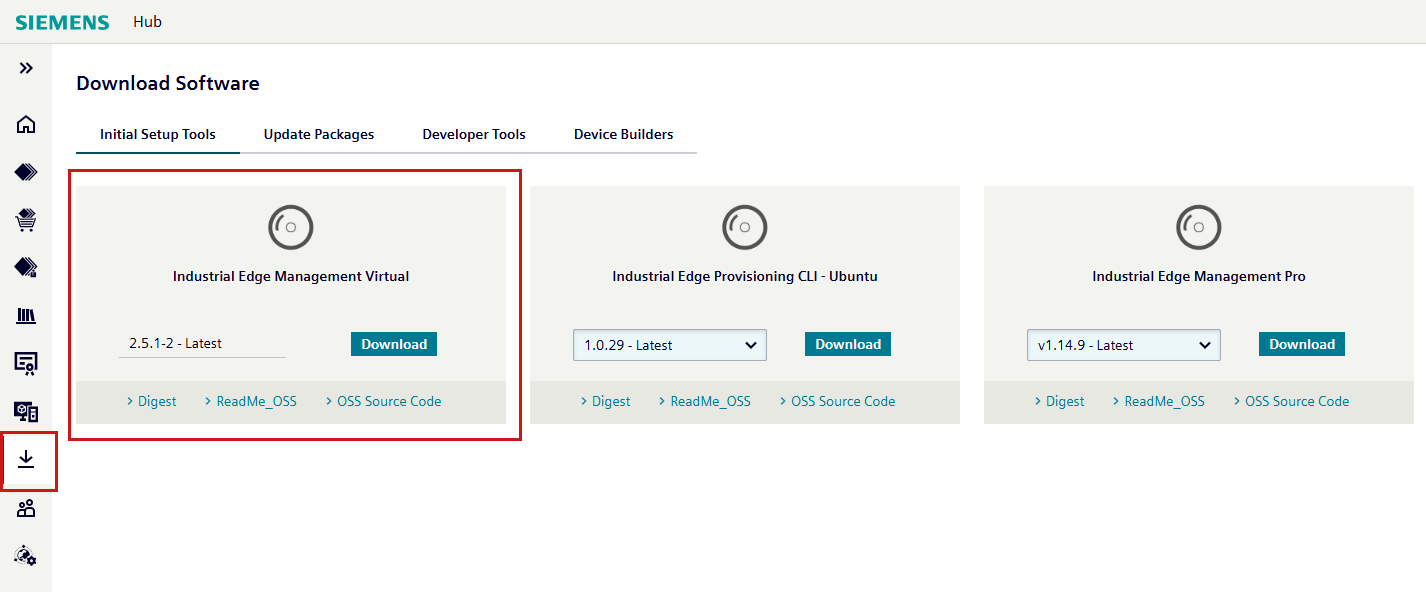
Download the *.OVA (Open Virtualization Format) file from your Industrial Edge Hub Page.
-
Open the *.OVA file by double-clicking it.
- Start the virtual machine. An IP address will be assigned to the virtual machine.
- Open the IP address in a browser. You will be prompted to upload an onboarding file.
- For onboarding, follow the instructions in Step 2: Onboarding the IEVD to Industrial Edge Management (IEM).
Step 2: Onboarding the IEVD to Industrial Edge Management (IEM)#
- Open Industrial Edge Management (IEM).
-
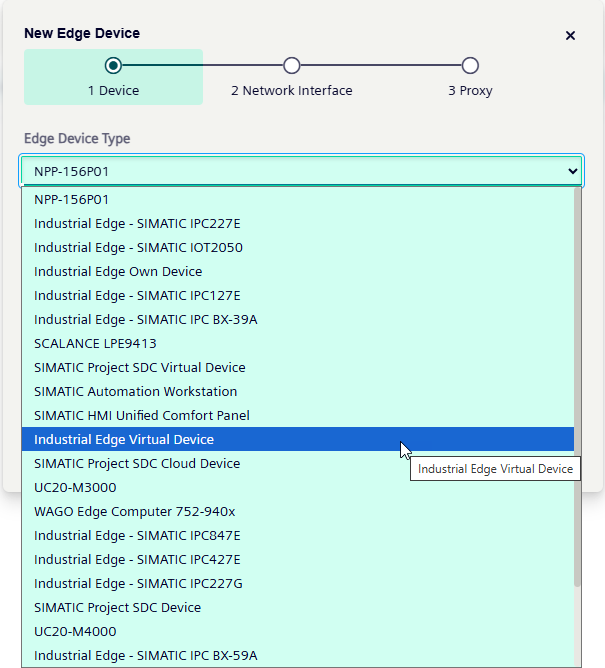
Add a new virtual device.
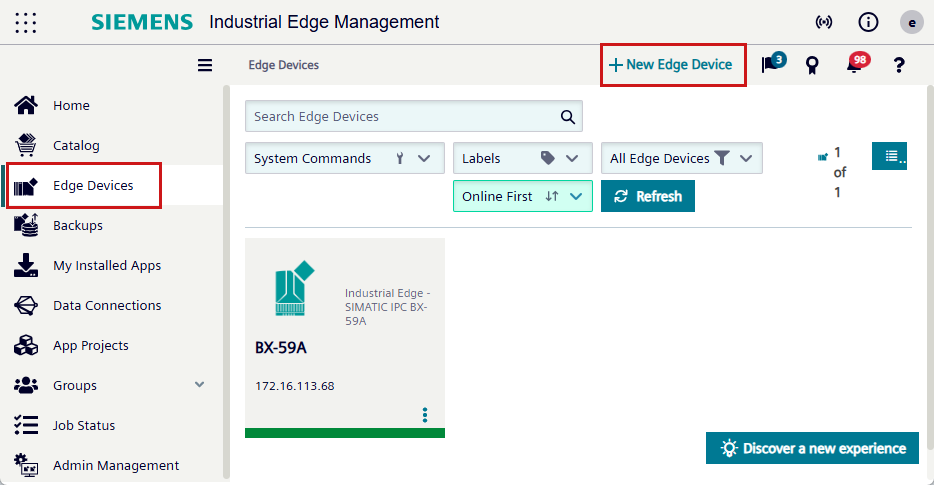
The New Edge Device dialog opens up:
-
Select Industrial Edge Virtual Device, choose any valid name, user ID, and password. Follow the configuration steps in the wizard.
- After you have created the IE Virtual Device, download its onboarding file.
- Upload this onboarding file in the browser window opened in step 1.
- The device is onboarded and shown as Online.
Step 3: Creating the Bridged Network#
To enable communication between your GigE camera and the IEVD:
-
Open the Virtual Network Editor in your VMware Workstation.
-
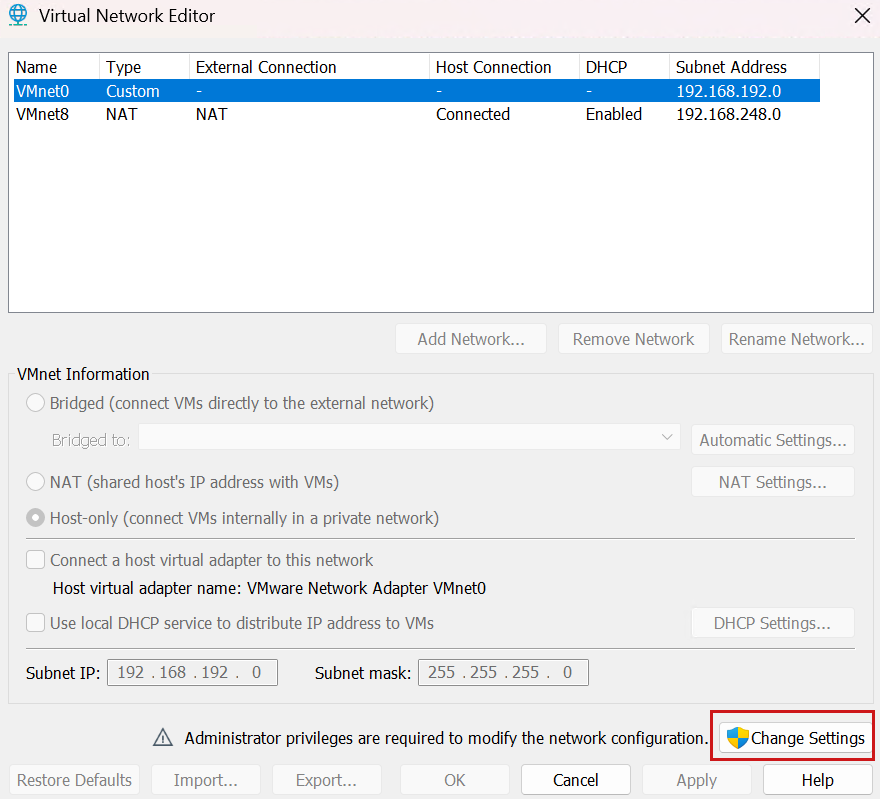
Click Change Settings.
Info
To change network settings, you need to have administrator rights for your virtual machine.
-
Click Add Network and bridge it to the physical network your GigE camera is connected to.
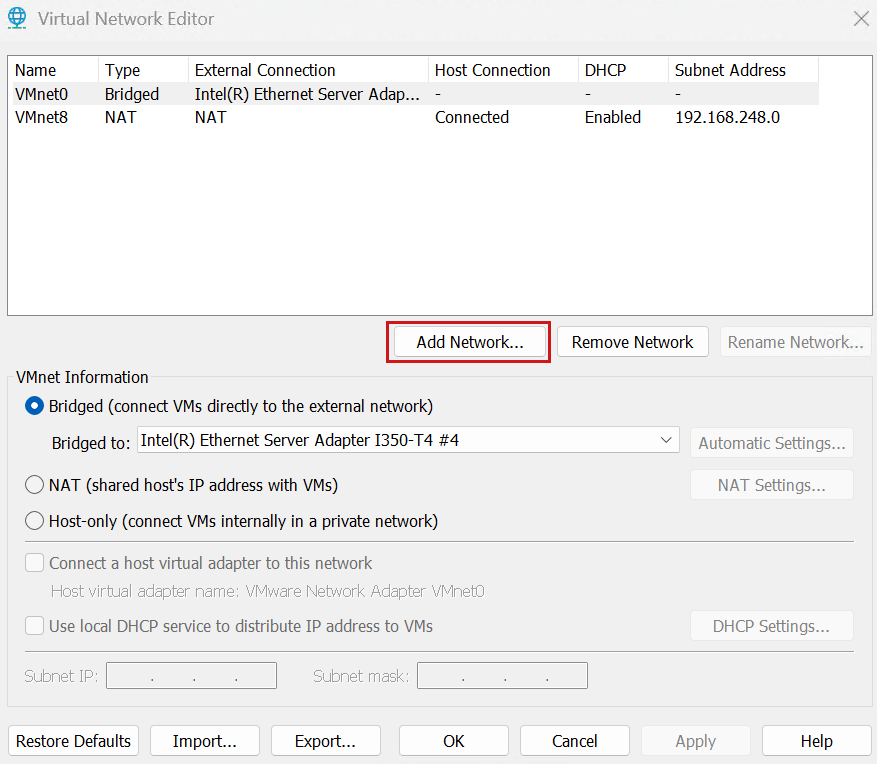
This creates a bridge to the physical network inside your IEVD.
Step 4: Optimizing the Physical Network#
-
Via the Control Panel of your virtual machine, open the camera network connection that was bridged in the previous step:
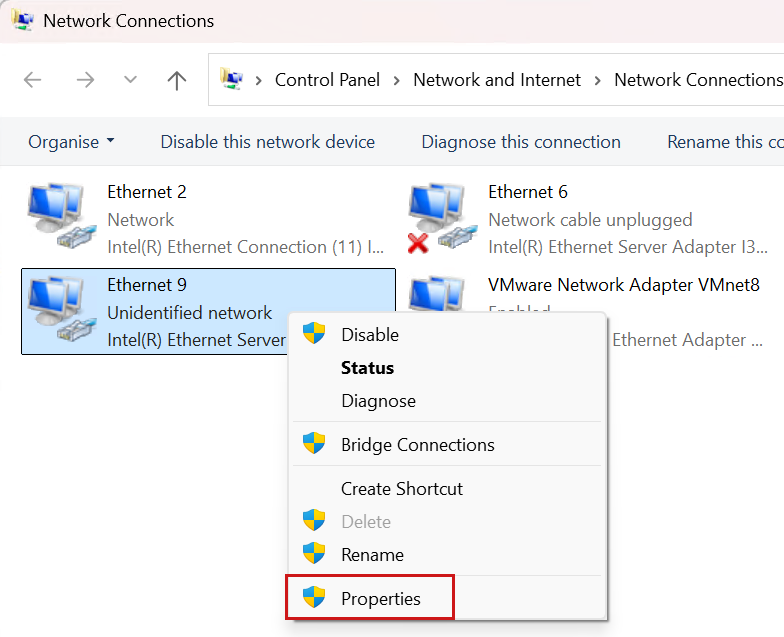
-
Optimize the Ethernet settings of your camera as recommended by Basler in topic Affected Network Parameters.
Step 5: Install the Basler Vision Connector#
Install the BVC as described above.
During the installation of the BVC, you can optimize the bridged network which you created in step 3 as described in Installation Steps in the Industrial Edge Management Platform.
Next Steps#
In the previous steps you've installed the Basler Vision Connector and configured the IP address of your camera. You can now continue using the Basler Vision Connector to configure your cameras and start acquisition either via the Web UI or via messaging. If you want to use the Basler Vision Connector via messaging, a good starting point are the JSON Test files delivered in this documentation at Using the JSON Test Files with Industrial Edge Flow Creator.
If you want to use vTools in the Basler Vision Connector you can get started with the topic Using vTools in the Basler Vision Connector.