Basler Vision Connector Web UI#
Opening the Basler Vision Connector Web UI#
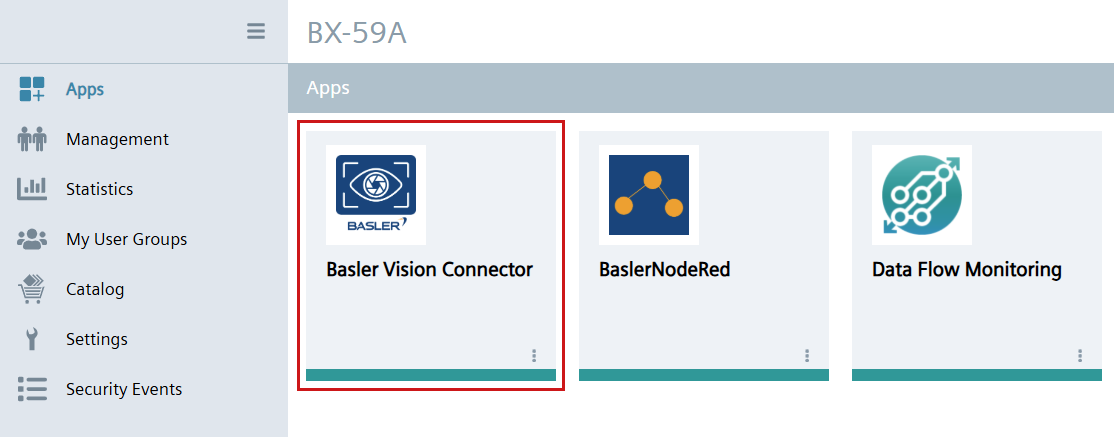
To open the Basler Vision Connector Web UI, open your Siemens Industrial Edge device in your web browser and click the Basler Vision Connector tile.
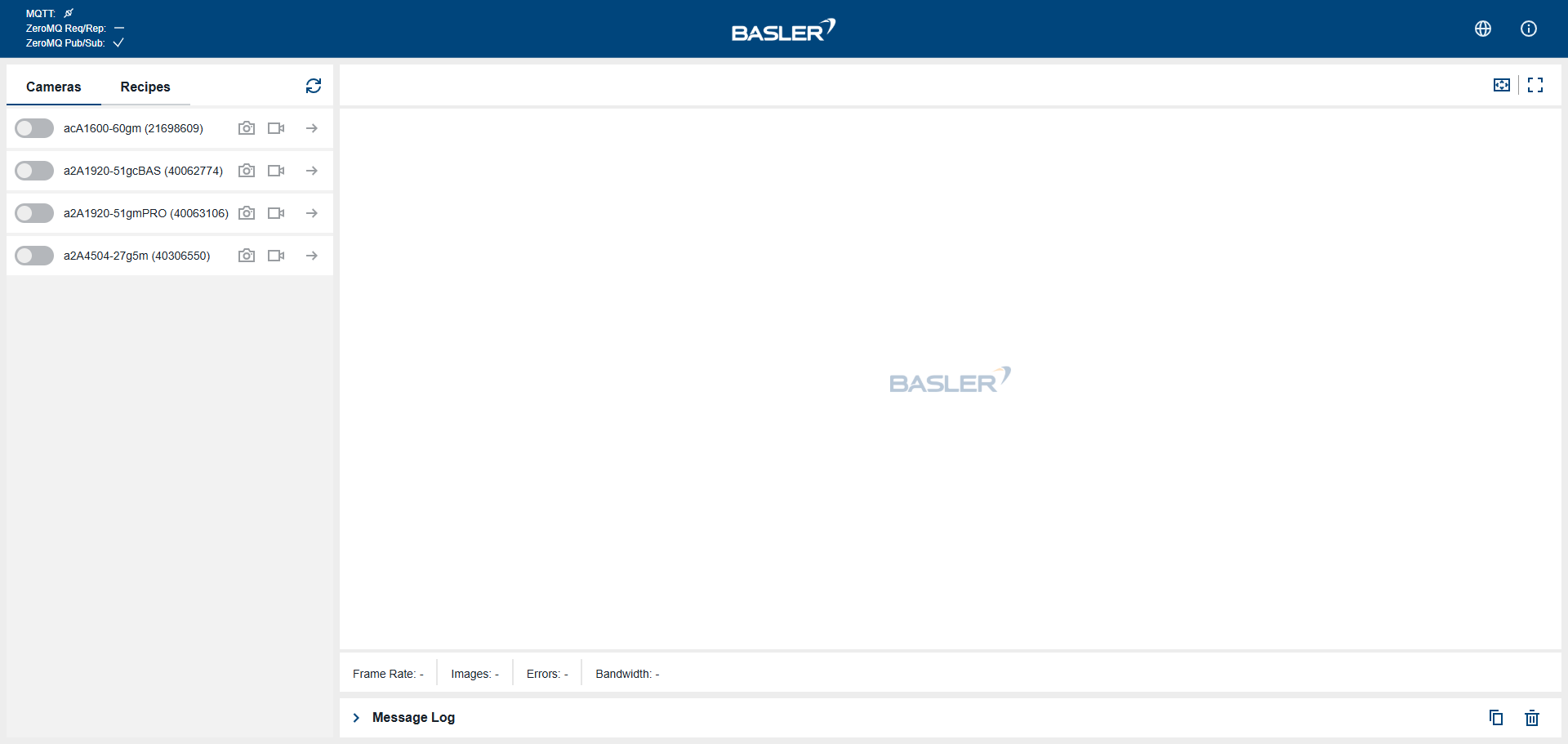
The Basler Vision Connector Web UI start screen opens.
Configuring Protocol Settings#
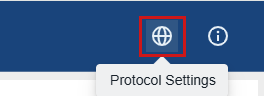
To configure the protocol settings in the Basler Vision Connector, open the Protocol Settings dialog by clicking the Protocol Settings button in the upper right corner of the Web UI.
The Protocol Settings dialog opens.
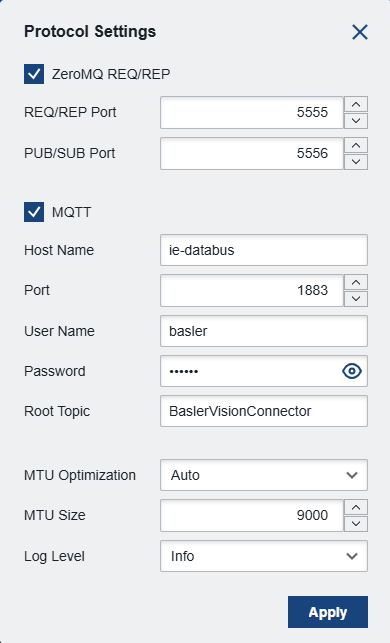
Configure the necessary settings for your Basler Vision Connector and click Apply.
In the upper left corner of the Web UI, you can see the status of the protocols.
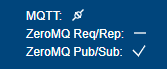
| Icon | Function | Available for Protocol |
|---|---|---|
 | Connected | MQTT |
 | Disconnected | MQTT |
 | Disabled | MQTT and ZeroMQ |
 | Enabled | ZeroMQ |
Configuring Cameras#
To configure a camera in the Web UI, select a camera in the Cameras list and open it via the slider to the left of the camera. Next, open the camera settings via the arrow button to the right of the camera.
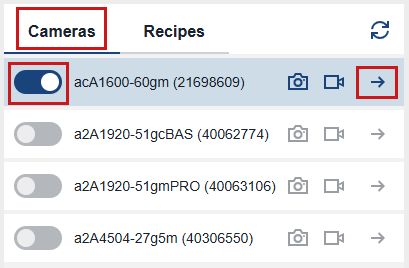
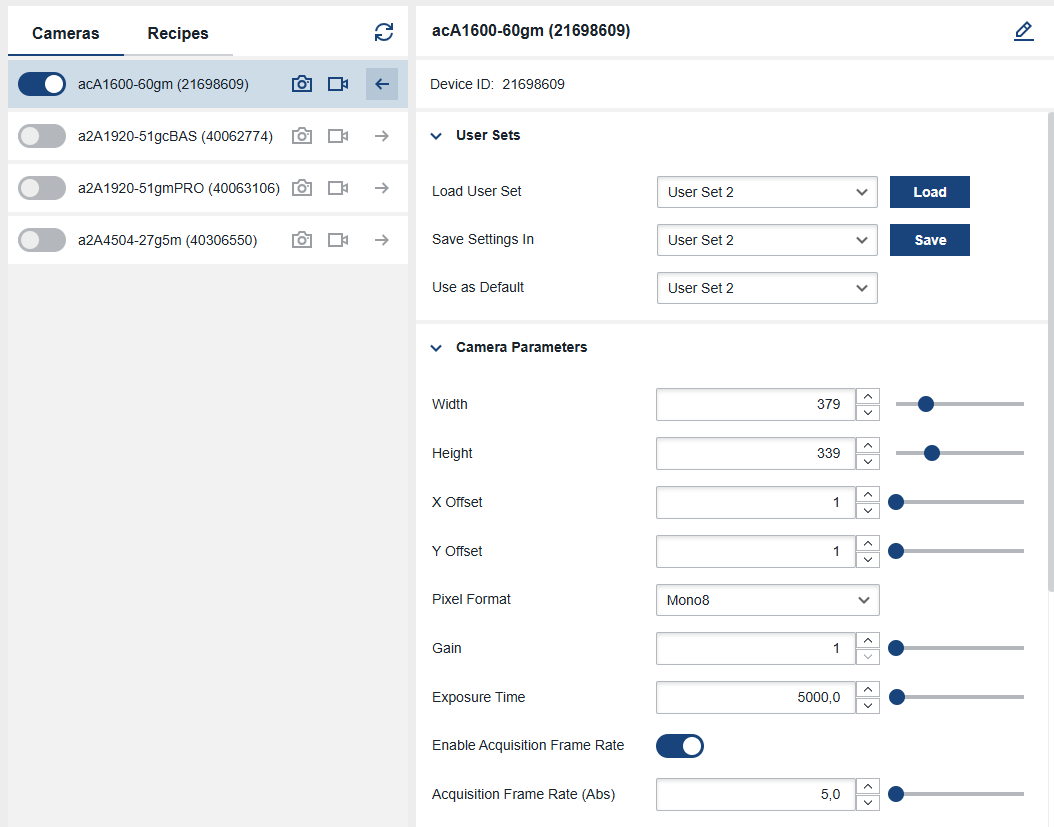
The camera settings are displayed.
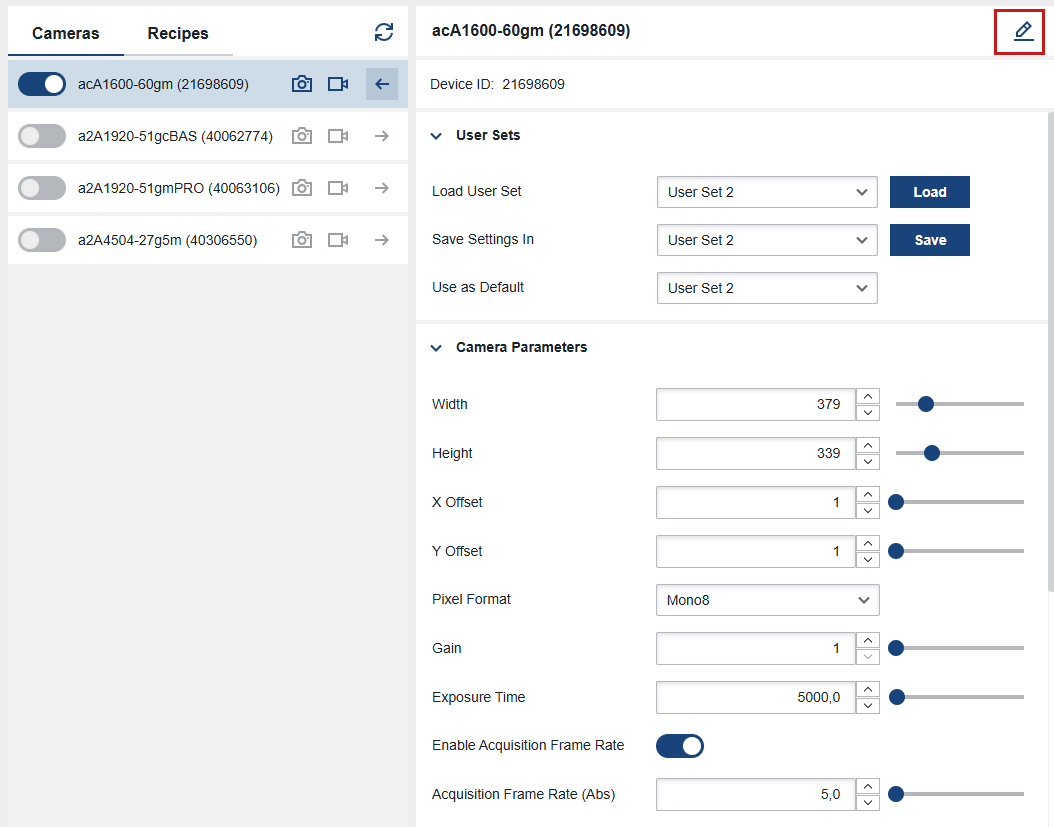
You can edit the camera name via the Edit button:
You can’t change the serial number of the camera (displayed in brackets after the camera name).
To reset the camera name to its default, delete the current name in the edit field and click the Save button:

The default camera name will then be restored.
Configuring User Sets#
A user set is a group of parameter values. It contains all parameter settings needed to control the camera, with a few exceptions. For a detailed description of user sets, see the User Sets topic.
In the User Sets area, you can load existing user sets, save current parameter settings in a user set of your own, and specify a default user set.
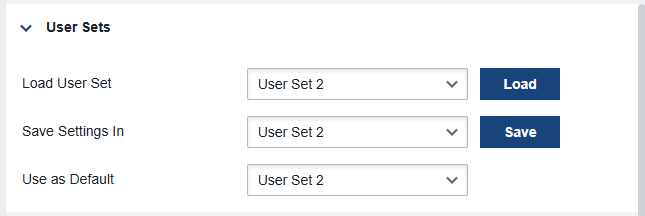
- Load User Set: Applies the parameter settings saved in the user set selected to the camera.
- Save Settings In: Saves the current parameter settings of the camera into one of the customizable user sets.
- Use as Default: Defines which user set is loaded as default when the camera is started.
Configuring Camera Parameters#
In the Camera Parameters area, you can configure the most important parameters of the camera.
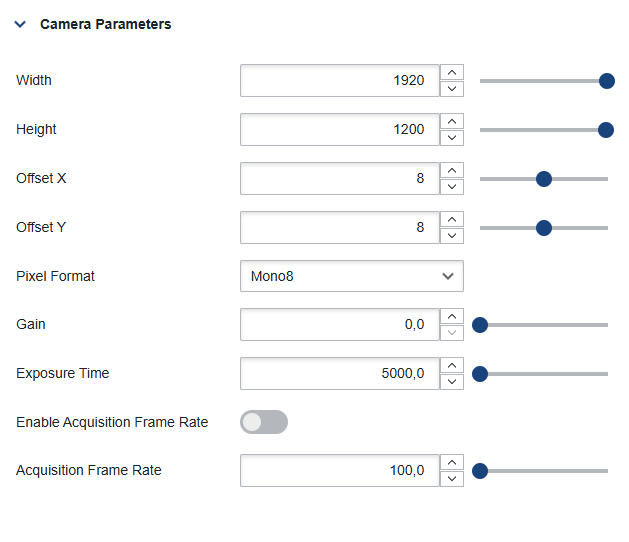
All other parameters of the camera are accessible via the Camera Parameter Search Area.
For details about how to configure the parameters of a camera, refer to the feature descriptions of your camera model.
Configuring the Software Trigger#
To configure the camera so that image acquisition starts whenever a software trigger is received, configure the following parameter settings in the Camera Parameter Search area:
When you're done, click the Execute button in the Software Trigger area.
Info
The Execute button is only available when your camera is acquiring images. Once you have configured the software trigger, the acquisition only starts when executing the trigger.
You can find further details about triggering in the Triggered Image Acquisition Feature Description and Software Trigger Documentation topics.
Camera Parameter Search#
In the Camera Parameter Search area, you can search the name of any camera parameter and change its value. For descriptions of all parameters that your camera model supports, see in the feature descriptions of your camera model.
To see the current value of any parameter, type the name of the parameter into the Parameter text box and click Get. The current value of this parameter is displayed.
Info
When searching for commands, note that they don't have a "Value" field and thus only support the Set operation.
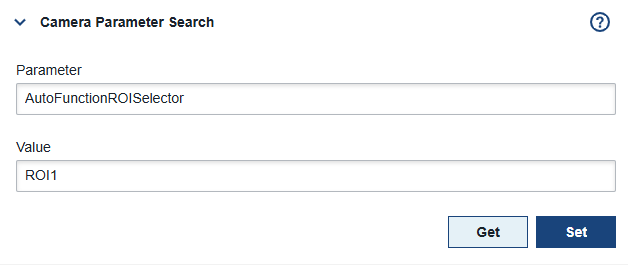
To change the parameter value, edit the value and click Set.
Configuring Transport Layer Parameters#
In the Transport Layer Parameters area, you can configure the most important transport layer parameters.
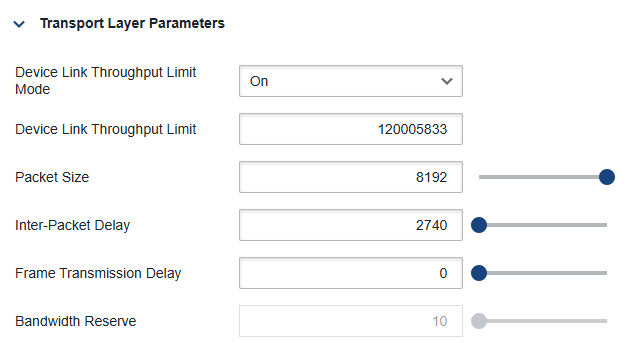
All other parameters of the camera are accessible via the Camera Parameter Search.
For details about how to configure parameters of a camera, refer to the feature descriptions of your camera model.
Using vTools in the Basler Vision Connector#
Instead of writing code yourself, you can use the vTools available in the Basler pylon Viewer. With vTools, you can create image processing designs in a graphical user interface that can be added to your application code afterwards.
vTools are the building blocks for creating image processing designs. Each vTool can perform a specific task, e.g., camera calibration, image format conversion, or barcode reading, to name but a few. In the Workbench of the pylon Viewer, add the required vTools, connect them in the desired order, and save the design as a recipe file (.precipe).
vTools in the Basler Vision Connector follow specific restrictions and naming conventions for both input pins and output pins.
You can upload the recipes in the Recipes area of the Web UI.
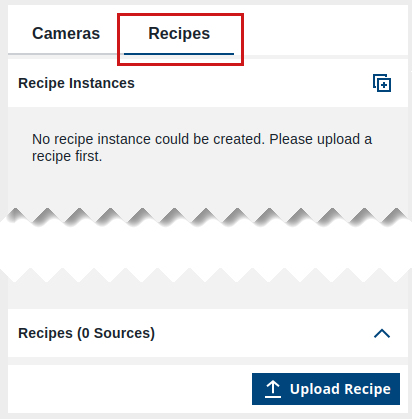
To use a recipe in the Basler Vision Connector, you have to upload it and create an instance of it.
Info
By creating an instance of a recipe, you also start running the recipe. Until you have assigned cameras to the pins of the recipe and started image acquisition, the recipe can't output any results, though.
To use a recipe in the Basler Vision Connector:
- In the Recipes area, click Upload Recipe.
-
Browse to the directory in which you stored the recipe file and select the file you want to upload. Click Open.
The uploaded recipe appears in the Recipes list.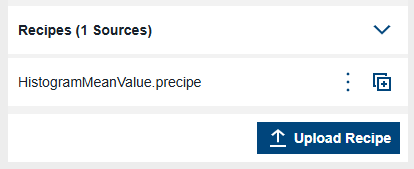
-
Click the Create Recipe button next to the recipe to create an instance of the recipe.
The Recipe Instance Creation dialog opens with the source recipe and recipe ID fields already filled.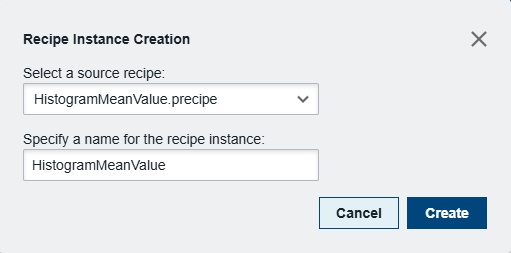
-
Enter an ID for the recipe instance.
Only letters (A–Z, a–z), numbers (0–9), hyphens (-), underscores (_), and periods (.) are allowed. -
Click Create.
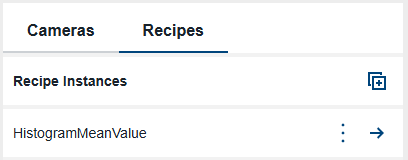
The recipe instance appears in the Recipe Instances list.
-
To assign the pins to cameras, click the arrow icon next to a recipe instance.
The pin assignment area opens to the right.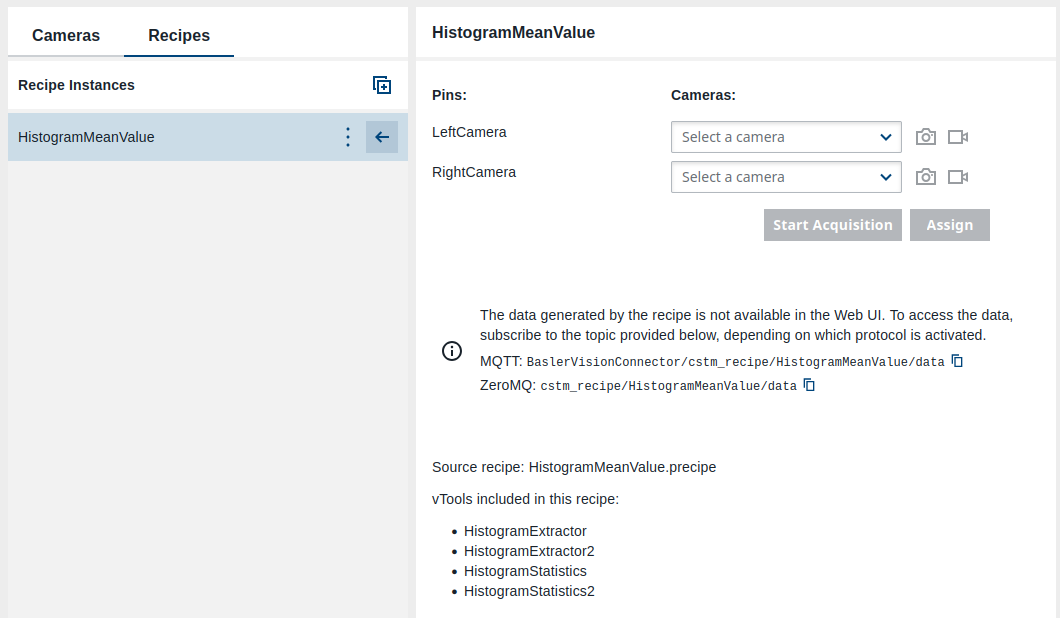
-
Assign cameras to the pins of the recipe.
You can only assign open cameras. If the desired camera isn't shown here, open it in the Cameras list. - Click Assign.
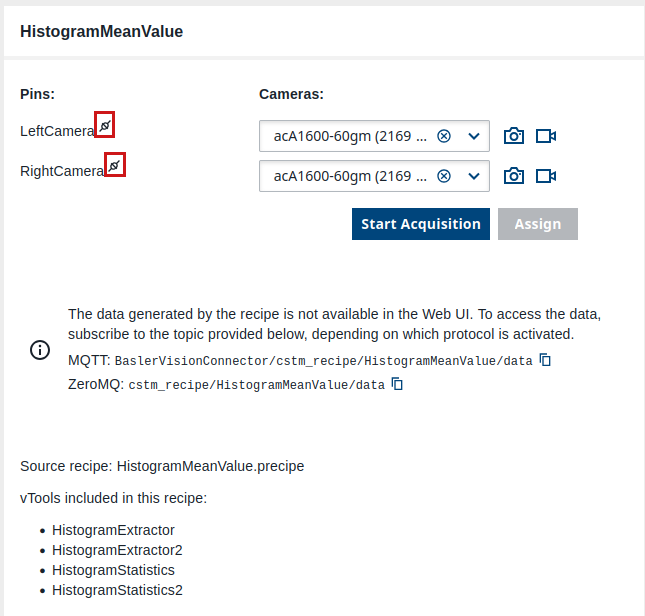
The cameras are assigned. Pins that have a camera assigned are marked with an icon.
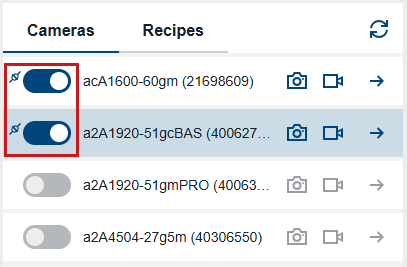
In the Cameras list, the assigned cameras are also marked with this icon:
The data generated by the recipe is not available in the Web UI. To access it, you must subscribe to the appropriate topics via MQTT or ZeroMQ. These topics are displayed in the Web UI once the pins are connected. For details on topic structure and message formatting, refer to the Messaging Concept.
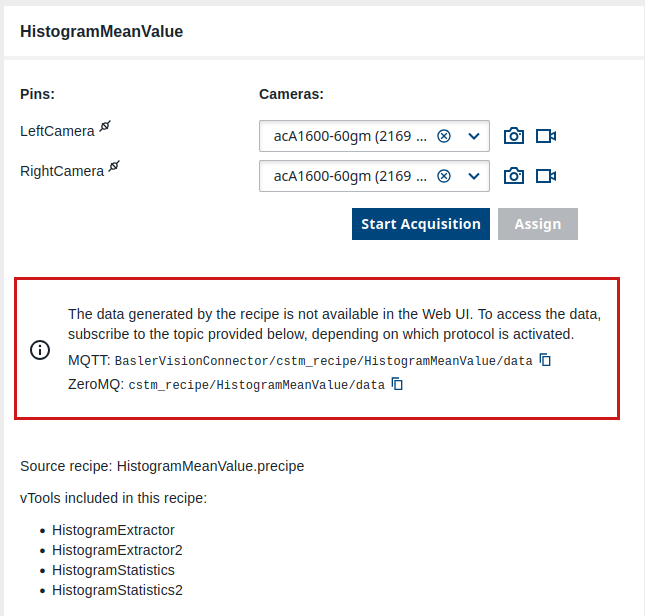
You can copy these data topic names to clipboard directly in the GUI.
Deleting Recipe Instances and Removing Recipes#
Deleting Recipe Instances#
To delete a recipe instance, click the button with the three dots in the Recipe Instances list and select Delete.
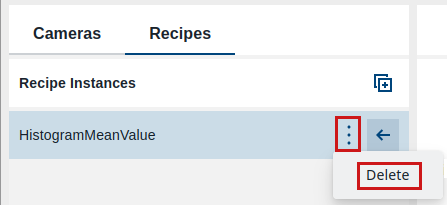
A confirmation dialog opens. Confirm with OK. The recipe instance is deleted. The recipe this instance has been created from is not affected.
Removing Recipes from the Basler Vision Connector#
To remove a recipe from the Basler Vision Connector, click the button with the three dots in the Recipes list and select Remove.
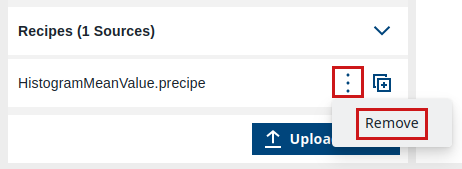
A confirmation dialog opens. Confirm with OK. The recipe is then removed from the Basler Vision Connector but not from its original storage location. Also, the recipe instances you created from this recipe are still available in the Recipes Instances list.
Starting Image Acquisition#
You can start image acquisition either from the Cameras list or from the Recipes list. The Continuous Shot and Single Shot buttons are synchronized between the Cameras list and the Recipes list.
Starting Image Acquisition from the Cameras List#
To start image acquisition, you can select between single shot and continuous shot:
- Click the Single Shot button to start single shot acquisition.

- Click the Continuous Shot button to start continuous shot acquisition.

You can see the image stream of the selected camera in the image display area.
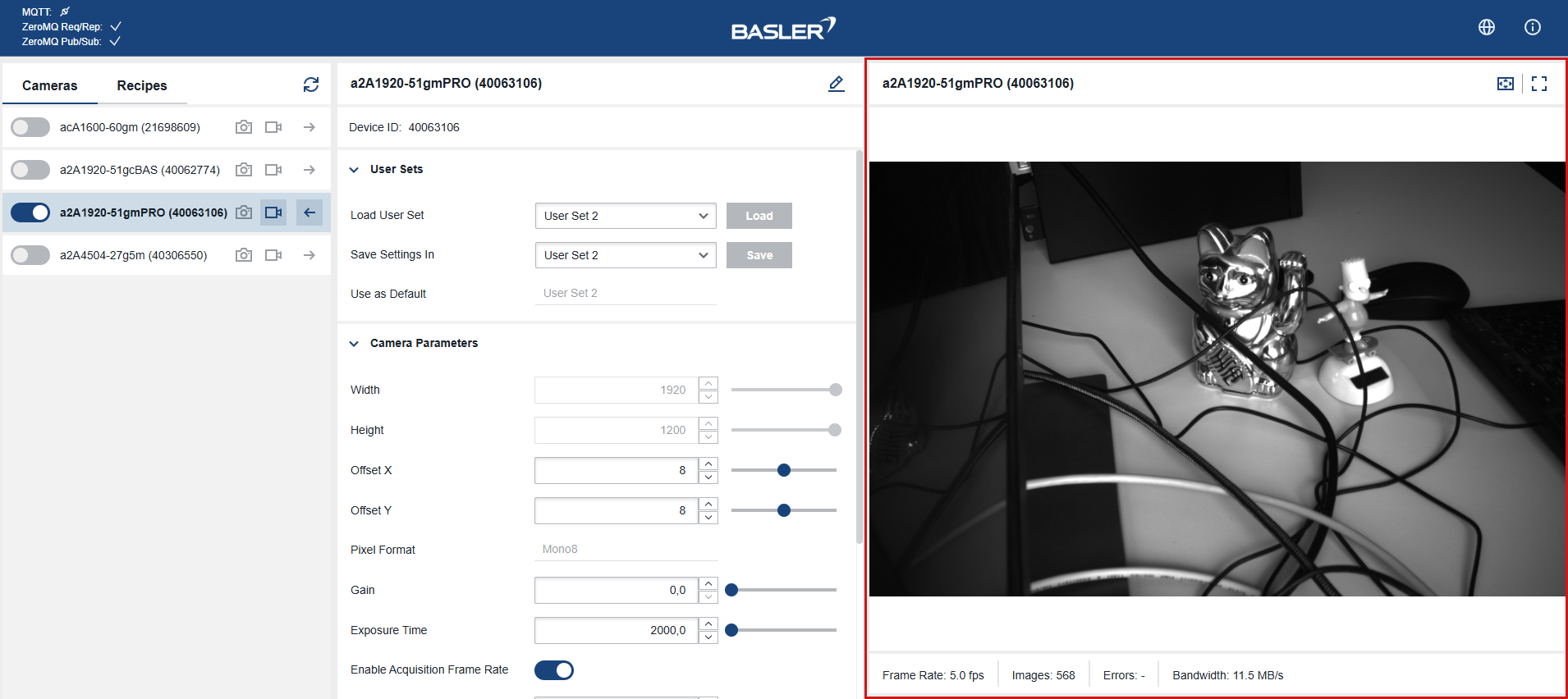
Details about the image display area are described below.
To stop continuous shot image acquisition, click the Continuous Shot button again.
Starting Image Acquisition from the Recipes List#
After you have assigned cameras to all pins of your recipe instance, you can start image acquisition.
You can start image acquisition on each camera separately using the corresponding buttons for single shot and continuous shot next to a camera. Alternatively, you can click Start Acquisition to start all assigned cameras in continuous shot at the same time.
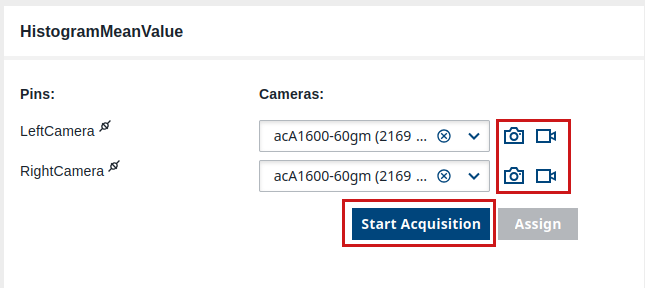
You can see the image stream of the selected camera in the image display area.
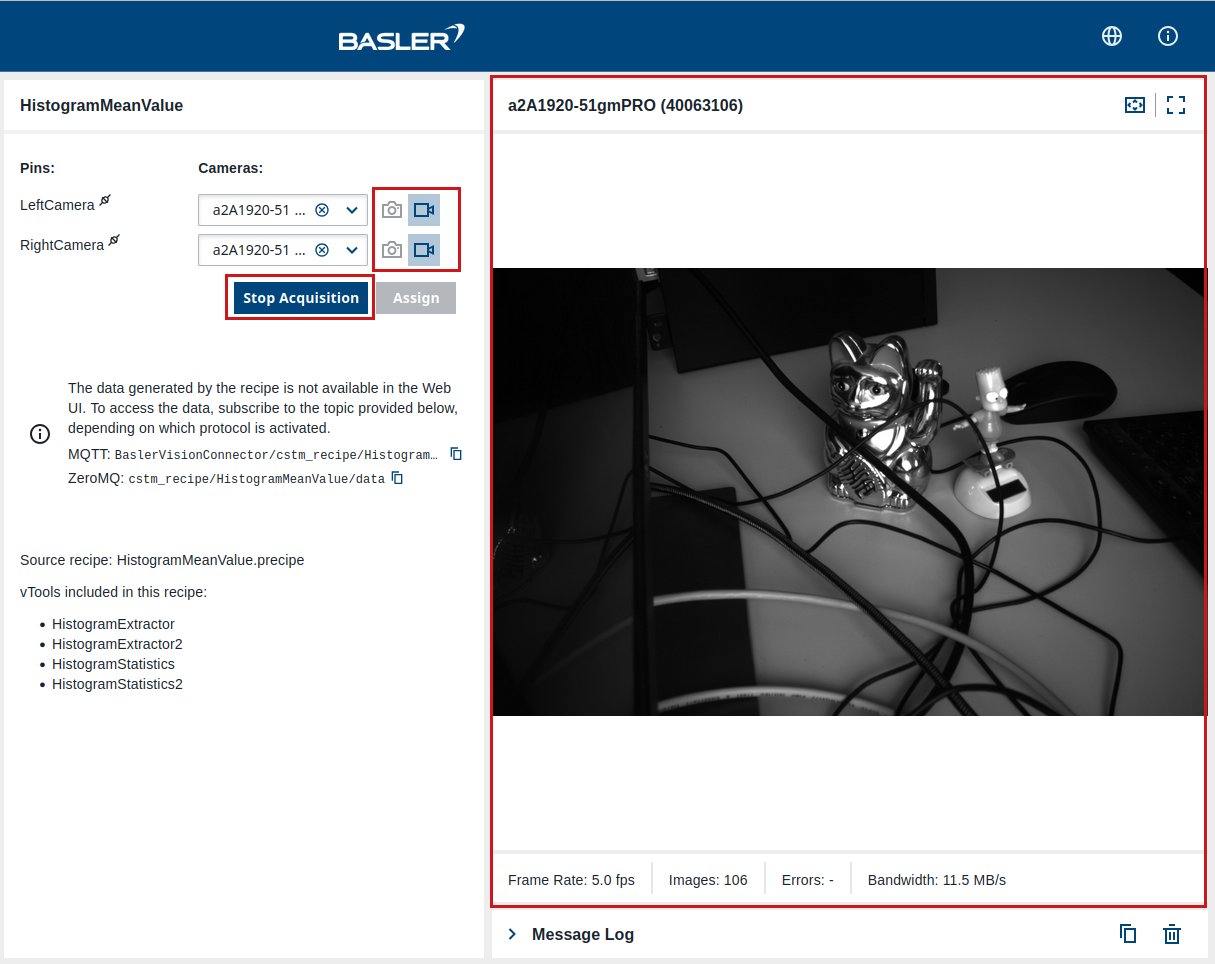
Details about the image display area are described below.
To stop the continuous shot image acquisition on all cameras, click the Stop Acquisition button. To stop acquisition for each camera individually, click the Continuous Shot button next to a camera.
Image Display Area#
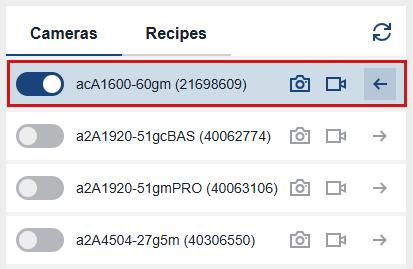
The image display area always shows the image stream of the camera selected in the Cameras list. The selected camera is highlighted in blue in the Cameras list:
Info
The image display area doesn't show the result of the applied vTools. To see the output of the vTools, you must access the data via ZeroMQ or MQTT.
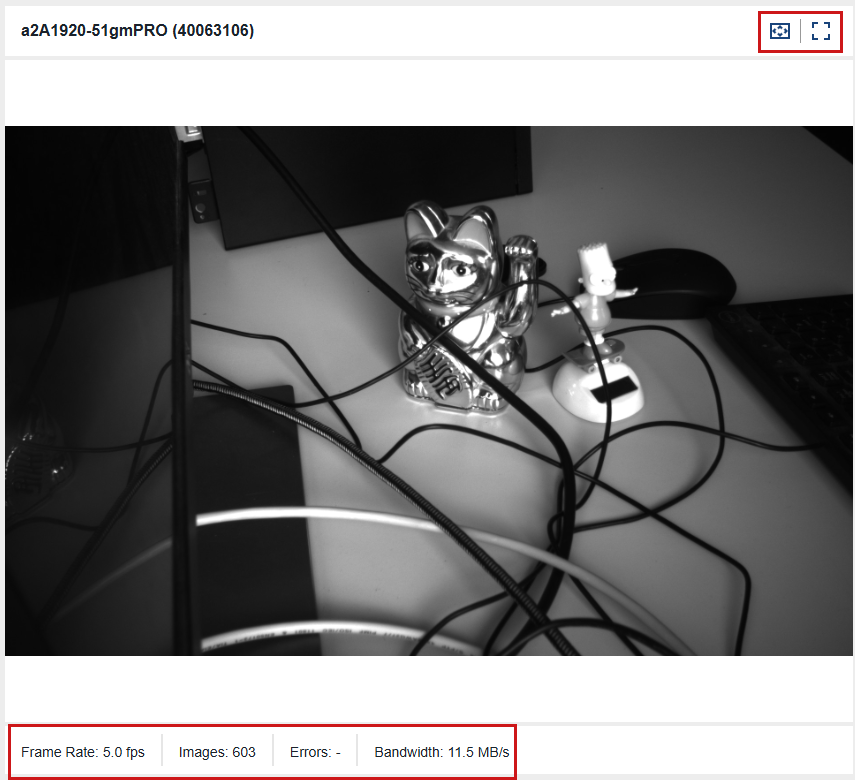
You can change the size of the image in the image display area using the following buttons:
| Icon | Function |
|---|---|
 | Displays the image in full size. Scrollbars may appear if the image is too big to fit. |
 | Makes the image fit into the image display area. |
 | Displays your image in full-screen mode. |
 | Exits full-screen mode. |
In the status bar of the image display area, you can find information about frame rates, number of images grabbed, as well as errors and bandwidth. Note that the display area doesn't reflect the actual frame rates; it is limited to 25 fps due to network bandwidth constraints.
Message Log#
To alert you to potential problems, a toast appears in the right-hand corner of the screen. More specific information to the cause of the problem is available in the Message Log pane below the image display area. Here, a message is logged for every action in the Basler Vision Connector.
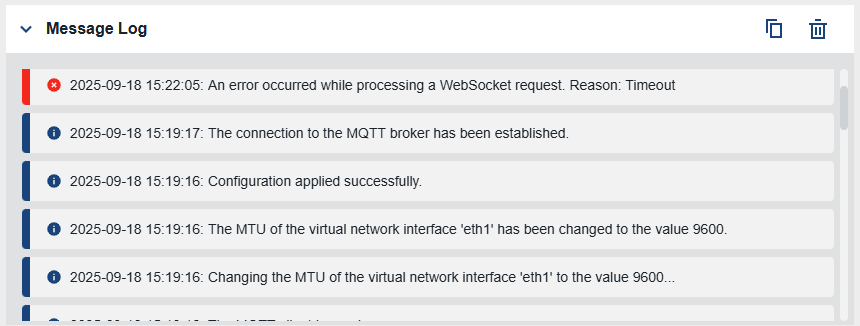
You can copy all log messages to clipboard with the Copy button:

You can delete all log messages with the Delete button:
