Using vTools in the Basler Vision Connector#
Info
Instead of writing code yourself, you can use the vTools available in the Basler pylon Viewer.
With vTools, you can create image processing designs in a graphical user interface that you can add to your application code afterwards. vTools are the building blocks for creating image processing designs. Each vTool can perform a specific task, e.g., camera calibration, image format conversion, or barcode reading, to name but a few. In the Workbench of the pylon Viewer, add the required vTools, connect them in the desired order, and save the design as a recipe file (.precipe).
To learn how to create recipes, see the Working with Recipes topic.
Restrictions#
When using recipes with the Basler Vision Connector, the following restrictions apply:
-
The Basler Vision Connector can't upload recipe files that contain one of the following vTools:
-
If a recipe contains a Camera or Image Loading vTool, the recipe can be uploaded to the Basler Vision Connector only if these vTools are deactivated. You can deactivate vTools in the pylon Viewer via the slider button:
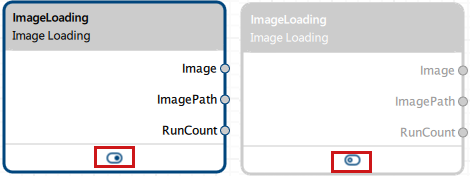
-
The Basler Vision Connector doesn't support vTool recipes created or edited in pylon version 25.09 or higher. Therefore, create or edit vTool recipes with pylon version 25.08 or lower.
- Certain rules apply for naming the pins of the recipe's input terminal. For more details, see Naming of Input Pins.
- The default setting for connections in a recipe is the Blocking queue mode with a queue size of 1. In this queue mode, if the recipe is busy (i.e., processing of data is in progress) and the queues of connections connected to the input terminal are full, no additional data (such as images, image IDs, device timestamps, and host timestamps) can be added to the recipe. Any additional data is dropped. If this behavior isn't desired, you can configure another queue mode or increase the queue size for these queues as described in the Recipe Management topic.
Recipe Workflow#
The recommended workflow for using recipes in the Basler Vision Connector is as follows:
- In the Basler pylon Viewer, create a recipe file that contains the desired vTools.
- Upload the recipe to the Basler Vision Connector, where it will appear in the Recipes area with the file name you specified.
- Create an instance of the recipe.
- Open one or several cameras in the Basler Vision Connector.
- Open the recipe instance you have uploaded in step 2 and assign the cameras.
You can assign one camera per pin. - Start image acquisition on the cameras.
You can change the camera selection after opening the recipe even if a camera is already streaming.
You can assign recipes to cameras either via the Web UI or via messaging.
Naming of Input Pins#
Recipes that are used in the Basler Vision Connector must follow certain rules in the naming of input terminal pins. The Basler Vision Connector can provide the following camera information via the pins of the recipe's input terminal. Pin names are case-sensitive.
- The camera image itself.
Pin naming scheme:Image0_{UserDefinedPinID}
Example:Image0_BarcodeCamera
Pin type:Image - The ID of the image. This pin is optional.
Pin naming scheme:ImageID0_{UserDefinedPinID}
Example:ImageID0_BarcodeCamera
Pin type:Integer - The camera timestamp (if received from the camera). This pin is optional.
Pin naming scheme:DeviceTimestamp0_{UserDefinedPinID}
Example:DeviceTimestamp0_BarcodeCamera
Pin type:Integer - The host timestamp when the image was received. The timestamp is ISO8601-encoded. This pin is optional.
Pin naming scheme:HostTimestamp0_{UserDefinedPinID}
Example:HostTimestamp0_BarcodeCamera
Pin type:String
You don't have to create input terminal pins for all these values. You can decide which values you need in the current recipe.
For the {UserDefinedPinID}, you can choose any string as long as the resulting full pin names are valid for the recipe. The {UserDefinedPinID} is then used to connect the cameras to a recipe. The prefixes (Image0_, ImageID0_, DeviceTimestamp0_, or HostTimestamp0_) are used to specify which information of the connected camera is written into the recipe via a particular input pin.
Naming of Output Pins#
The names of a recipe's output terminal pins can be chosen freely. The names will be used directly in the Recipe Payload Format and the IE Common Payload Format when receiving data from a recipe.
Recipe Error Handling#
Recipes (or more precisely the vTools inside) can enter an error state. This may happen, for example, if a vTool's license has expired or if a required resource (such as a network connection) is no longer available.
When an error occurs, the system sends an event notification. Once the issue is resolved and the recipe is functioning normally again, a recovery event is sent. For details, see the following topics:
Web UI
Messaging
In addition, you can use the Get Application Status command to check whether a recipe is currently in an error state.