Using the JSON Test Files with Industrial Edge Flow Creator#
To use the JSON test files:
- For the next steps (opening the camera, setting parameters, etc.), download the following JSON test files to your computer. These files are only available via the Basler Product Documentation:
-
Make sure that the following apps are installed on your Edge Device in addition to the Basler Vision Connector:
For the MQTT test you need:
- the Flow Creator app
- the Data Flow Monitoring app (to find out the IP address of the Basler Vision Connector)
- the Databus app (= MQTT Broker)
For the ZeroMQ test you need:
- the Flow Creator app
- the Data Flow Monitoring app (to find out the IP address of the Basler Vision Connector)
Instructions for MQTT#
These instructions apply to both MQTT test files:
A connection to the MQTT broker must be established and the root topics must be subscribed. To ensure that:
- Go to Data Connections in your Industrial Edge Management platform.
-
Select the device where the Databus and the Basler Vision Connector app are installed and add a new user by clicking the
 button.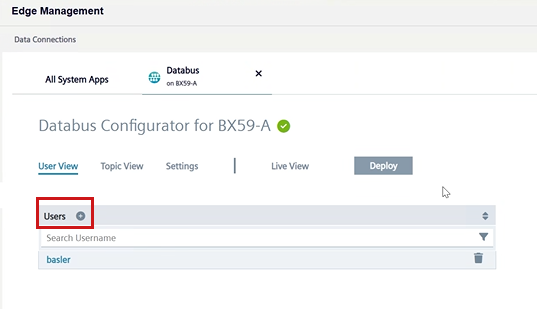
-
Enter your username and password and select the permission Public and Subscribe.
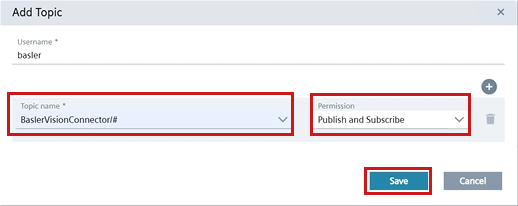
- Subscribe to the root topic: Click the Add Topics button
 .
. -
In the Add Topic dialog, add the topic BaslerVisionConnector/#, select the permission Publish and Subscribe and click Save.
-
Click Deploy.

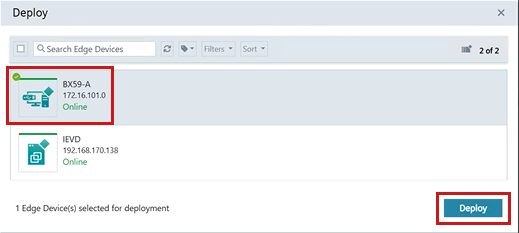
The Deploy dialog opens up:
-
Select the Device on which the BVC is installed and click Deploy. The deployment process takes some seconds.
-
In the Edge Management platform, open your Edge Device.
-
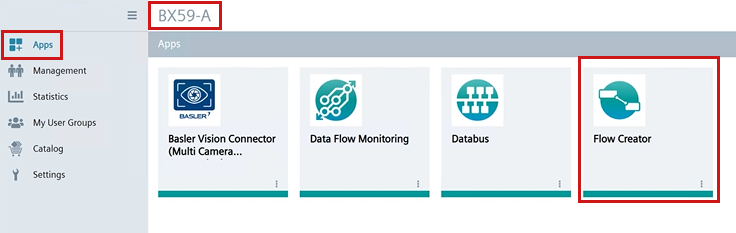
Go to Apps and click Flow Creator. The Flow Creator app opens up.
-
From the menu, select Import. Import the MQTT JSON test file.
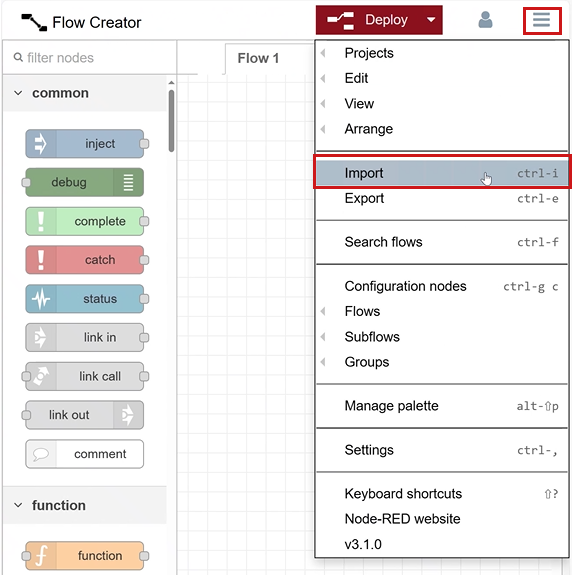
The Test JSON file is imported and displayed as topics in the Flow Creator app. -
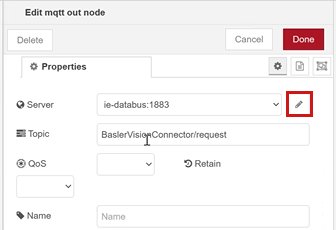
Double-click the topic BaslerVisionConnector/request. The Edit mqtt out node dialog opens up. Click the pencil/edit button.
-
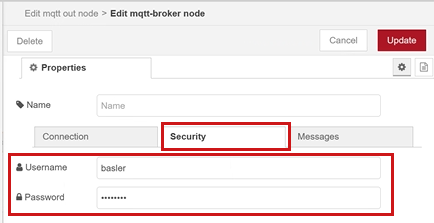
Go to Security tab.
-
Ensure that your user name and password are correct. Click Update and Done.
- Double-click the topic BaslerVisionConnector/response. The Edit mqtt out node dialog opens up. Click the pencil/edit button.
- Go to Security tab.
- Ensure that your user name and password are correct. Click Update and Done.
-
Click Deploy. The connection to the MQTT broker is established. If the connection is established correctly, the topics BaslerVisionConnector/request and BaslerVisionConnector/response are shown as connected:
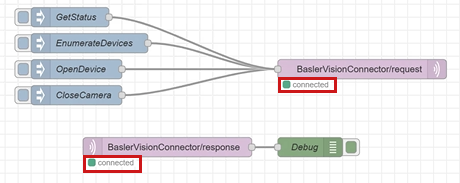
-
Now you can send messages by clicking the available topics.
- Adapt the serial number of your camera in the relevant topics/messages.
-
You can add new messages by adding a new inject node. See Messaging for information about available messages.
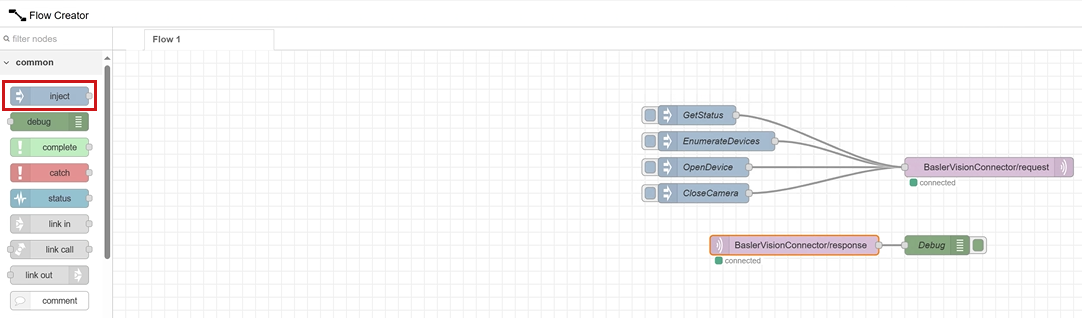
Instructions for ZeroMQ#
Note
The following instructions are valid for working with a virtual IE device. If you have a physical IED, you must build a NodeRed application with the node-red-contrib-zeromq node. See the Siemens Documentation: Develop an Application for instructions.
-
In the Edge Management platform, open your Edge Device.
-
Go to Apps and click Flow Creator. The Flow Creator app opens up.
-
From the menu, select Manage palette.
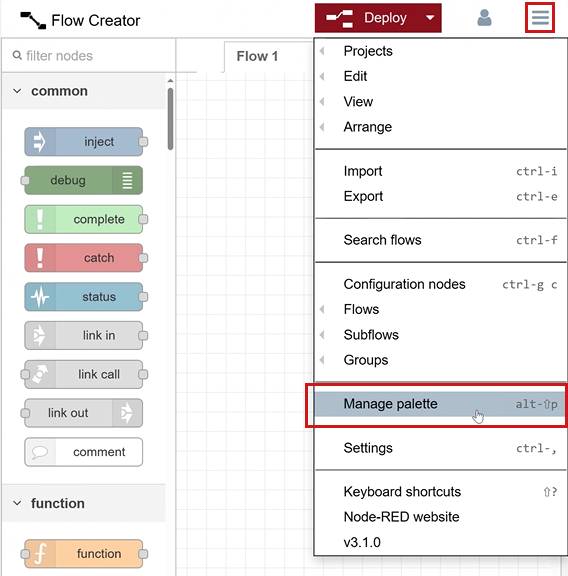
-
The User Settings menu opens up. On the Install tab, type zmq into the search filed and click Install for the node-red-contrib-zeromq node.
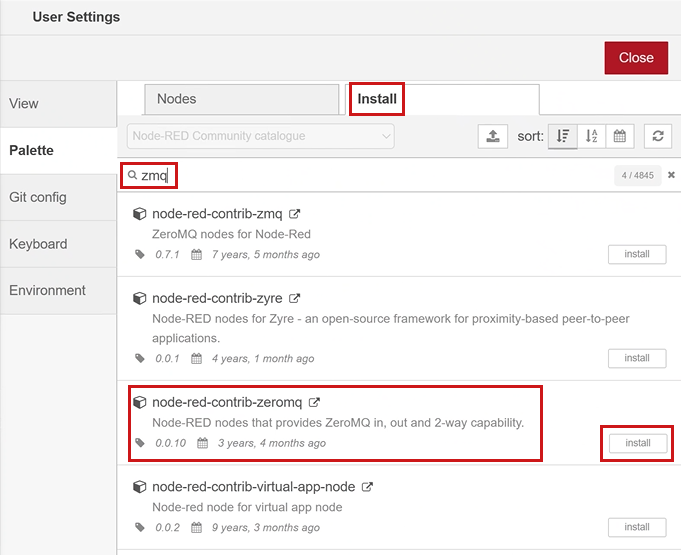
The node-red-contrib-zeromq node is installed.
-
From the menu, select Import. Import the ZeroMQ JSON test file.
-
In the imported test file, connect the ZeroMQ topics, i.e. zeromq and {DeviceID}/stream, to the Basler Vision Connector app: Click the node and change the host name to
baslervisionconnector-x86-64.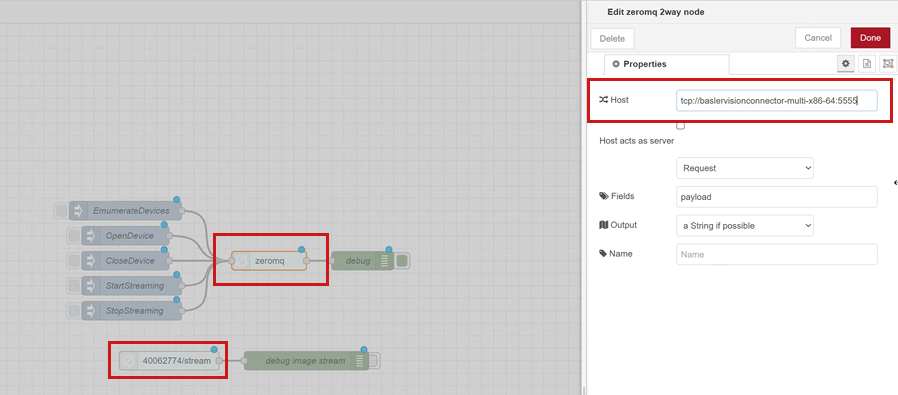
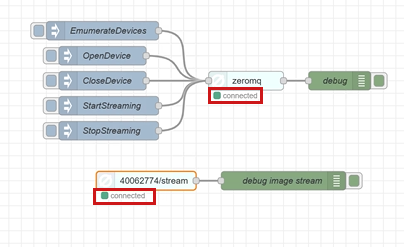
If the connection is established correctly, the topics zeromq and {DeviceID}/stream are shown as connected:
-
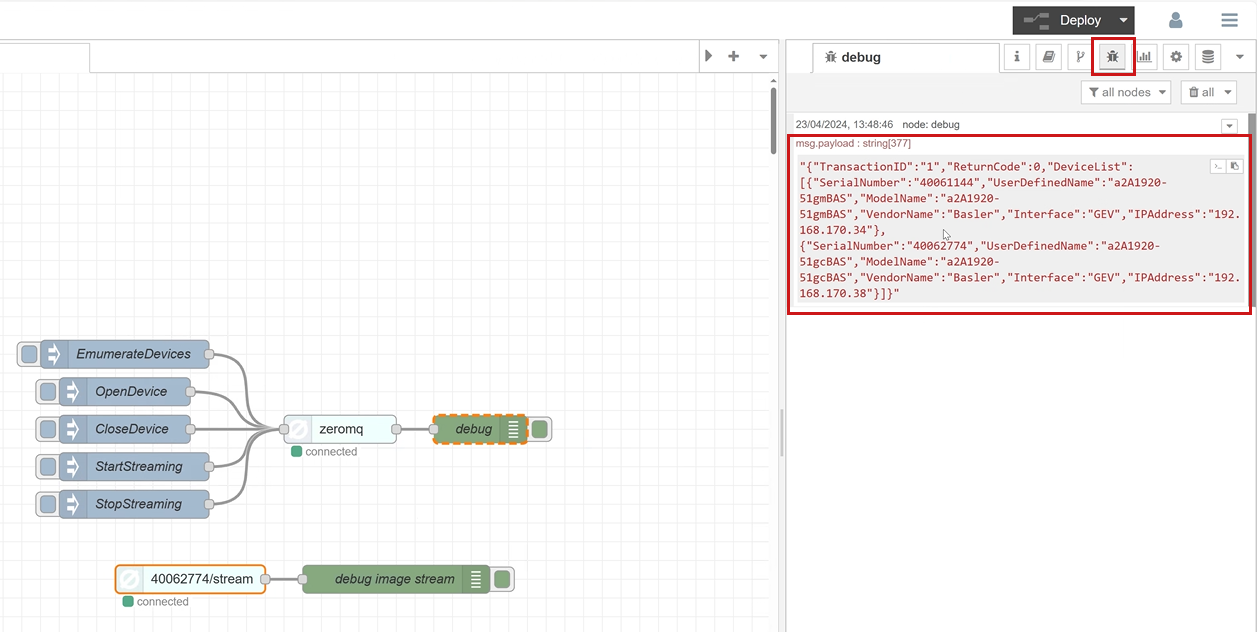
Now you can send messages by clicking the available topics. To see the reply of the message, switch to the debug mode:
-
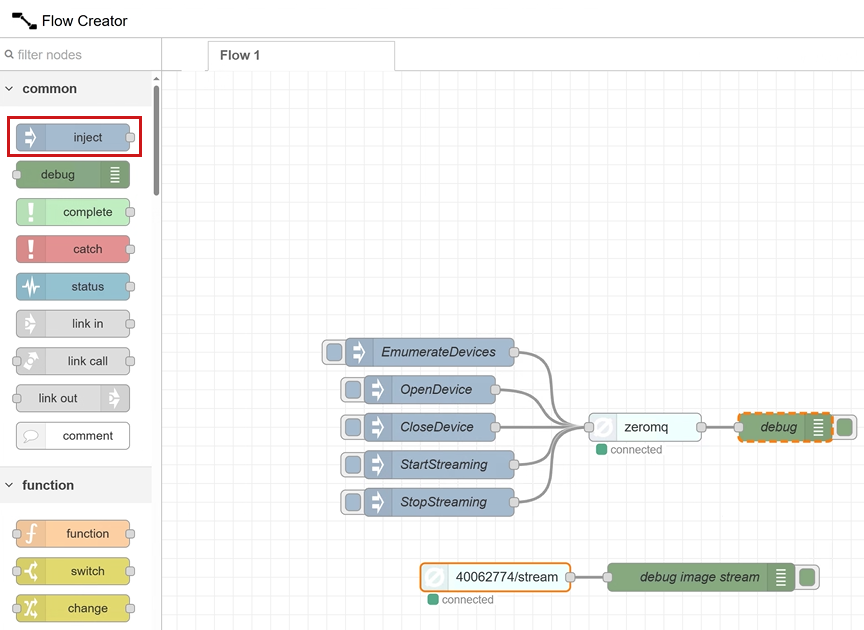
You can add new messages by adding a new inject topic. See Messaging for information about available messages.
Instructions for ZeroMQ with Image Viewer#
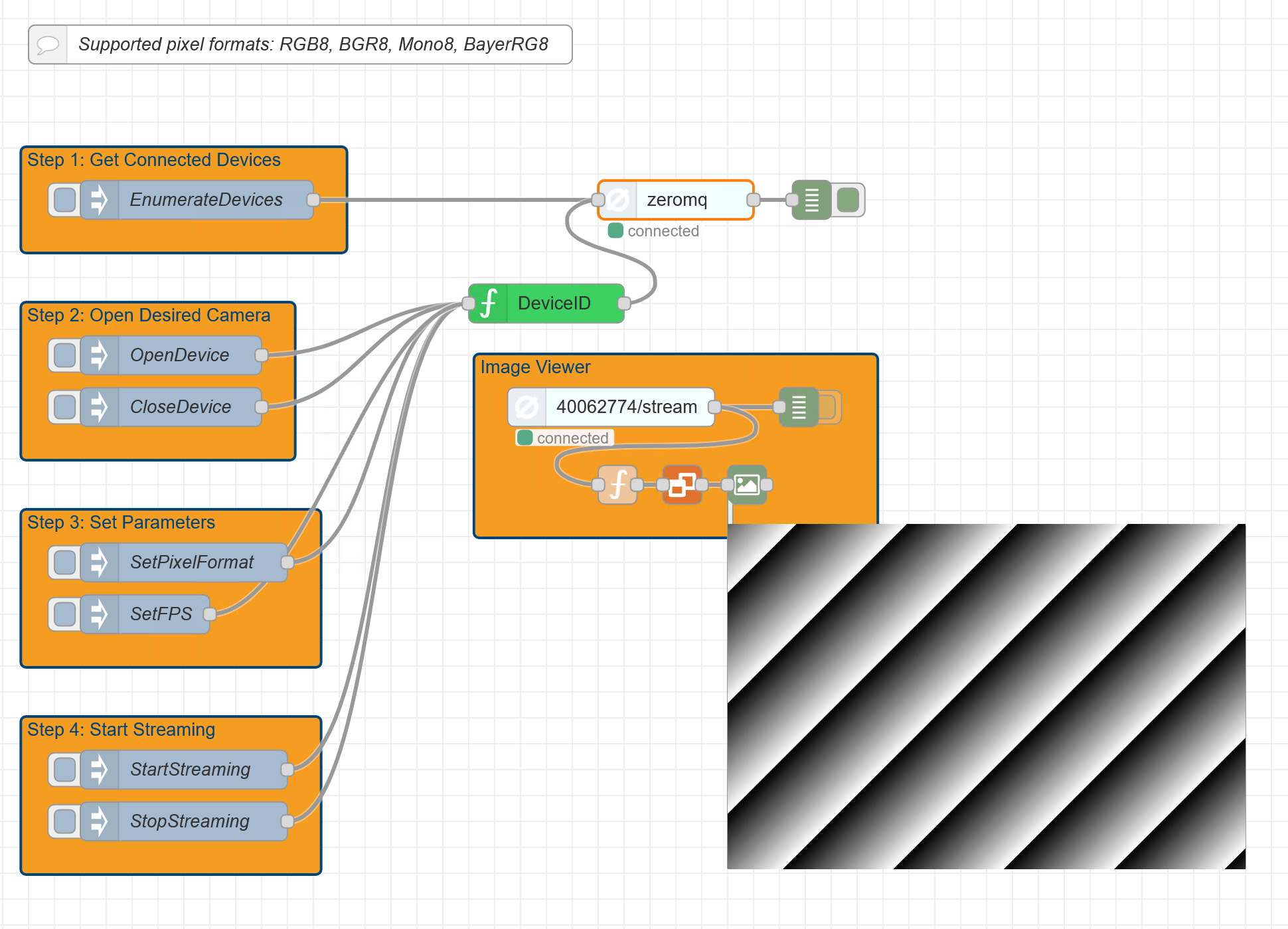
With the Image Viewer in the ZeroMQ JSON Test File with File Image Viewer you can preview the images of your camera.
Use the Web UI Instead
This section is only relevant, if you want to use create an image preview in the Flow Creator. The dafault way to get an image preivew, is to use the Basler Vision Connector Web UI.
Info
The following instructions are valid for working with a virtual IE device. If you have a physical IED, you must build a NodeRed application with the following nodes:
See the Siemens Documentation: Develop an Application for instructions.
To use the Image Viewer:
-
In the Edge Management platform, open your Edge Device.
-
Go to Apps and click Flow Creator. The Flow Creator app opens up.
-
From the menu, select Manage palette.
-
The User Settings menu opens up. On the Install tab, select the following nodes for installation:
-
From the menu, select Import. Import the ZMQ JSON test file with Image Viewer.
-
In the imported test file, connect the ZeroMQ topics, i.e. zeromq and {DeviceID}/stream, to the Basler Vision Connector app: Click the node and change the host name to
baslervisionconnector-x86-64.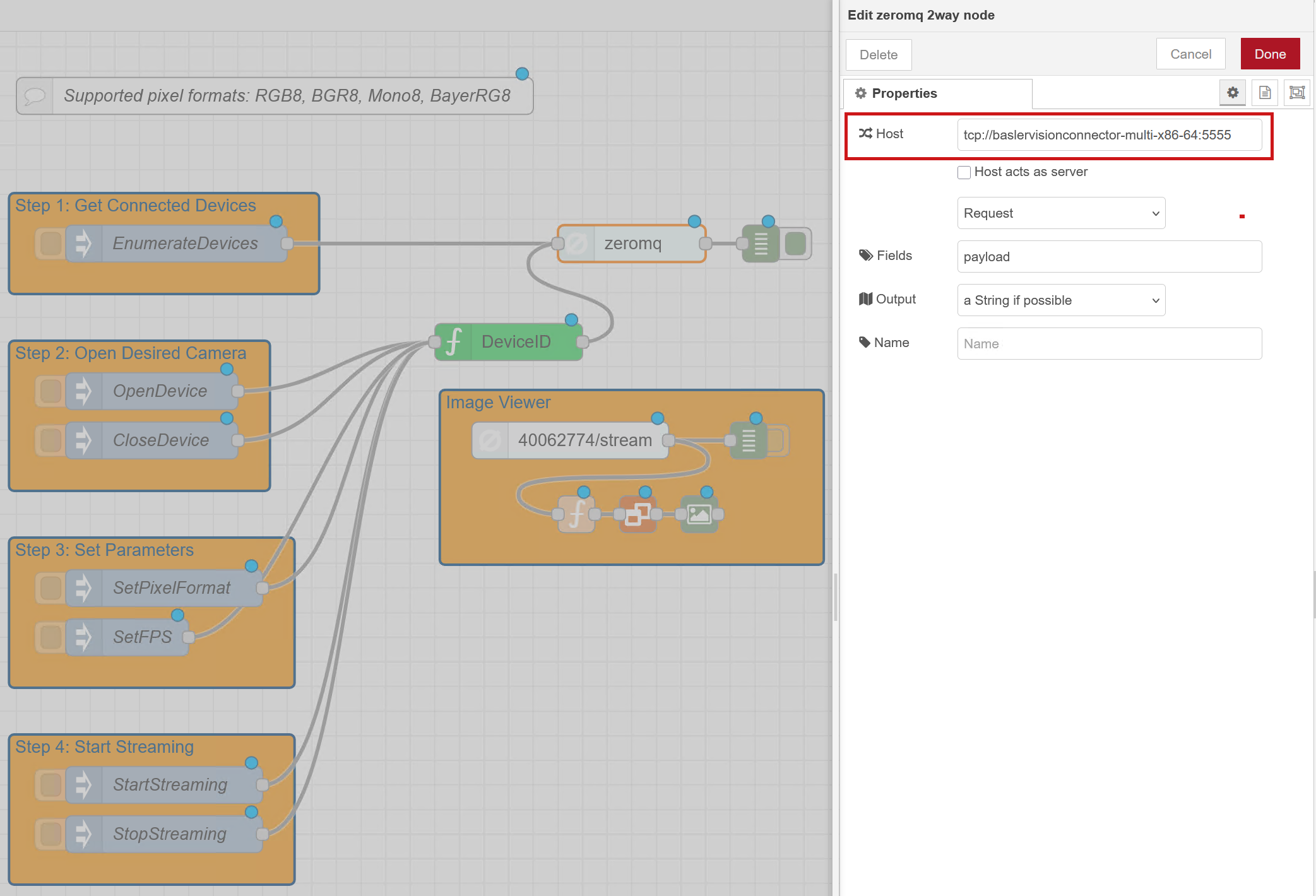
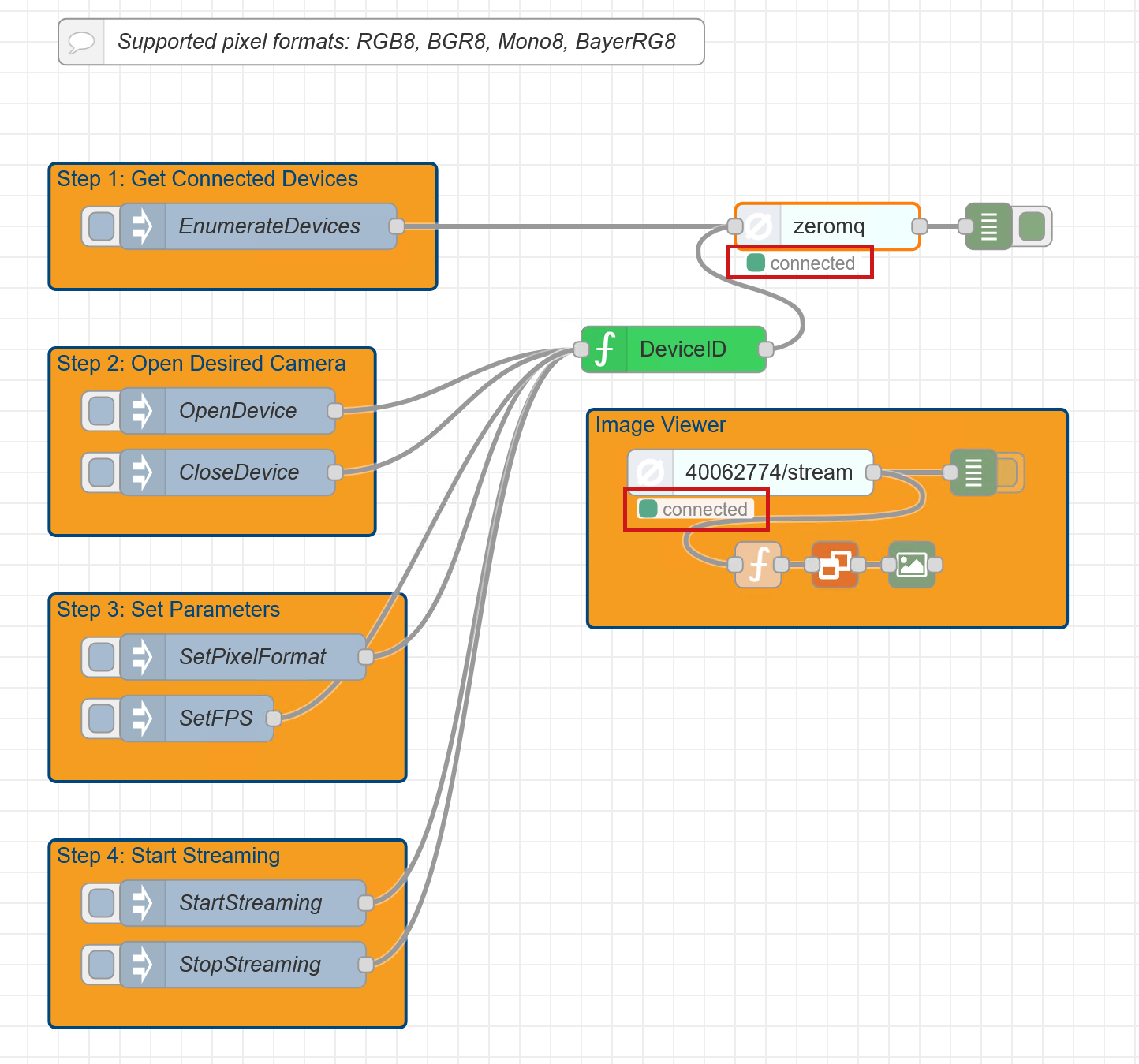
If the connection is established correctly, the topics zeromq and {DeviceID}/stream are shown as connected:
-
Click the Enumerate Devices node. All discovered devices are listed.
- Copy the device ID of the camera you want to stream with.
- Click the Device ID node. Paste the copied device ID here.
- Click the Pixel Formats node and set the desired pixel formats.
- If required, configure more parameters.
-
Click Start Streaming. A preview of your streamed image is displayed in the Flow Creator.