Free-Form OCR vTool#
It finds words and text segments without you having to know where they appear in advance. This means you can capture as much text as possible to use in your application as required. If your text follows a fixed pattern, use the Pattern OCR vTool instead.
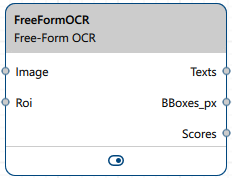
The Free-Form OCR vTool reads and verifies text in images it receives via the Image input pin. It outputs the results via the Texts, BBoxes_px, and Scores output pins.
If you use the ROI Creator vTool to specify a region of interest before detection, the Free-Form OCR vTool accepts the ROI data via its Roi input pin. In that case, detection is only performed on the region of interest. As a side effect, this results in faster processing.
To buy a license for the Free-Form OCR vTool, visit the Basler website. You also need to request a generic model from Basler Sales.
How It Works#
Assume you want to read shipping labels.
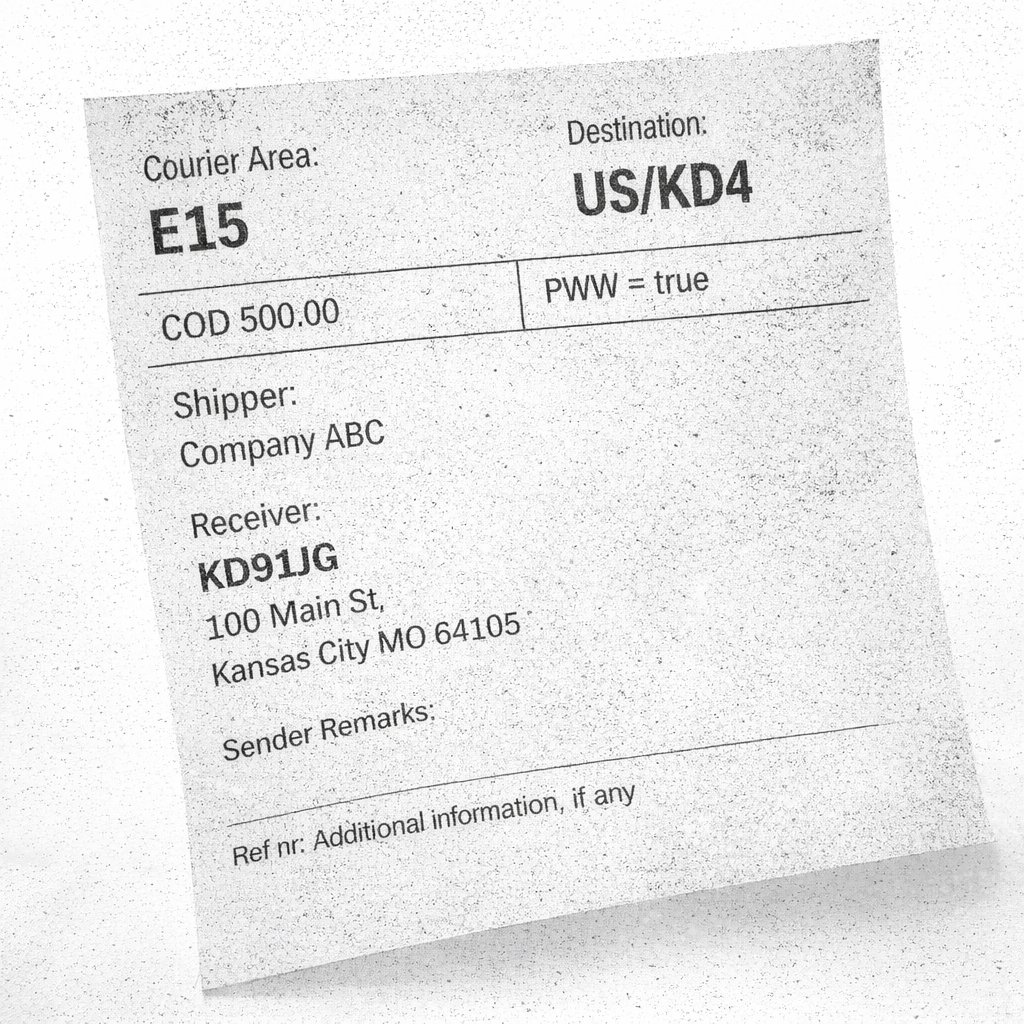
This is your input image showing a shipping label:
You configure the vTool by loading a model that has been trained to read shipping labels.
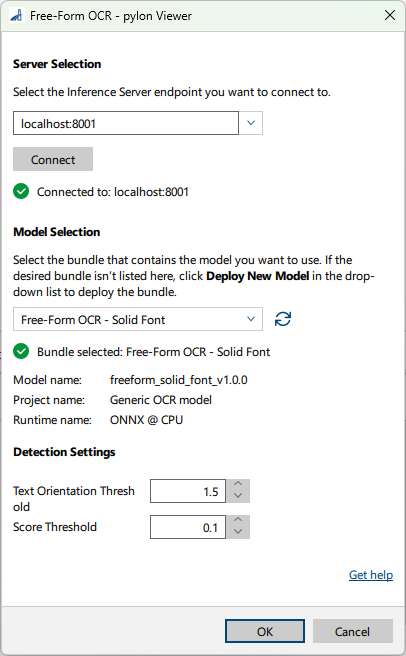
Configure the desired detection settings.
After configuring the vTool, you run the recipe that initiates the inference process. The vTool utilizes the model to analyze the image and read the words and text segments present. When the analysis has finished, the OCR result is returned.
This is the pin data view showing the results:
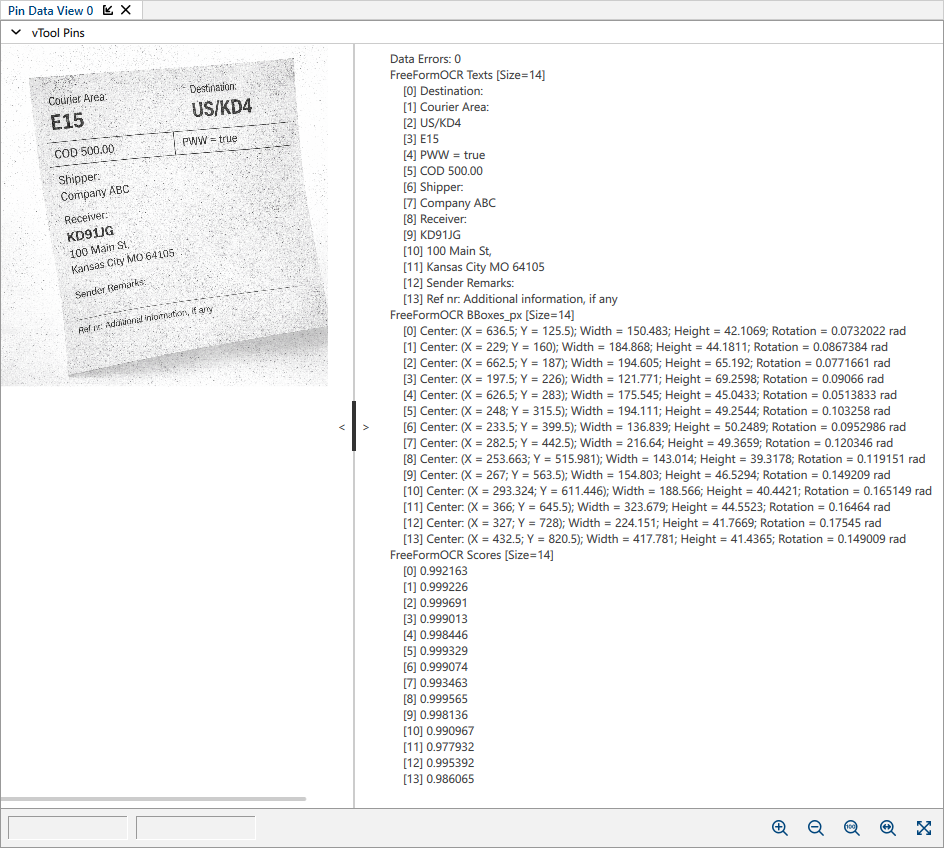
Image Formats#
Depending on the model, different image types are accepted at the Image input pin, either color (BGR 8 Packed), mono (Mono 8), or color and mono images.
- If the model expects a color image, color pixel formats are converted internally to BGR 8 Packed. Mono images aren't accepted.
- If the model expects a mono image, mono pixel formats are converted internally to Mono 8. Color images aren't accepted.
- If the model supports both mono and color images, mono input is converted to Mono 8 and sent as mono and color input is converted to BGR 8 Packed and sent as color. The vTool doesn't convert color to mono or mono to color.
If the input pixel format isn't supported, convert the image first using the Image Format Converter vTool. Select BGR 8 Packed for color input or Mono 8 for mono input.
Output Data Mapping#
The Texts, BBoxes_px, and Scores results are output as index-aligned arrays. Elements at identical positions in an output refer to the same text segment. No extra vTool sorting is applied.
If model output order or segmentation differ, output pins keep the model output order.
Example:
Output data arrays with three elements, i.e., text segments recognized
Texts: ["AB", "12045", "XZ"]
Scores: [0.98, 0.95, 0.93]
BBoxes_px: [b0, b1, b2]
Here, index 0 maps to element/text segment 1, index 1 to element/text segment 2, and index 2 to element/text segment 3.
Configuring the vTool#
To configure the Free-Form OCR vTool:
-
In the Recipe Management pane in the vTool Settings area, click Open Settings or double-click the vTool.
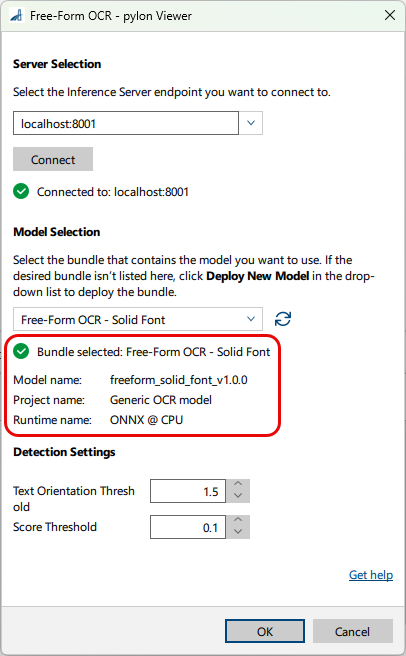
The Free-Form OCR dialog opens. -
In the Server Selection area, select the server you want to connect to.
The server must be running to be able to connect to it.- Option 1: Enter the IP address and port of your Triton Inference Server manually.
- Option 2: Select the IP address / host name and port of your server in the drop-down list.
-
Click Connect to establish a connection.
The vTool then loads the available models. -
In the Model Selection area, select the bundle that contains the desired model in the drop-down list.
After you have selected a bundle, the information below the drop-down list is populated with the bundle details allowing you to check that you have selected the correct bundle.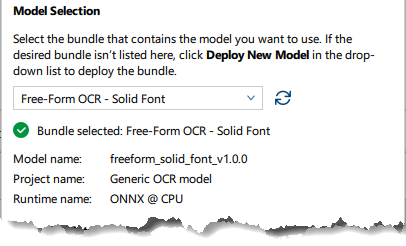
-
If the desired bundle isn't listed, click Deploy New Model in the drop-down list.
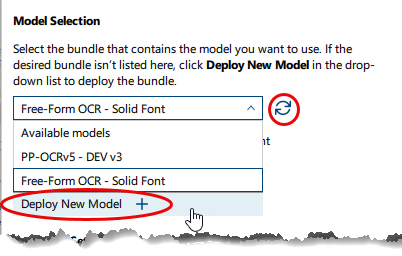
This opens the pylon AI Agent that allows you to deploy more models.
After you have deployed a new model, you have to click the Refresh button. -
In the Detection Settings area, configure the desired settings.
Info
The parameters available in this area depend on the model selected. Some parameters are only available after selecting a certain model. Default values are provided by the model.
-
Click OK.
You can view the result of the Free-Form OCR vTool in a pin data view. Here, you can select which outputs to display.
Inputs#
Image#
Accepts images directly from a Camera vTool or from a vTool that outputs images, e.g., the Image Format Converter vTool.
- Data type: Image
- Image format: Mono or color images. Supported pixel formats are converted internally to Mono 8 or BGR 8 Packed, depending on the model. For more details, see Image Formats.
Roi#
Accepts a region of interest from the ROI Creator vTool or any other vTool that outputs rectangles.
If the ROI (rectangle) is rotated, it is straightened before inference. The area inside the rectangle is cropped out of the input image and rotated so that it becomes axis-aligned. This straightened crop is what goes into inference.
The resulting bounding boxes are transformed back and returned in the coordinate system of the original input image. Their rotation, therefore, includes the rotation of the ROI. Position, width, and height always refer to the input image, not to the cropped region.
- Data type: RectangleF
Outputs#
The Texts, BBoxes_px, and Scores results are output as index-aligned arrays. Items at identical positions in an output refer to the same text segment.
Texts#
Returns each word or text segment detected.
- Data type: String Array
BBoxes_px#
Returns a bounding box for every text detection. Each bounding box is defined by the coordinates of its center pixel, its width, its height, and its rotation (x_center, y_center, width, height, rotation). Rotation is in radians, measured counterclockwise from the x-axis. The coordinates refer to the original input image, including when an Roi input pin is connected. The bounding box output can be used as input for the Roi input pin of other vTools.
- Data type: RectangleF Array
Scores#
Returns the confidence score for each text detection. Higher values mean higher confidence.
- Data type: Float Array
Payload#
Returns additional information regarding the performance of the Inference Server for evaluation. This output pin only becomes available if you enable it in the Features - All pane in the Debug Settings parameter group.
- Data type: String