Pattern OCR vTool#
Typical applications involve serial numbers, batch codes, or other text with a fixed structure. In these scenarios, the relevant image area is either stable by design or can be extracted and aligned reliably in a preprocessing step. If your text doesn't follow a fixed pattern, use the Free-Form OCR vTool instead.
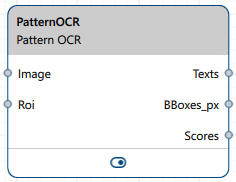
The Pattern OCR vTool reads text in images it receives via the Image input pin and compares it against the pattern set by the model. It outputs the results via the Texts, BBoxes_px, and Scores output pins.
If you use the ROI Creator vTool to specify a region of interest before detection, the Pattern OCR vTool accepts the ROI data via its Roi input pin. In that case, detection is only performed on the region of interest. As a side effect, this results in faster processing.
To run the Pattern OCR vTool, you need the pylon Supplementary Package for pylon AI 1.6.1 or higher.
To buy a license for the Pattern OCR vTool, visit the Basler website.
How It Works#
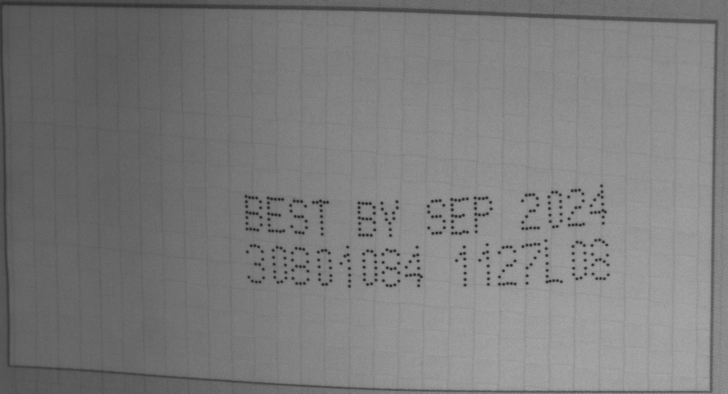
Assume you want to read best by dates on packaging. The dates are always printed in the same font and use the same date format.
This is your input image showing a best by date and other information:
You configure the vTool by loading a model that has been trained to read best by dates.
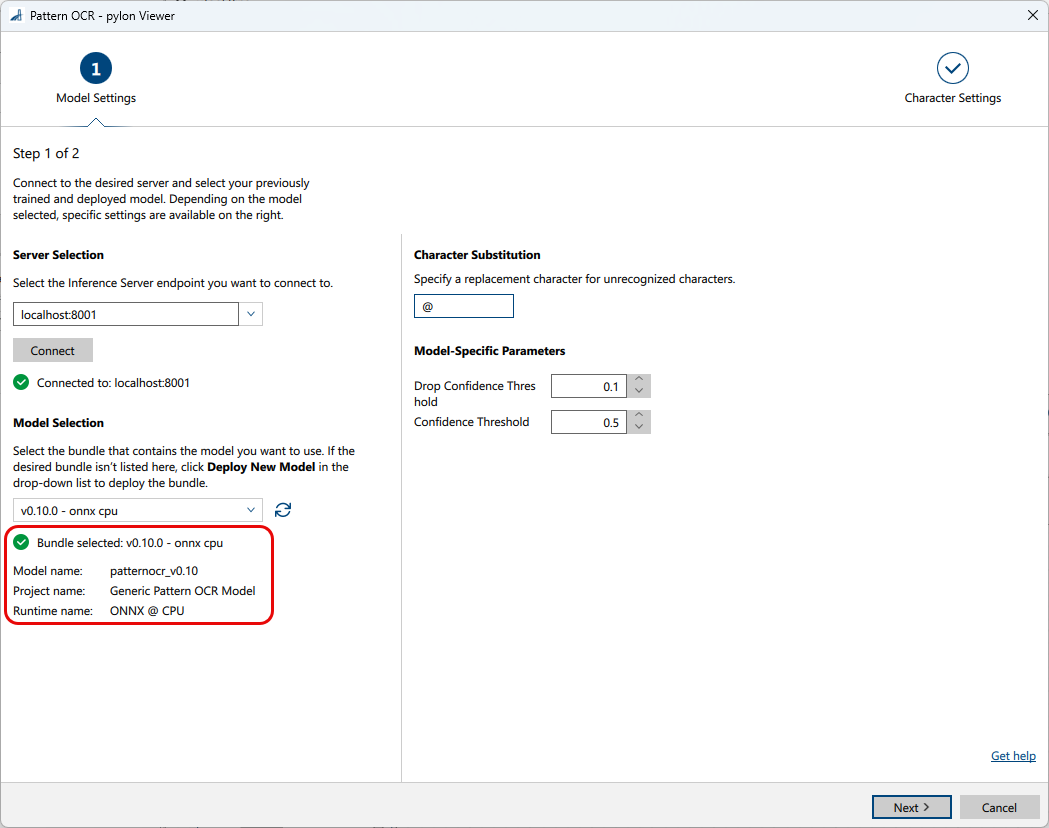
On the first page of the wizard, you can specify a substitution character that is used as replacement for characters that aren't recognized.
You can also see model-specific parameters that you can configure. These parameters come from the model you have selected, and, therefore, aren't documented here. For more information about a model-specific parameter, select the parameter in the Features - All pane and check its description in the Feature Documentation pane.
Click Next to get to the second page of the wizard where you can configure character settings.
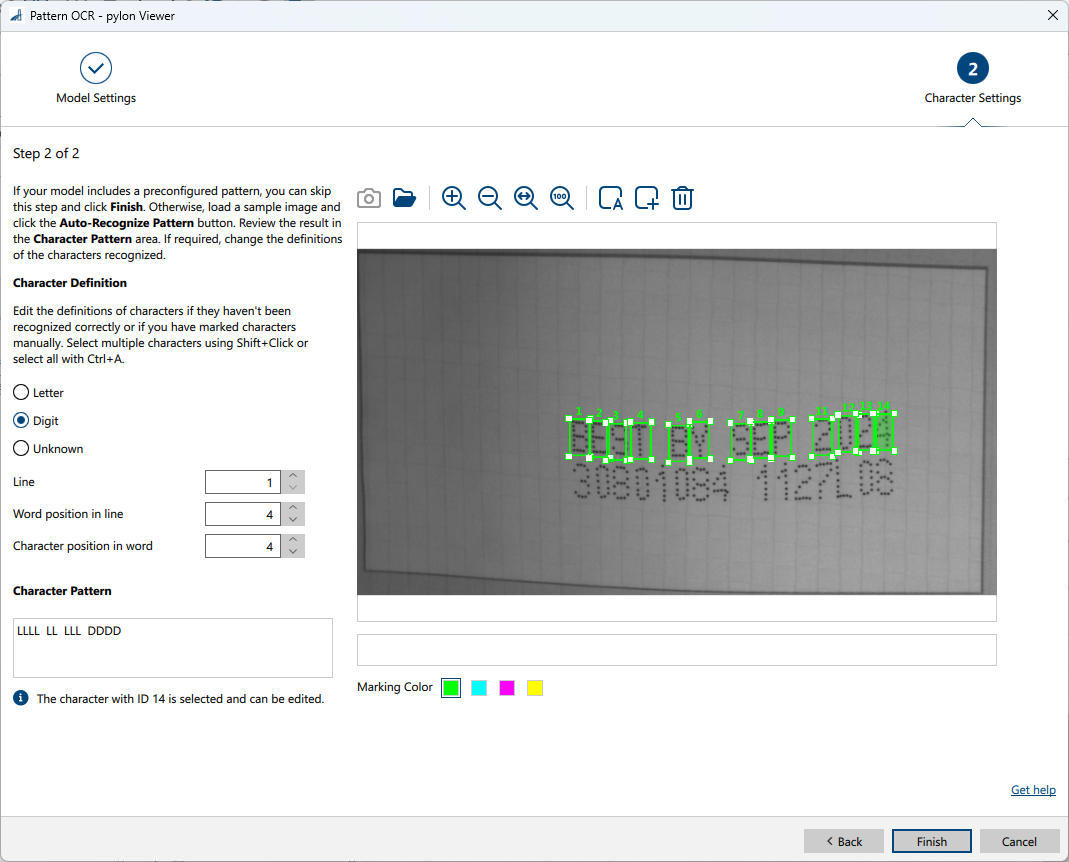
A model can include a preconfigured pattern, which you can keep. To define a pattern yourself, load a sample image. Use Single Shot to grab the current image or Open Image to load a .png file. If an Roi input is connected, Single Shot uses that region. A rotated ROI is straightened before it is shown. If character markings already exist, choose whether to keep or delete them when you grab or open another image.
You can classify each character as a letter (L), a digit (D), or unknown (U). Set the line (1–10) and the word position in that line (1–20). These apply to every selected character. Set the character position in the word (1–20) on one selected character. Select several character boxes with Shift + left-click, or select all with Ctrl+A. Each combination of line, word position, and character position must be unique. The editor reports duplicate definitions.
The easiest way to create a pattern is to use the Auto-Recognize Pattern button.

Auto-recognize asks how many lines the pattern has. Enter a value from 1 to 20. It puts a box around each character it finds and updates the character definitions accordingly. If markings already exist, confirm before they are replaced. If it finds no characters, the current pattern stays unchanged. If you spot errors, select a character box and change its definition.
To define characters manually, click the Mark Character button.

This adds a character box to the image. Drag it to the desired position and edit the character definition as required.
The Character Pattern area allows you to check whether the definitions are correct.
After configuring the vTool, you run the recipe that initiates the inference process. The vTool utilizes the model to analyze the image and read the words and text segments present. When the analysis has finished, the OCR result is returned.
This is the pin data view showing the results:
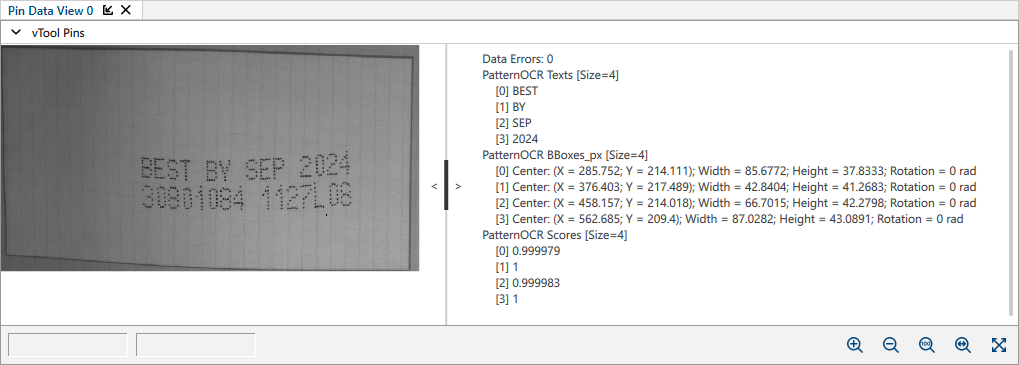
Image Formats#
Depending on the model, different image types are accepted at the Image input pin, either color (BGR 8 Packed), mono (Mono 8), or color and mono images.
- If the model expects a color image, color pixel formats are converted internally to BGR 8 Packed. Mono images aren't accepted.
- If the model expects a mono image, mono pixel formats are converted internally to Mono 8. Color images aren't accepted.
- If the model supports both mono and color images, mono input is converted to Mono 8 and sent as mono and color input is converted to BGR 8 Packed and sent as color. The vTool doesn't convert color to mono or mono to color.
If the input pixel format isn't supported, convert the image first using the Image Format Converter vTool. Select BGR 8 Packed for color input or Mono 8 for mono input.
Output Data Mapping#
The Texts, BBoxes_px, and Scores results are output as index-aligned arrays. Elements at identical positions in an output refer to the same text segment. No extra vTool sorting is applied.
If model output order or segmentation differ, output pins keep the model output order.
Example:
Output data arrays with three elements, i.e., text segments recognized
Texts: ["AB", "12045", "XZ"]
Scores: [0.98, 0.95, 0.93]
BBoxes_px: [b0, b1, b2]
Here, index 0 maps to element/text segment 1, index 1 to element/text segment 2, and index 2 to element/text segment 3.
Configuring the vTool#
To configure the Pattern OCR vTool:
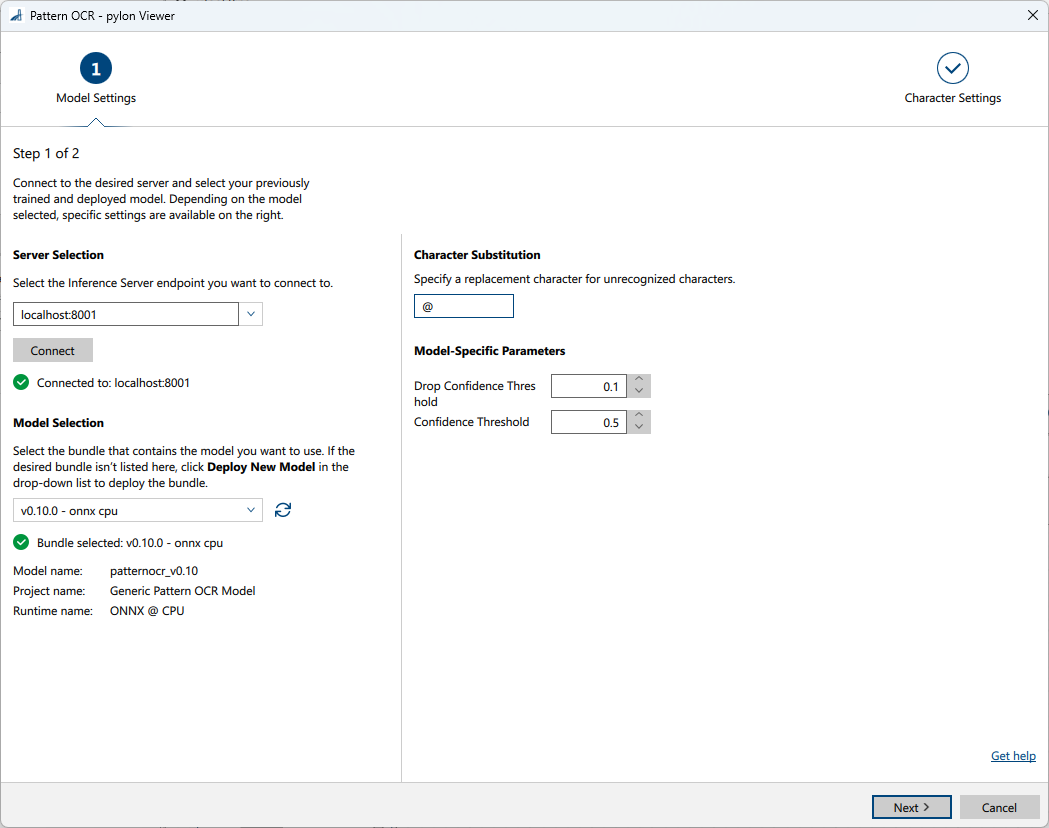
-
In the Recipe Management pane in the vTool Settings area, click Open Settings or double-click the vTool.
The Pattern OCR dialog opens. -
In the Server Selection area, select the server you want to connect to.
The server must be running to be able to connect to it.- Option 1: Enter the IP address and port of your Triton Inference Server manually.
- Option 2: Select the IP address / host name and port of your server in the drop-down list.
-
Click Connect to establish a connection.
The vTool then loads the available models. -
In the Model Selection area, select the bundle that contains the desired model in the drop-down list.
After you have selected a bundle, the information below the drop-down list is populated with the bundle details allowing you to check that you have selected the correct bundle.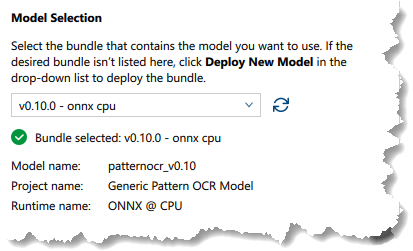
-
If the desired bundle isn't listed, click Deploy New Model in the drop-down list.
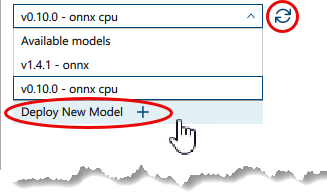
This opens the pylon AI Agent that allows you to deploy more models.
After you have deployed a new model, you have to click the Refresh button. -
Specify a substitution character or leave the default character as is.
-
Specify the model-specific parameters.
Info
The parameters available in this area depend on the model selected. Some parameters are only available after selecting a certain model. Default values are provided by the model.
-
Click Next.
The Character Settings page opens.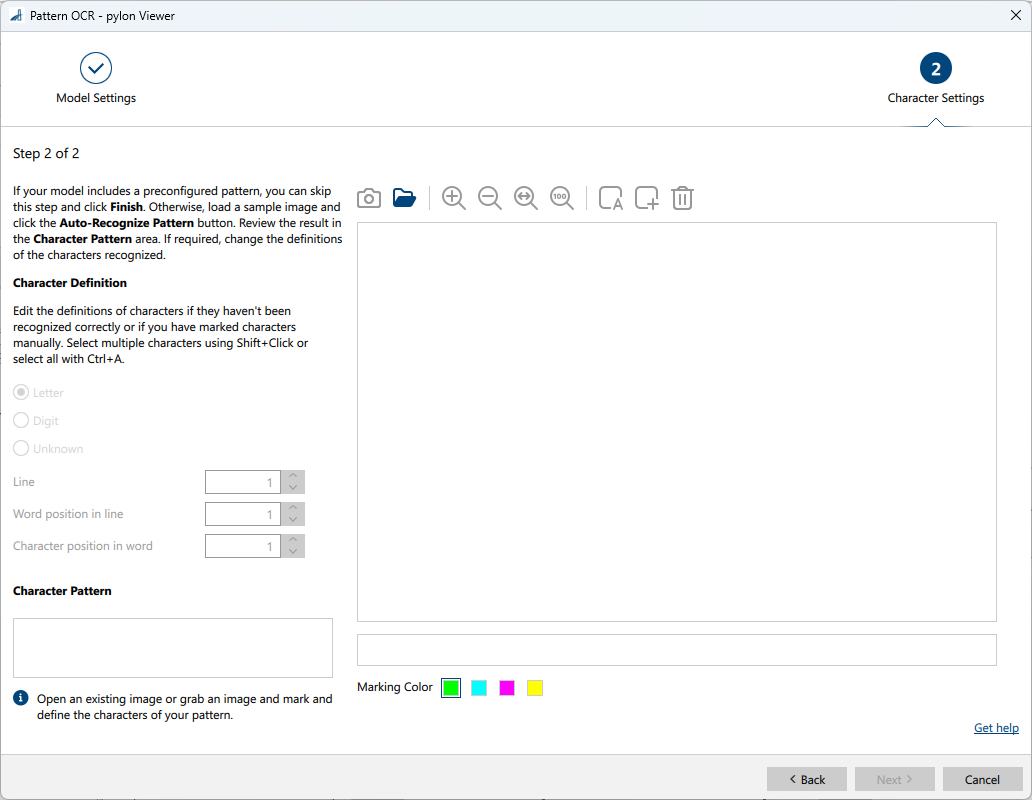
- On the Character Settings page, review the pattern if your model includes a preconfigured pattern.
If the model doesn't include a preconfigured pattern, capture a sample image with Single Shot or open an existing image using Open Image. Define the pattern using Auto-Recognize Pattern or by marking characters manually. - Review the pattern in the Character Pattern area.
- Click Finish.
You can view the result of the Pattern OCR vTool in a pin data view. Here, you can select which outputs to display.
Inputs#
Image#
Accepts images directly from a Camera vTool or from a vTool that outputs images, e.g., the Image Format Converter vTool.
- Data type: Image
- Image format: Mono or color images. Supported pixel formats are converted internally to Mono 8 or BGR 8 Packed, depending on the model. For more details, see Image Formats.
Roi#
Accepts one region of interest from the ROI Creator vTool or any other vTool that outputs a rectangle.
If the ROI has no overlap with the image or if the area inside the image is 1×1 pixel or smaller, the vTool returns empty Texts, Scores, and BBoxes_px arrays without calling the inference server. This includes the ROI Creator default when nothing is selected.
If the ROI is rotated, it is straightened before inference. The area inside the rectangle is cropped out of the input image and rotated so that it becomes axis-aligned. This straightened crop is what goes into inference.
The resulting bounding boxes are transformed back and returned in the coordinate system of the original input image as axis-aligned rectangles. Position, width, and height always refer to the input image, not to the cropped region.
- Data type: RectangleF
Outputs#
The Texts, BBoxes_px, and Scores results are output as index-aligned arrays. Items at identical positions in an output refer to the same text segment.
If the input image is invalid or processing fails, each enabled output returns an invalid value with the error reason.
Texts#
Returns each word or text segment detected. Unrecognized text is returned using the substitution character.
- Data type: String Array
BBoxes_px#
Returns an axis-aligned bounding box for every text segment. Each box is the union of the character boxes in that segment and is defined by the coordinates of its center pixel, its width, and its height (x_center, y_center, width, height). Underscore characters (_) in a segment are left out of the union.
The coordinates refer to the original input image, including when an Roi input pin is connected. If the ROI is rotated, the boxes are mapped back into that image as axis-aligned rectangles. The bounding box output can be used as input for the Roi input pin of other vTools.
- Data type: RectangleF Array
Scores#
Returns the confidence score for each text segment recognized. Higher values mean higher confidence. The segment score is the arithmetic mean of the recognized character scores inside that segment. If a character score is below the configured threshold and the character is replaced by the configured Character Substitution value, that character position is still included in this mean with its original character score.
A score of 0 or below is returned as 0.0.
- Data type: Float Array
Payload#
Returns additional information regarding the performance of the Inference Server for evaluation. This output pin only becomes available if you enable it in the Features - All pane in the Debug Settings parameter group.
- Data type: String