MCP Server#
It allows AI agents and assistants such as Claude Code, GitHub Copilot in VS Code, or Cursor to work with your cameras through the pylon Viewer. An agent can list and open cameras, read and change camera parameters, grab images, and run automatic image adjustment. You can ask in plain language, e.g., "Set up the camera for a bright image without clipping".
Most of what the agent does appears live in the pylon Viewer. vTool recipe work is the exception: the agent builds and tests a recipe in a private draft that you don't see in the pylon Viewer or the Workbench. When the agent saves the recipe as a .precipe file, you open it in the Workbench yourself.
On Windows and Linux there are additional tools not available on macOS:
- Histogram to help with image analysis
- Sharpness Indicator to help with focusing
- Color Calibrator
- Building and testing vTool recipes for the pylon Workbench
Currently, the MCP server is an experimental feature. The implementation and feature scope may change in the future.
Enabling the MCP Server#
- In the Tools menu of the pylon Viewer, click Options.
- In the Options dialog, click MCP Server.
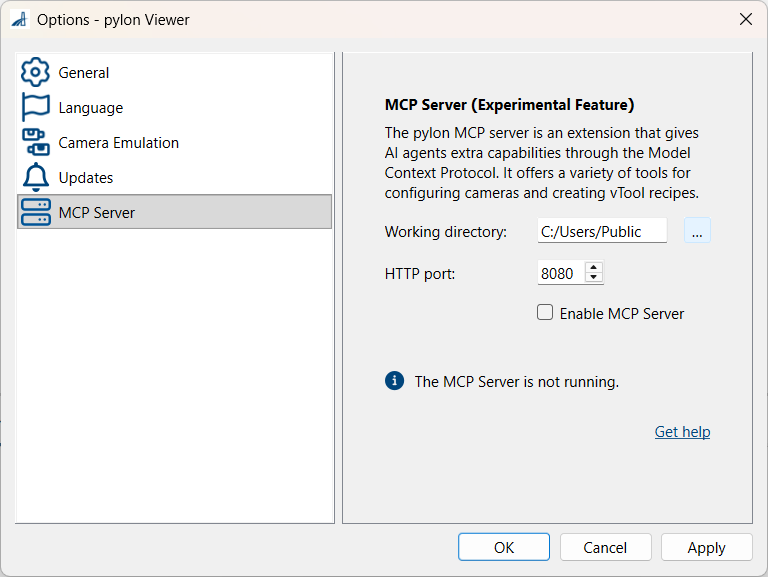
- Optional: Change the HTTP port. The default is 8080.
- On Windows and Linux only: Choose a working directory.
The agent can read and write recipe and calibration files only inside this directory. - Select the Enable MCP Server check box.
A message in the dialog shows whether the server is running.
The server only accepts connections from the local computer at http://localhost:<port>/mcp.
Adding the Server to an Agent#
The examples below use the default HTTP port 8080. If you have changed the port, use your port number instead. The pylon Viewer must be running with the MCP Server enabled whenever the agent uses it.
Info
An agent connected to the server can change camera settings. Check what the agent proposes before using it in a production system.
Claude Code#
claude mcp add --transport http pylon-viewer http://localhost:8080/mcp
VS Code (GitHub Copilot)#
Add the following to .vscode/mcp.json:
Cursor#
Add the following to .cursor/mcp.json in your project. To make the server available in all projects, add it to .cursor/mcp.json in your home directory instead.