Overview of the pylon 3D Viewer#
The following screenshot shows the different elements of the pylon 3D Viewer.
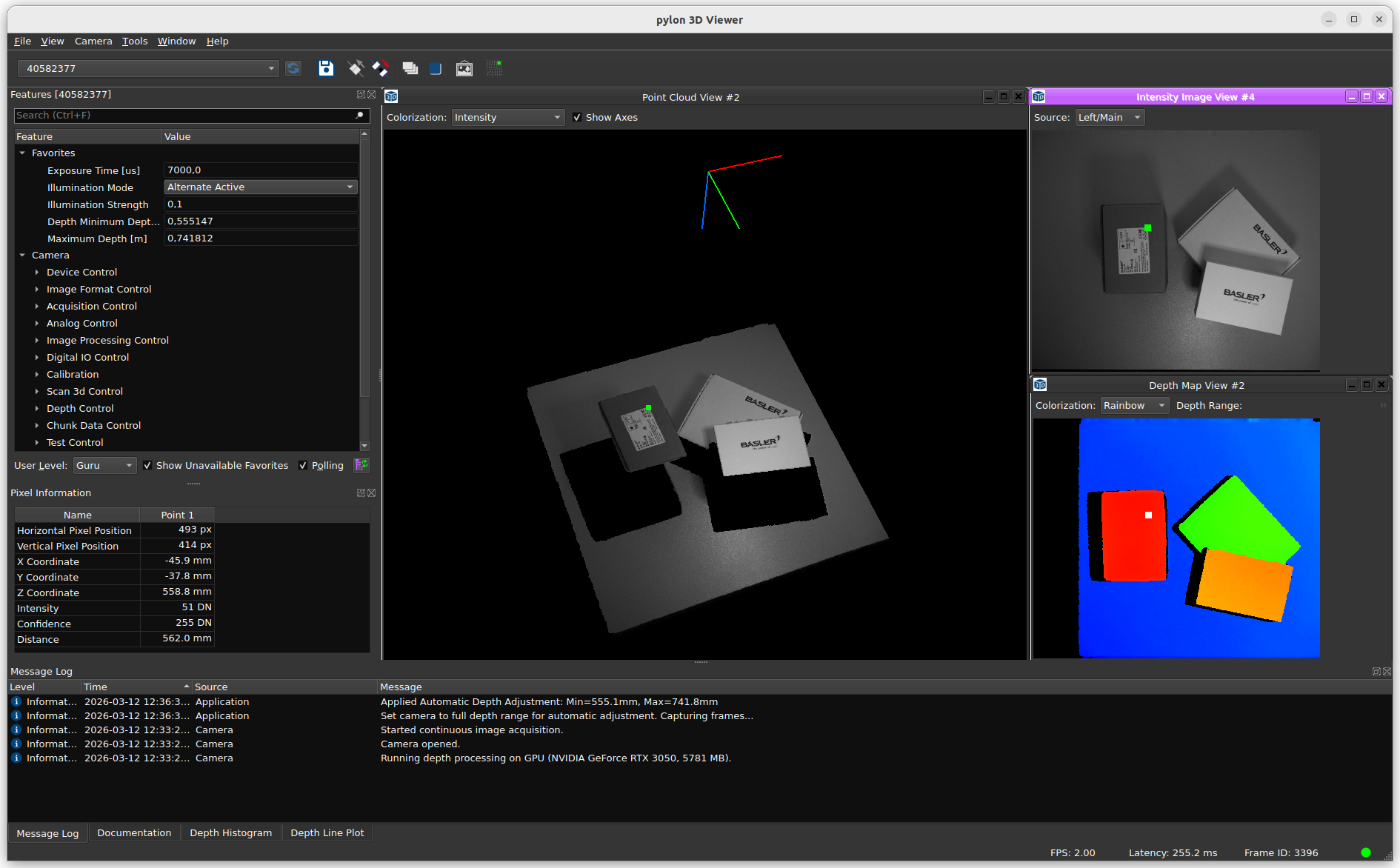
The application layout consists of these main areas:
- A menu bar
- Several toolbars
- Dockable panes on the left and right side
- An image window area with 2D and 3D subwindows
- A status bar at the bottom
Menus#
File Menu#
The File menu offers the following commands:
- Save Depth and Image Data (Ctrl+S): Saves depth and image data as well as camera settings to file. There are various formats available. For more information, see Saving Depth and Image Data.
- Exit (Ctrl+Q): Closes the pylon 3D Viewer.
View Menu#
Use the View menu to show or hide UI elements. The menu is generated dynamically and includes toggle entries for:
- Toolbars (for example, Camera Selector, File, Camera Control, Point Picking)
- Panes (for example, Camera Features, Pixel Information, Documentation, Message Log, Depth Histogram, Depth Line Plot)
Camera Menu#
The Camera menu offers the following commands:
- Rescan: Updates the list of available cameras.
- Open (Ctrl+O): Opens the selected camera.
- Close (Ctrl+L): Closes the active camera.
- Continuous Shot (F7): Starts continuous acquisition.
- Stop (F8): Stops image acquisition.
- Automatic Image Adjustment: Automatically sets camera parameters and adjusts the depth range. The function is only available for supported camera models and features.
- Save Features: Saves the current camera feature settings in a .pfs file. Image acquisition must be stopped before saving.
- Load Features: Loads camera feature settings from a previously saved .pfs file.
Tools Menu#
The Tools menu gives you access to the following commands. Depending on the camera model and installation, not all entries are available.
- pylon IP Configurator: Starts the external IP configuration tool for GigE devices.
- pylon GigE Optimizer: Opens the network optimization dialog for GigE Vision cameras.
- Stereo Calibration Tool: Starts the external stereo calibration tool.
- Toggle Pick Mode (Alt+P): Switches between single-point and dual-point picking mode.
Window Menu#
Use the Window menu to create and arrange image windows.
The menu typically contains these sections:
- 2D Views
- 3D Views
- Window arrangement and navigation
Available commands include:
- New Depth Map View
- New Confidence Map View
- New Intensity Image View
- New Point Cloud View
- Close
- Close All
- Tile
- Cascade
- Next
- Previous
Below a separator, the menu shows a numbered list of currently open subwindows. The active subwindow is marked.
Help Menu#
The Help menu gives you access to documentation and support functions. Depending on the camera model, not all entries are available.
- pylon 3D Viewer Help (F1): Opens the viewer documentation. If a feature is selected, help opens context-sensitive content for this feature.
- Basler Product Documentation: Opens product documentation for the connected camera.
- Programmer's Guide: Opens the programmer's guide for the connected camera model.
- Open Samples Directory: Opens the folder containing programming samples.
- Check for Software Updates: Opens the Basler download page for software updates.
- Check for Firmware Updates: Opens the Basler download page for firmware updates.
- Update Camera Firmware: Opens the camera firmware update page in a browser (supported models only).
- Download DiagnosticInfo.tar.gz: Downloads a diagnostics package from the camera (supported models only).
- Show Release Notes: Opens local release notes if available.
- About pylon 3D Viewer: Opens a dialog with version and license information.
Toolbars#
Camera Selector Toolbar#
Contains a camera selection drop-down with all currently detected devices.
File Toolbar#
Contains a Save button to save depth and image data.
Camera Control Toolbar#
Provides quick access to camera commands:
- Open
- Close
- Continuous Shot
- Stop
- Automatic Image Adjustment
Point Picking Toolbar#
Contains Toggle Pick Mode to switch between single-point and dual-point picking.
Panes#
Camera Features#
The Camera Features pane displays the GenICam feature tree of the selected camera.
Typical usage:
- Expand and collapse feature categories.
- Select a feature to show context documentation in the Documentation pane.
- Press ++F1++ for feature-specific help.
- Read and edit features (editing may be restricted during acquisition).
Pixel Information#
The Pixel Information pane shows position and depth-related values for picked points.
In single-point mode, the pane shows values for one selected point.
In dual-point mode, the pane additionally shows delta values between both points (for example, dX, dY, dZ) and the Euclidean distance.
For details, see Image Windows.
Documentation#
The Documentation pane displays context-sensitive information for the feature selected in the Camera Features pane.
Message Log#
The Message Log pane shows application messages with severity and time information, for example:
- Information
- Warning
- Critical
This is useful for troubleshooting connection, acquisition, and configuration issues.
Depth Histogram#
The Depth Histogram pane shows the current depth-value distribution (histogram) of the active scene.
Depth Line Plot#
The Depth Line Plot pane visualizes the depth profile along the line between two picked points (dual-point mode).
An optional Invert Depth Axis setting can be used depending on your preferred representation.
Image Window Area#
The image window area contains 2D and 3D subwindows. By default, the viewer opens a standard set of windows.
Typical default views are:
- Intensity Image View
- Depth Map View
- Point Cloud View
The window layout is stored per camera type. When reconnecting the same camera family, the previous layout is restored.
All panes can be docked, undocked, hidden, and restored via the View menu.
Views#
Point Cloud View (3D)#
Shows depth data as a 3D point cloud.
Common options:
- Colorization mode
- Show Axes
Available colorizations include, depending on camera model and data:
- White
- Intensity
- Distance
- Z Axis
- Confidence Color
- Intensity Color
Depth Map View (2D)#
Shows the range/depth map as a 2D image.
Common options:
- Colorization
- Depth range slider
Typical colorizations:
- Gray
- Rainbow
Confidence Map View (2D)#
Shows confidence values as a grayscale image.
Intensity Image View (2D)#
Shows the camera's intensity or infrared image channel. Available channels depend on camera model.
Typical channels include:
- Intensity Left
- Intensity Right
- Intensity Combined
- Infrared Left
- Infrared Right
Other Viewer Functions#
Point Picking#
The viewer supports point picking in 2D and 3D views.
- Single-point mode: Select one point to inspect its values.
- Dual-point mode: Select two points to compare values and distance.
Shortcuts:
- Alt+P: Toggle single-point/dual-point mode.
- Alt+C: Clear picked points.
Automatic Image Adjustment#
Automatic Image Adjustment analyzes the current scene and automatically sets an appropriate depth range (DepthMin, DepthMax) when supported by the connected camera.
Status Bar#
The status bar shows runtime information such as:
- Current FPS
- Latency (model-dependent)
- Frame ID
- Connection quality indicator
Layout Persistence#
The viewer stores and restores its window layout.
- Position and visibility of panes
- Open 2D/3D views and their arrangement
- View-specific settings
Layout is stored per camera type, allowing fast switching between different camera families.