vTool Licensing#
This topic explains which license types are available and how to obtain a license.
License Types#
Demo License#
Demo licenses are pure software licenses that don't require a dongle. They allow you to use all licensable vTools in your current pylon installation for a period of 80 days after activation. Once a demo license has expired, it can't be renewed. Also, the following restrictions apply:
- Each vTool can only be run for five (5) consecutive minutes. You can restart it once execution has stopped.
- vTools can only be used in the pylon Viewer, not in the API.
- Recipes you create can't be imported into your application code.
- The license is tied to the pylon major version for which it was activated. Therefore, if you install a new pylon version, you have to request a new demo license.
Requesting a Demo License#
- In the vTools pane of the pylon Viewer, click the free demo license link.
- You will be asked to enter your e-mail address.
You will receive an e-mail with a link for activating the license. - Click the link. On the page that opens, click the activation button.
The license will now be active for 80 days.
Evaluation License#
Evaluation licenses are pure software licenses that don't require a dongle. They allow you to use all licensable vTools for a period of 180 days after activation. Once an evaluation license has expired, it can't be renewed. The difference to the demo license is that you can import recipes created with an evaluation license into your application code and that you can work with them via the API. An evaluation license supersedes a demo license, i.e., after its activation you will immediately benefit from the increased scope even if your demo license is still valid. The following restriction applies:
- Each vTool can only be run for five (5) consecutive minutes. You can restart it once execution has stopped.
Requesting an Evaluation License#
- Send a sales inquiry to Basler Sales asking for a vTool Evaluation License.
Basler Sales will get in touch with you for all further information.
Stability Evaluation License#
Stability evaluation licenses are available as software licenses. Alternatively, they can also be activated on a USB dongle. They allow you to use all licensable vTools for a period of 30 days after activation and to run the vTools continuously for up to 7 days. Once a stability evaluation license has expired, it can't be renewed. It allows you to import recipes created with an evaluation or stability evaluation license into your application code and to work with them via the API. A stability evaluation license supersedes a demo license, i.e., after its activation you will immediately benefit from the increased scope even if your demo license is still valid. The following restrictions apply:
- The license is valid for 30 days.
- The license is tied to a specific system and is not transferable.
Info
The stability evaluation license is intended for testing the performance and stability of applications after development has been completed. During the application and system design phase, use the evaluation license.
pylon 25.10 or above is required.
Requesting a Stability Evaluation License#
- Send a sales inquiry to Basler Sales asking for a vTool Stability Evaluation License.
Basler Sales will get in touch with you for all further information.
Runtime License#
Runtime licenses give you unlimited use of the vTools you've purchased. You can buy runtime licenses for individual vTools or for vTool bundles.
Buying a USB dongle in addition to the licenses is the easiest way to manage your licenses. You can load several licenses onto one dongle. After you've loaded the licenses onto the dongle, you can easily transfer them from one computer to another.
Alternatively, you can opt for a software license. In this case, the licenses are tied to the computer on which you've activated them.
Considerations When Using Software Licenses
If you're planning to reconfigure or reinstall the operating system on the computer on which you have activated software licenses, you must contact Basler support beforehand to make sure that you will be able to use the licenses after reconfiguration/reinstallation.
It is not possible to restore licenses that haven't been deactivated properly in case your computer suffers a fatal system error or crash.
The following table lists the respective advantages of each option.
| USB Dongle Licenses | Software Licenses |
|---|---|
| Dongles with activated licenses can easily be transferred to other computers | No USB port needed |
| Licenses remain valid after hardware configuration changes and fatal system errors | No extra dongle cost |
| Fast activation because no hardware needs to be shipped |
Purchasing a Runtime License#
- Visit the Basler vTools product page.
There, you will find an overview of all the available vTools and vTool bundles. - Decide which vTools or bundles you want to buy and note their order numbers.
- Send a sales inquiry to Basler Sales including the names and order numbers of the desired vTools or bundles and whether you need a USB dongle.
License Activation#
The following sections explain how to activate your licenses. The instructions apply to all license types.
Activating Licenses#
When your licenses order has been completed, you will receive an email with an activation link. The activation procedure is the same regardless of whether you're activating the licenses on a USB dongle or using the software licensing option.
To activate your licenses:
If you're using a USB dongle, make sure it is connected to your computer before starting.
- Open the activation link in a web browser on your computer, ensuring you have internet access.
The WebDepot opens on the License Activation - Select CmContainer page.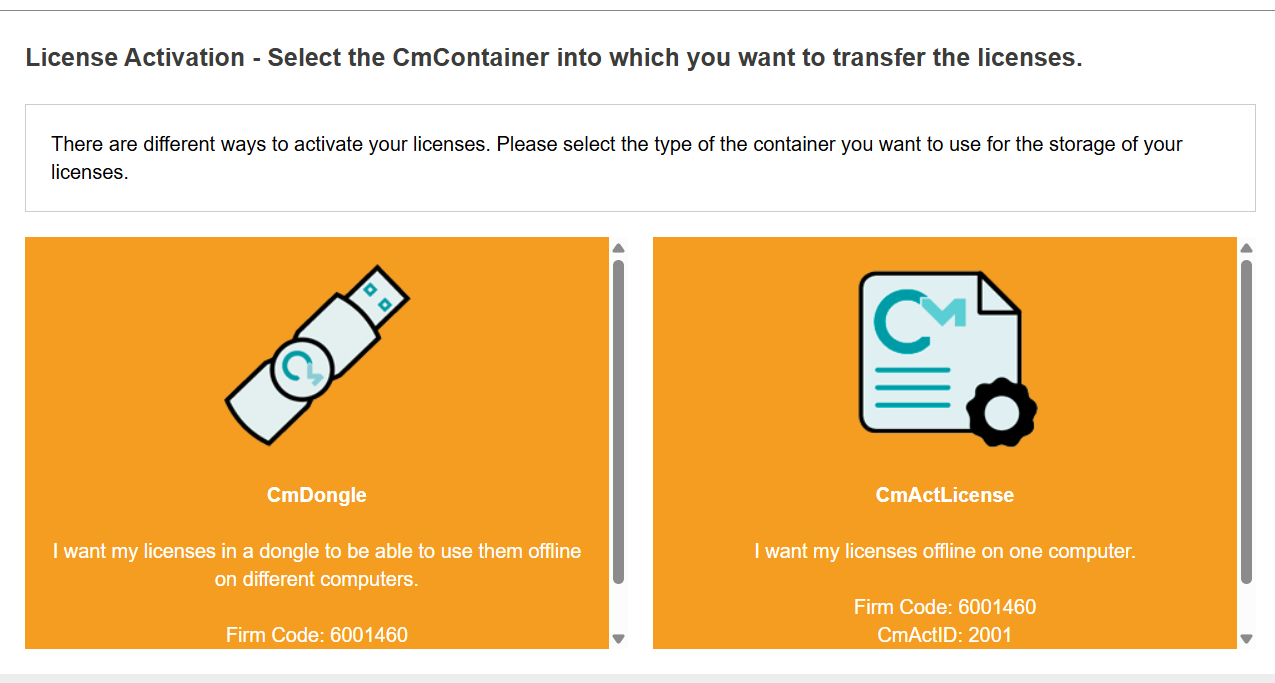
- On the License Activation - Select CmContainer page, select the desired activation method:
- CmDongle if you're using a USB dongle
- CmActLicense if you want to bind the licenses to your computer
The License Activation page opens.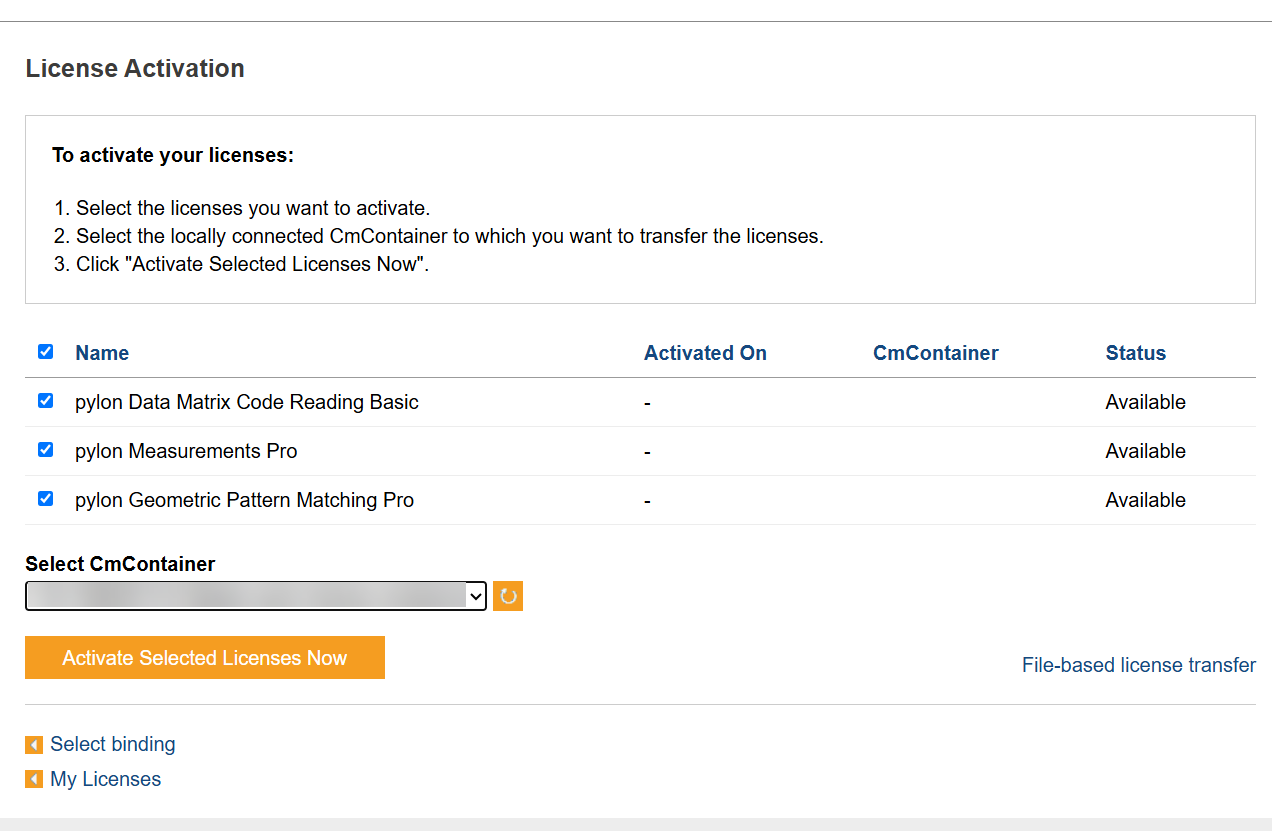
- Select the licenses you want to activate.
- Select the license container from the Select CmContainer drop-down list.
- Click Activate Selected Licenses Now.
The license transfer to your selected container starts immediately. This may take up to a few minutes.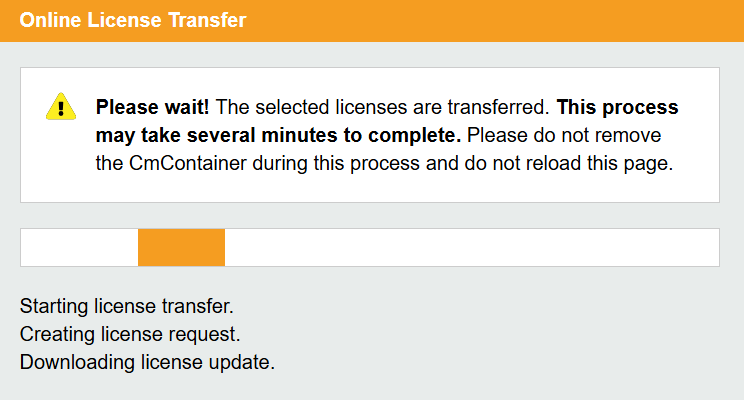
- When the transfer has been completed, a message appears. Click OK to close this message.
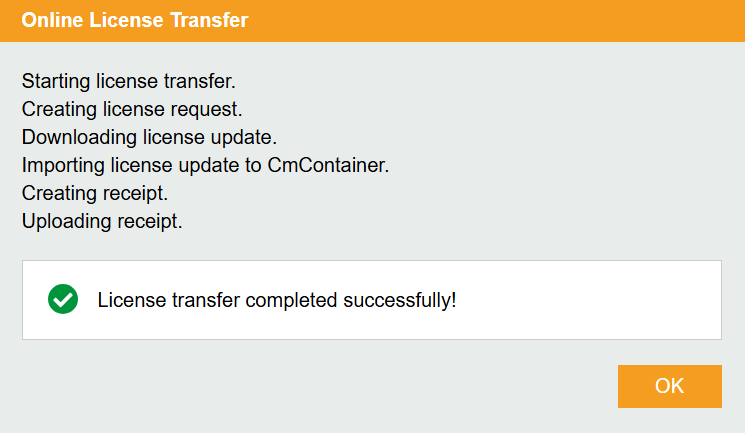
- In the WebDepot, go to My Licenses to see details of the licenses activated.
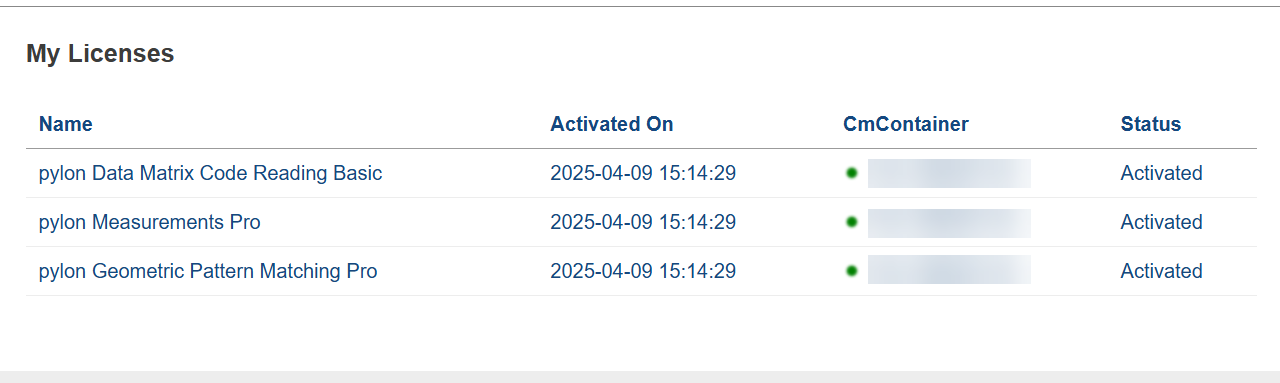
Activating Licenses on Multiple USB Dongles#
If you received an activation link that includes multiple licenses, follow these steps to distribute them across multiple USB dongles:
- Connect a USB dongle to your computer.
- Open the activation link in a web browser on your computer, ensuring you have internet access.
The WebDepot opens on the License Activation - Select CmContainer page. - On the License Activation - Select CmContainer page, select the CmDongle activation method.
The License Activation page opens.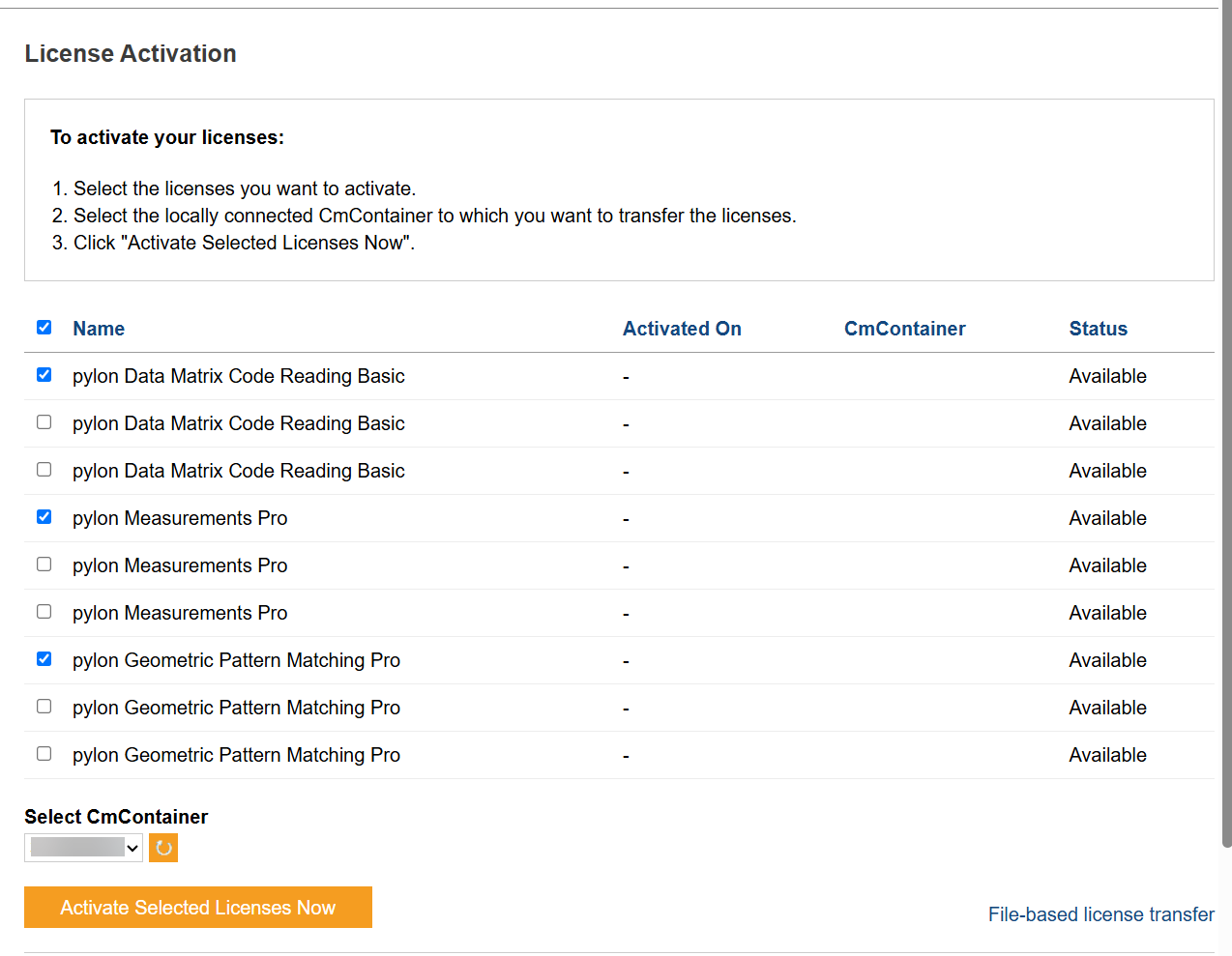
- Select the license(s) you want to activate.
- Select the license container from the Select CmContainer drop-down list.
- Click Activate Selected Licenses Now.
The license transfer to your selected container starts immediately. This may take up to a few minutes. - When the transfer has been completed, a message appears. Click OK to close this message.
- Connect the next dongle to your computer and repeat steps 4 to 7 to distribute the remaining licenses.
Activating Licenses Offline#
It is also possible to activate licenses on computers without internet access using a file-based license transfer. File-based license transfer can be used for both USB dongle and software licenses. This is a 3-step procedure:
- Request
- Update
- Receipt
A wizard in the CodeMeter WebDepot will guide you through the process.
Step 1: Request
- On the computer without internet access, open the CodeMeter Control Center.
If you have installed the CodeMeter Runtime for the first time, no licenses are displayed. To issue a license request, you need to import the Basler generic license container first.
If you already have a license container, you can continue with step 5.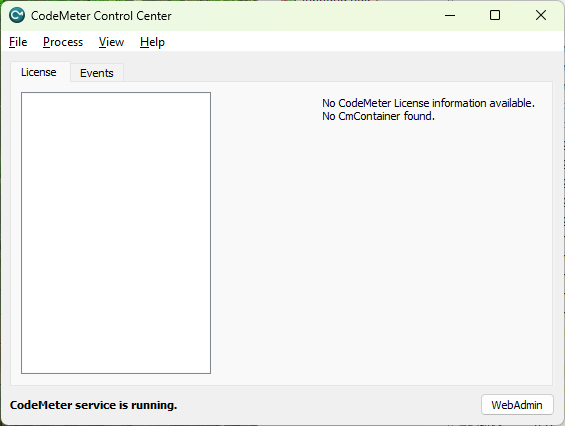
- Copy the Basler_pylon_license_container.WibuCmLif file from your pylon installation folder to your target machine:
Windows: Applications/x64/share/
Linux: share/pylon/ - Drag and drop the file onto the License tab of the CodeMeter Control Center.
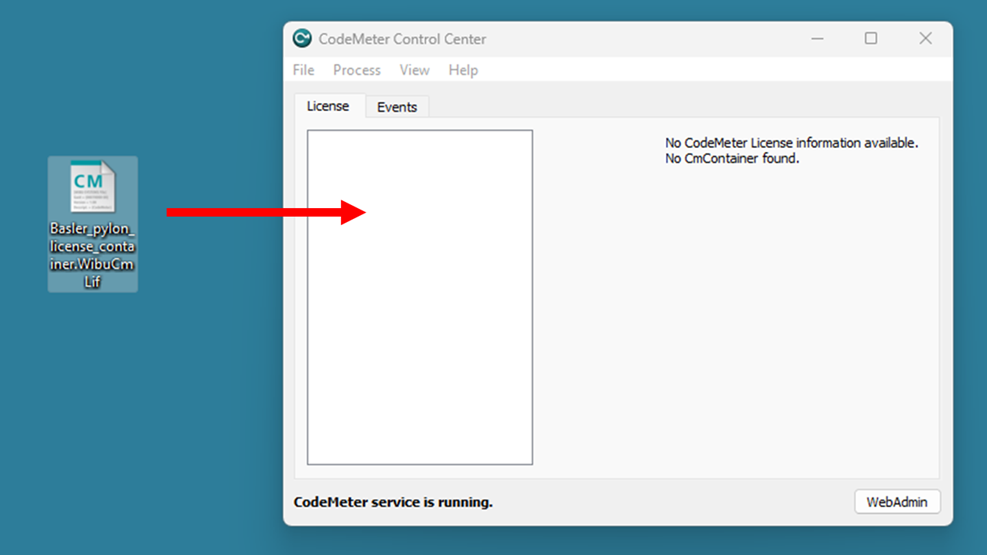
A message is displayed that the action has been successful.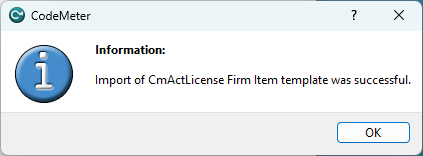
- Click OK to close the message.
An empty license container has been created for which you can now request licenses.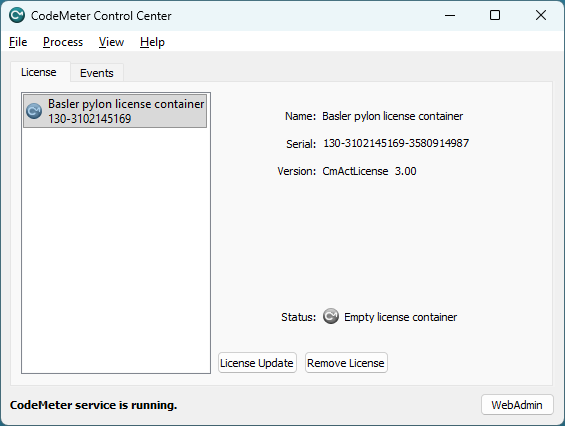
- To start the license request, select the license container to which you want to transfer licenses.
- Click License Update.
The CmFAS Assistant opens.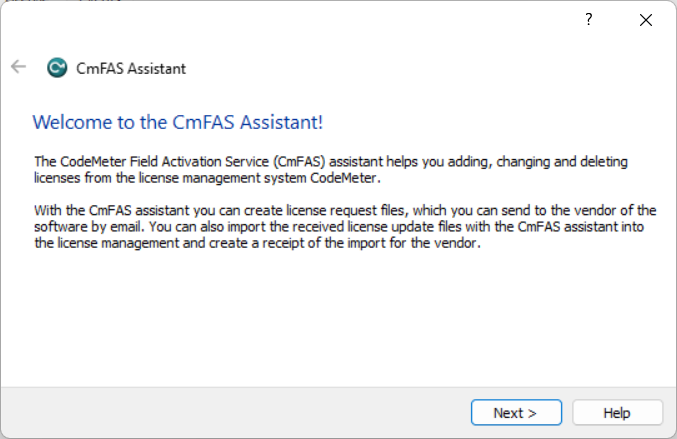
- Click Next.
The Select Action page of the assistant opens.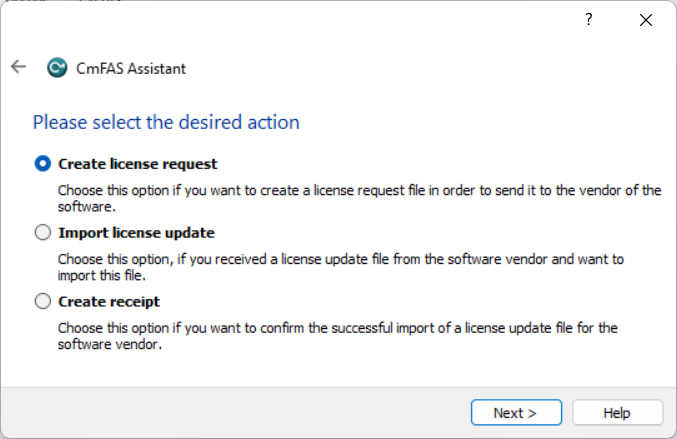
- Select Create license request.
- Click Next.
The Select File Name page of the assistant opens.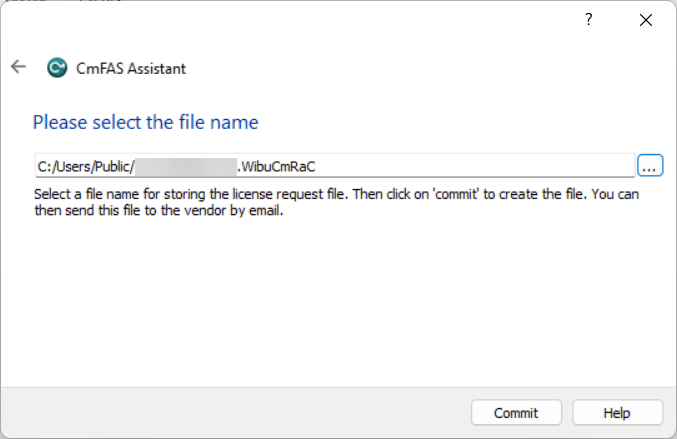
- Specify the name of the request file and where to save it.
The default file name is the serial number of the container used. You can change this if required. - Click Commit.
A message is displayed that the file has been created.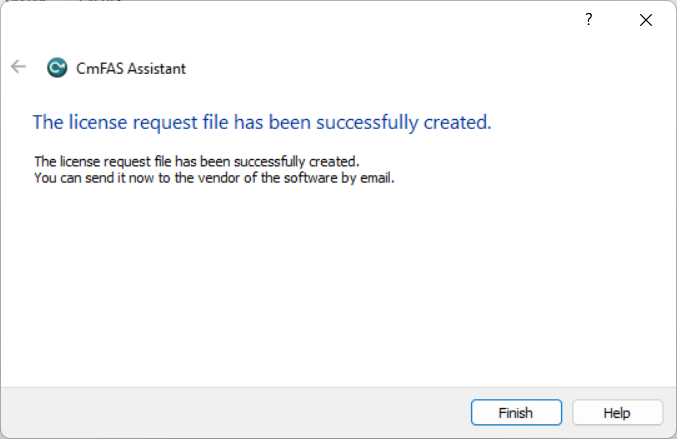
- Click Finish to exit the assistant.
- Transfer the request file to the computer with internet access, e.g., using a USB stick.
- On a computer with internet access, open the license activation link you received before in any browser.
The WebDepot opens on the License Activation - Select CmContainer page. - On the License Activation - Select CmContainer page, select the desired activation method:
- CmDongle if you're using a USB dongle
- CmActLicense if you want to bind the licenses to your computer
The License Activation page opens.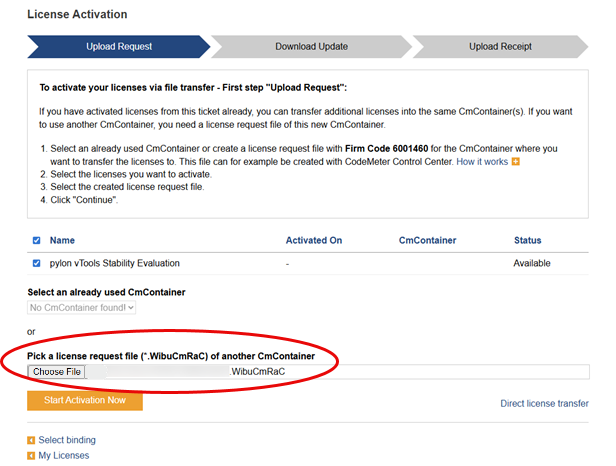
- Select the license request file.
- Click Start Activation Now.
The Download Update page opens.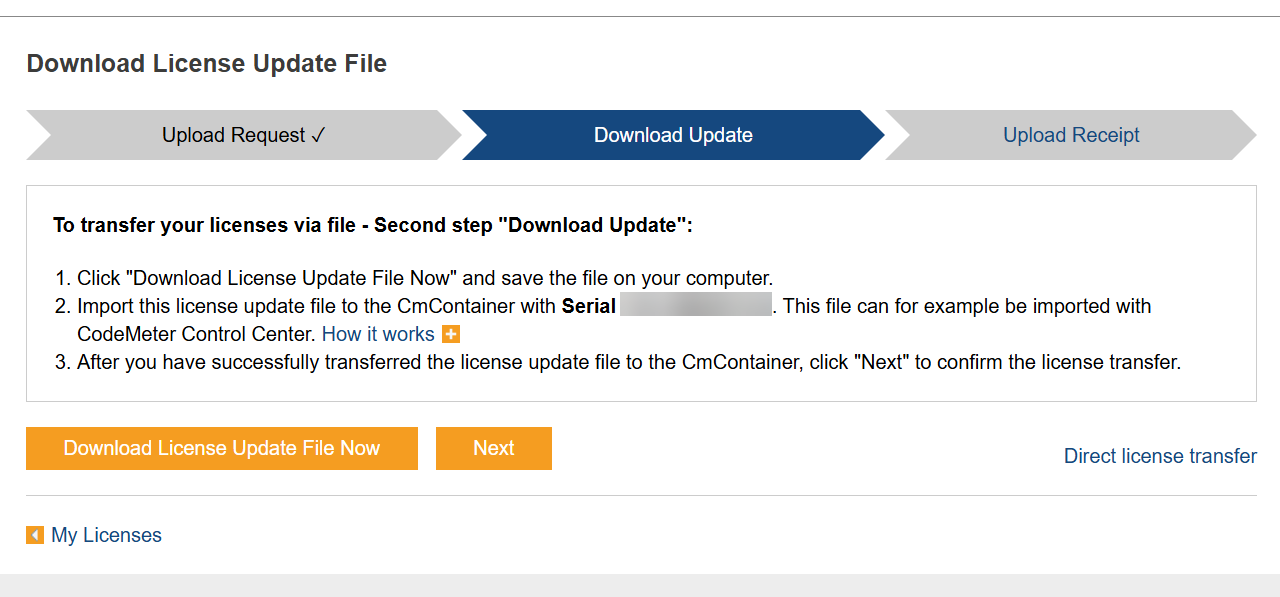
- On the Download Update page, click Download License Update File Now to download the update file containing the new state of the license.
Don't close the browser window while the download is in progress. - Transfer the file (.WibuCmRaU) to the computer without internet access, e.g., using a USB stick.
Step 2: Update
- On the computer without internet access, open the CodeMeter Control Center.
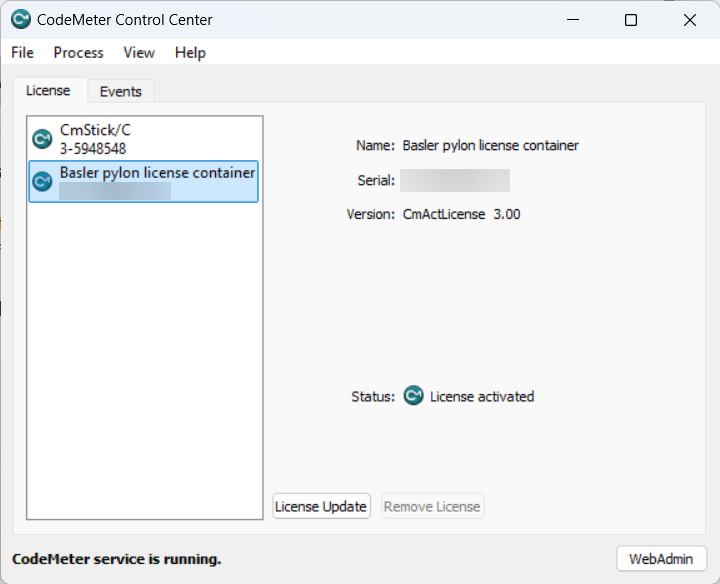
- On the License tab, select the license container to which you want to transfer the licenses.
- Click License Update.
The CmFAS Assistant opens. - Click Next.
The Select Action page of the assistant opens.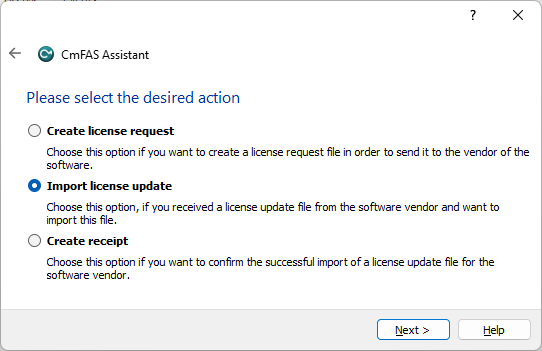
- Select Import license update.
- Click Next.
The Select File Name page of the assistant opens.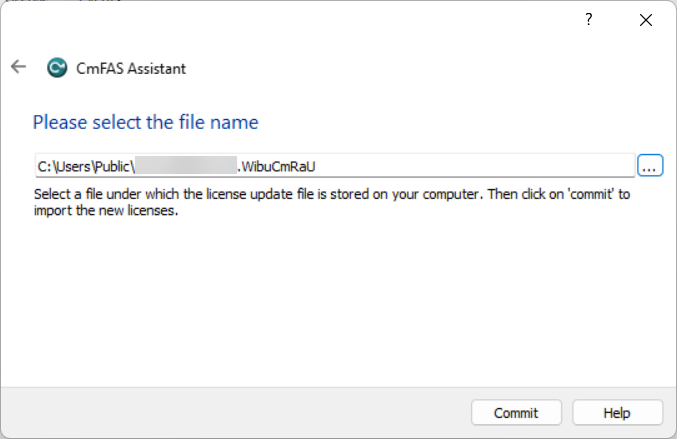
- Select the update file you transferred to this computer before.
- Click Commit.
A message is displayed that the update has been applied to the container.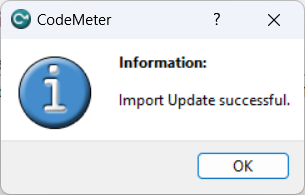
- Click OK to close the message.
- Click Finish to exit the assistant.
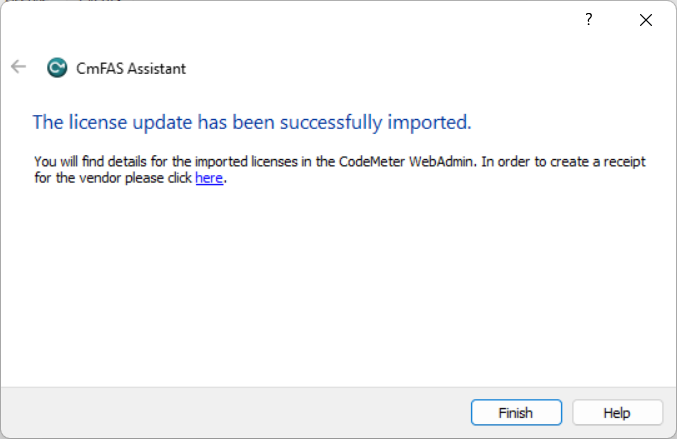
- In the CodeMeter Control Center, click License Update to acknowledge the process by sending back a receipt.
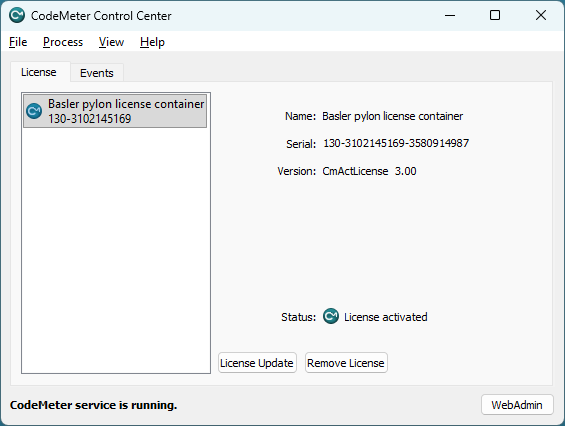
The CmFAS Assistant opens. - Click Next.
The Select Action page of the assistant opens.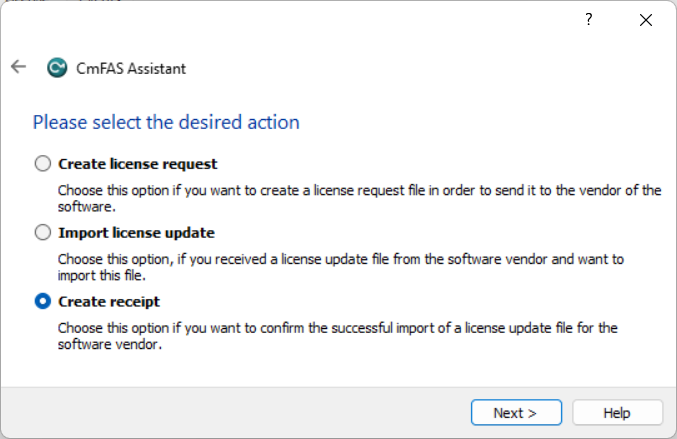
- Select Create receipt.
- Click Next.
The Select File Name page of the assistant opens.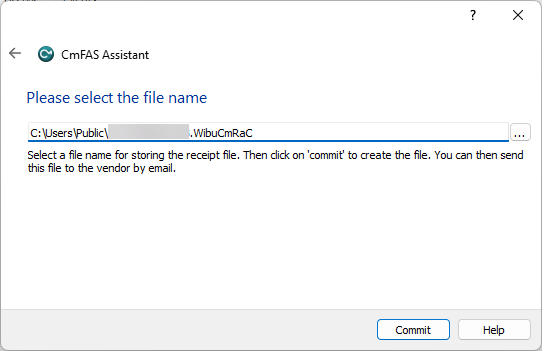
- Specify the name of the receipt file and where to save it.
The default file name is the serial number of the container used. You can change this if required. - Click Commit.
A message is displayed that the file has been created.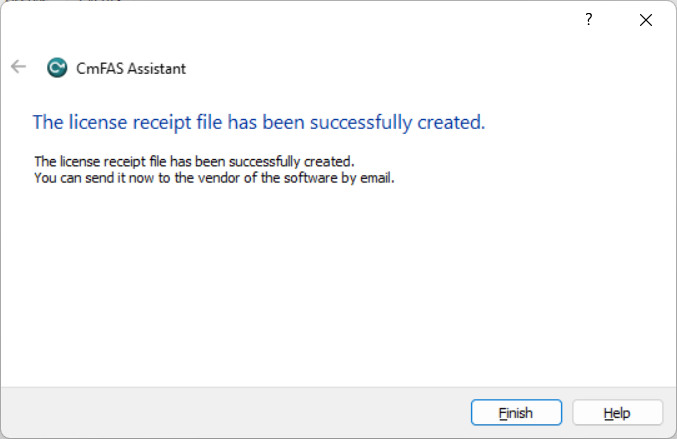
- Click Finish to exit the assistant.
- Transfer the receipt file to the computer with internet access, e.g., using a USB stick.
Step 3: Receipt
- In the WebDepot on the computer with internet access, click Next on the Download Update page.
- On the Upload Receipt page, click Choose File to select the receipt file.
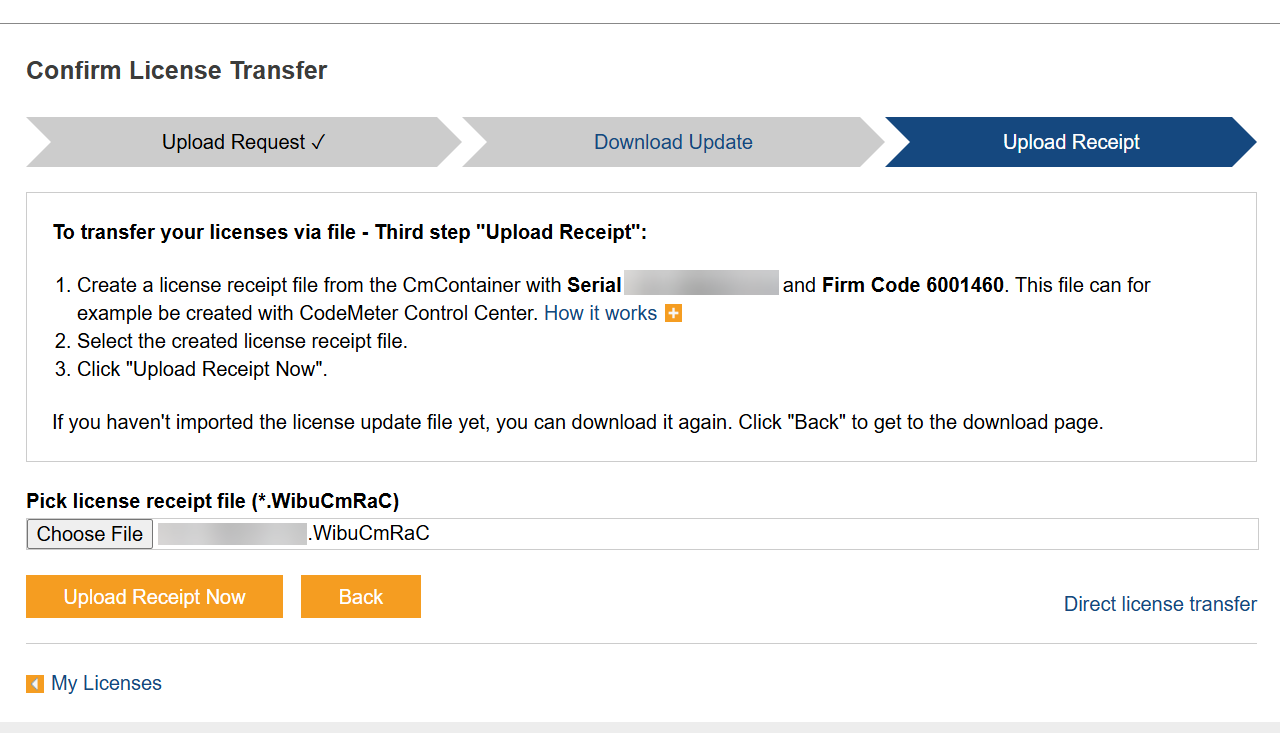
- Click Upload Receipt Now.
A message is displayed that the license transfer has been completed.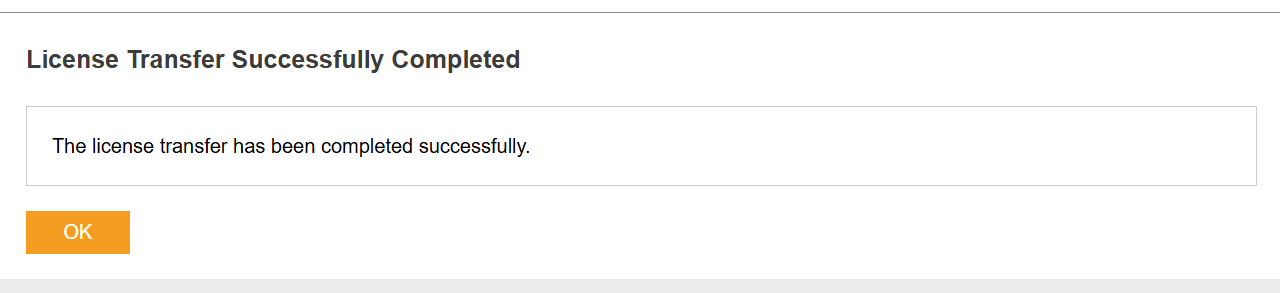
- Click OK to get back to the My Licenses page.
Your activated licenses will be displayed.
CodeMeter Runtime#
The CodeMeter Runtime must be installed in order to use vTools.
Under Windows, the CodeMeter Runtime is installed automatically when using the pylon installer and selecting the Developer profile.
Under Linux, you have to manually install the CodeMeter Runtime. For instructions, refer to the INSTALL document.
In the CodeMeter Control Center, you can check your available vTool licenses and their validity. You can open it via the Windows Start menu.
License Validity#
If you install a new major version release of the pylon Software Suite, current demo licenses become invalid even if their usage period hasn't elapsed yet. In that case, you can request another demo license for the new pylon version. Evaluation licenses aren't tied to a specific pylon version and remain valid until their 180-day license period has elapsed. Runtime licenses remain valid indefinitely.
To check the time left until expiry of a demo or evaluation license:
- In the Workbench or Help menu, click vTool Licensing.
The vTool Licensing tab of the Welcome to pylon dialog opens. - On the My Licenses card, you will find an overview of all active licenses and the corresponding expiry dates.
General Restrictions#
- vTools can't be used on virtual machines.
- Demo licenses are tied to the pylon major version for which they were activated.